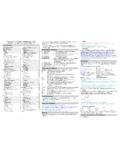
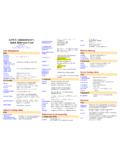
Transcription of Adobe Photoshop 7.0 Quick Reference Card for Windows
1 Version 7 for Windows Quick Reference CARDA dobe OnlineMove (V)(M) Rectangular Marquee Magic wand (W)Slice (K)Brush (B)History brush (Y )*Gradient (G)*Dodge (O) Horizontal Type ( T )Rectangle (U)Eyedropper (I)Zoom (Z)Switch colors (X)Background colorQuick mask mode (Q)* Additional ImageReady Toolbox itemsFull screen mode (F)(L) Lasso(C) Crop (J) Healing brush*(S) Clone stamp(E) Eraser(R) Blur (A) Path selection*(P) Pen*(N) Notes*(H) HandForeground color(D) Default colors(Q) Standard mode*(F) Standard screen mode(F) Full screen mode with menu barToggle slices visibility (Q)Preview in default browser(Ctrl + Alt + P)(Y) Preview Document(A) Toggle image maps visibilityRounded rectangular marquee Elliptical marqueeSingle row marqueeSingle column marqueeePattern stamp*Patch*Magic eraserBackground eraser*Sharpen Smudge Direct selection*Freeform pen*Add anchor point*Delete anchor point*Audio annotation*Convert point*Polygonal lassoMagnetic lasso*Slice selectArt history*Airbrush Radial gradient Angle gradient Reflected gradient Paint bucket Diamond gradient Burn Sponge Vertical type*Horizontal type mask*Vertical type mask*Rounded rectangleLineColor sampler*Measure** Not in ImageReady In a different location in the ImageReady toolbox Tools appear in Options bar only ImageReady onlyCircle image map Polygon image
2 Map Image map select Custom shape*EllipsePolygon*Rectangle image map Jump to Photoshop (Ctrl+ + M)Jump to ImageReady(Ctrl + + M)Pencil (B) ( Photoshop )(N) (ImageReady) Toolbar shortcuts Press shortcut key (in parentheses) to select tool Ctrl + Tab cycles through open documents Alt + click + tool or + shortcut key cycles through hidden tools (except ) Select tool and press Enter to highlight options bar Right + click displays context-sensitive menu constrains dragging or drawing to straight line or multiples of 45 Caps Lock displays precise cross hair for brushes Enter applies an operation of the magnetic lasso*;Esc cancels the operation / toggles shield off and on (crop tool only) Shift Key *Not in ImageReady ImageReady only Viewing Hold down Ctrl to scroll left (Page Up) or right (Page Down) Selecting and moving objects Hold down to move 10 pixels Applies to shape tools Painting Hold down to preserve transparency RESULTACTION Fits image in windowDouble-click , or Ctrl + (zero)100% magnificationDouble-click , or Alt + Ctrl + (zero)
3 Zooms in or outCtrl + or or Ctrl + spacebar, or Alt + spacebarApplies zoom percentage, and keeps zoom percentage box active* + Enter in Navigator paletteZooms in on specified area of an image*Ctrl + drag over preview in Navigator palette RESULTACTION Scrolls image with hand tool*Spacebar + drag, or drag view area box in Navigator paletteScrolls up or down 1 screenPage Up or Page Down Scrolls up or down 10 units + Page Up or Page Down Moves view to upper left corner or lower right cornerHome or EndToggles layer mask on/off as rubylith*\ RESULTACTION Repositions marquee while selecting Any marquee tool (except single column and single row) + dragAdds to or subtracts from selection Any selection tool + or Alt + drag Intersects a selection Any selection tool + + Alt + drag Constrains marquee to square or circle (if no other selections are active) + dragDraws marquee from center (if no other selections are active) Alt + dragConstrains shape and draws marquee from center + Alt + dragCtrl (except when or any pen tool*, path*, shape tool*, slice, rectangle image map , circle image map , or polygon image map tool is selected)
4 Switches from to *Alt + drag RESULTACTION Switches from to *Alt + clickMoves copy of selection + Alt + drag selection Moves selection area 1 pixelAny selection + Moves selection 1 pixel + Moves layer 1 pixel when nothing selected on layerCtrl + Increases/decreases detection width* + [ or ]Accepts cropping or exits cropping+ Enter or EscMakes protractor * + Alt + drag end point Snaps guide to ruler ticks + drag guideToggles guide orientationAlt + drag guide RESULTACTION Any painting tool + Alt (also any shape tool + Alt)Selects background color + Alt + click* + Deletes * + Alt + clickSets opacity, tolerance, strength,or exposure for painting modeAny painting or editing tool + number keys ( , 0 = 100%, 1 = 10%, 4 then 5 in Quick succession = 45%)(For Airbrush, use + number keys)Sets flow for painting modeAny painting or editing tool + + number keys ( , 0 = 100%, 1 = 10%, 4 then 5 in Quick succession = 45%)(For Airbrush, omit )
5 RESULTACTION Cycles through blending modes + Fills selection/layer with foreground or background colorAlt + Backspace, or Ctrl + Backspace Fills from history*Alt + Ctrl + Backspace Displays Fill dialog box + BackspaceLock transparent pixels on/off/Connects points with a straight lineAny painting tool + + click Shift Key *Not in ImageReady ImageReady only Editing Hold down Alt to decrease/increase 10x Hold down Ctrl to decrease/increase 10x Path editing*Slicing and Optimizing RESULTACTION Moves type in imageCtrl + drag type when Type layer is selectedAligns left, center, or right* + + Ctrl + L, C, or RAligns top, center, or bottom* + + Ctrl + L, C, or RSelects 1 character left/right or 1 line down/up, or 1 word left/right + ,or + Ctrl + Selects characters from insertion point to mouse click point + clickMoves 1 character left/right, 1 line down/up, or 1 word left/right , , or Ctrl + Designates new origin over existing type + click or click + dragSelects word, line, paragraph, or storyDouble-click, triple-click, quadruple-click.
6 Or quintuple-clickShows/Hides selection on selected typeCtrl + HToggles Underlining on/off* + Ctrl + UToggles Strikethrough on/off* + Ctrl + /Toggles All Uppercase on/off* + Ctrl + KToggles Small Caps on/off* + Ctrl + HToggles Superscript on/off* + Ctrl + + RESULTACTION Toggles Subscript on/off* + Alt + Ctrl + +Chooses 100% horizontal scale* + Ctrl + XChooses 100% vertical scale* + Alt + Ctrl + XChooses Auto leading* + Alt + Ctrl + AChooses 0 for tracking* + Ctrl + QJustifies paragraph, left aligns last line* + Ctrl + JJustifies paragraph, forces last line* + Ctrl + FToggles paragraph hyphenation on/off* + Alt + Ctrl + HToggles single/every-line composer on/off* + Alt + Ctrl + TDecreases/increases type size of selected text 2 pts/px + Ctrl + < > Decreases/increases leading 2 pts/pxAlt + Decreases/increases baseline shift 2 pts/px + Alt + Decreases/increases kerning/tracking 20/1000 emsAlt + RESULTACTION Selects multiple anchor points+ + clickSelects entire path + Alt + clickDuplicates a path(works with any pen tool)
7 + Alt + Ctrl + dragSwitches from or to CtrlSwitches from to when over pathAlt RESULTACTION Switches from to when pointer is over anchor point or direction pointAlt + CtrlSwitches from or to when pointer is over anchor or direction pointAltCloses path+ double-clickCloses path with straight-line segment + Alt + double-click RESULTACTION Toggles browser dither for selected image pane in Optimized view + Ctrl + YToggles through gamma previews in selected image pane Alt + Ctrl + YToggles through Optimized/ 2up/4up/ Original window Ctrl + YToggles between slice tool and slice selection toolCtrl RESULTACTION Draws square slice + dragDraws from center outwardAlt + dragDraws square slice from center outwardAlt + + dragRepositions slice while creating sliceSpacebar + dragOpens context-sensitive menuRight mouse button on slice Shift Key *Not in ImageReady ImageReady only History palette A.
8 Sets source for history brush* *; double-click snapshot name to renameC. States of the image, from first to most recent; + Ctrl + Z steps forward; Alt + Ctrl + Z steps backward*; Alt + click duplicates any states except the current state* slider moves selection between statesE. Creates new document from current state or snapshot* ImageReady Only Redo Other history shortcuts Alt + Clear History (in History menu) clears history permanently (No Undo)*EDACBFG Paths palette* Path name: + Ctrl + click adds path to selection; Ctrl + Alt + click subtracts the path from selec-tion; + Alt + Ctrl + click retains intersection of path as a selection; + Ctrl + H hides path Alt + click Fill Path with Foreground Color button sets options Alt + click Stroke Path with Brush button sets options Alt + click Load Path as a Selection button sets options Alt + click Makes Work Path from Selection button sets options Channels palette* Alt + click Save Selection as Channel button sets options Ctrl + click Create New Channel button creates a new spot channel + click color channel selects/deselects in multiple color-channel selection + click alpha channel selects/deselects alpha channel and shows/hides as a Quick Mask Double-click alpha channel thumbnail displays channel options ~ displays composite Ctrl + ~ selects composite
9 Actions palette A. Turns set on/off* action on/offC. Turns command on/off; Alt + click turns current command on and all others off* breakout point on/off; Alt + click turns on current breakout point, and turns off all other breakout points in an action*E. Alt + double-click changes action content; Ctrl + double-click plays entire action; Alt + click collapses/expands all components of an action G. Double-click set or action displays Options dialog boxH. Stops actionI. Records actionJ. Plays action; Ctrl + click plays a commandK. Creates new set*AEGFCBDHI JLK L. Creates new action and begins recording;Alt + click creates and begins recording new actions without confirmation Other action shortcuts F9 shows/hides palette + click selects non-contiguous items of the same kind* Ctrl + click selects contiguous items of the same kind* File browser* + Ctrl +O opens file browser moves up a folder (in folder view) or a row moves down a folder (in folder view) or a row Ctrl + in moves up a level (in folder view) Ctrl + moves down a level (in folder view) moves left one item moves right one item Tab moves to next pane Home moves to the first item End moves to the last item F2 renames an item Enter renames a file Backspace moves up a l