Transcription of Accessing Outlook Web App (OWA) for Office 365
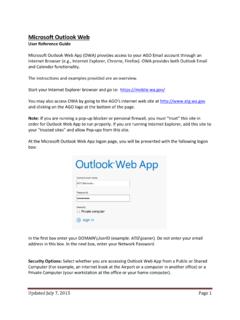
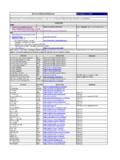
1 Accessing Outlook Web App (OWA) for Office 365. During the company migration period to Office 365, there are 2 URLs you can use to access OWA in Office 365 and there are a few additional logon screens. Once the entire company has been migrated to Office 365, the process to get to OWA will be simplified. The 2 URLs you can use to access OWA are;. If you use , you will be presented with this re-direction screen, which has the 2nd link described above. Click the link to proceed. Page 1 of 3. Accessing Outlook Web App (OWA) for Office 365. 1. On the Office 365 login screen, enter your login ID for Office 365. Notice the User ID of . Do NOT put your password in yet. Once you put your User ID in, a link will appear on the bottom right telling you to Sign in at . You can click the Remember me checkbox for future convenience. 2. Once you click the Sign in at link, you will be presented with the login screen below.
2 In the User name, enter CR\ +CRUserID (CRUserID = your normal CR network user name), and the password is your normal CR network password. Click Sign in . Page 2 of 3. Accessing Outlook Web App (OWA) for Office 365. 3. You should now be on the Office 365 landing page. Feel free to click the different options for email, calendar, and options. There are some helpful tips and information available on the right of the screen as well. ** Please do NOT click the Install Lync button, as you probably already have Lync. If you do not have Lync and want to use it, please put a ticket in the TCC ( ) and include your computer name. Page 3 of 3.