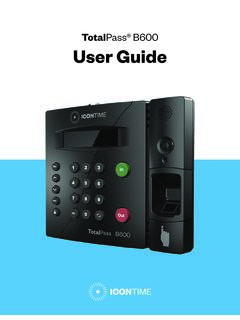
Transcription of TotalPass® B600 User Guide
1 User GuideTotalPass B600 IconTime9000 SW Gemini Drive, Bldg. 8 Beaverton, OR 97008 Contact Support: 1-800-847-2232 #1 Contact Sales: 1-800-847-2232 # 2020 IconTime. All rights of this document in whole or in part is strictly prohibited. This document may contain typographical or copy errors. TotalPass, IconTime, the IconTime logo, and all other IconTime product names mentioned in this document are registered trademarks of IconTime. 2020 IconTime. All rights reserved. Page 3 Table of ContentsChapter 1: Getting Familiar with Your Time Clock ..8 Welcome ..8 System Requirements ..8 Features ..9 Available Totalpass Upgrades ..9 Connection/Setup ..10 Logging In ..10 Support and Troubleshooting ..10 Integration with Payroll ..10 Register Your Time Clock ..10 Navigating the Time Clock Software ..10 Home Page ..11 Lists Menu ..11 Reports Menu ..11 Payroll Menu ..12 Files Menu ..12 Settings Menu ..12 Help Menu ..12 Chapter 2: Setting Your Time Clock Preferences ..13 Setting Your Pay Preferences.
2 13 Setting Your Overtime Preferences ..14 Enhanced Overtime Preferences ..14 Setting Your Punch Preferences ..15 Setting Employee Input Preferences ..16 Setting Your Device Preferences ..17 Email/Backup Preferences ..18 What is an SMTP Server?..18 Outgoing Email Settings (SMTP Server) ..19 Common SMTP Server Settings ..20 Chapter 3: Email Alerts ..21 Setting Your Alert Preferences ..21 Alert Setup ..21 Creating Custom Fields ..22 Chapter 4: Setting Up Your Employees ..24 Employee List ..24 Make Employees the Columns ..24 2020 IconTime. All rights reserved. Page 4 Time Remaining Before Overtime ..24 Adding Employees ..25 Employee Information ..25 Employee Time Deduction ..26 Web Punch Time Clock Settings ..27 Biometric Settings ..27 Accrual Settings ..28 Non-Work Hours and Benefit Time (Vacation, Sick, Personal) ..28 Delete Employee s Punches ..29 Chapter 5: Using Biometric Fingerprint Entry ..30 Time Clock Keypad Employees Fingerprints Using Self Enroll ..31 Biometric Settings.
3 31 Biometric Settings by Employee ..31 System-wide Biometric Preferences ..31 Finger Scan Preferences ..32 Photo Verification Preferences ..32 Chapter 6: Clocking In and Out ..33 Punching In and Out ..33 Biometric Finger Scan Entry ..33 Proximity Badge Punch Entry ..34 Tracking Paid Breaks ..34 Department Change (Punch In and Out Transfer) ..34 Entering Tips, Job Numbers or Piece Counts ..35 Collecting Employee Inputs on an In Employee Inputs on an Out Punch ..35 Chapter 7: Department and Supervisors ..36 Departments ..36 Customize Your Department ..36 Customize Revision Zones ..36 Assigning /Changing Departments ..37 Removing a Department ..37 Supervisors ..37 Setting Supervisor Employees to a Supervisor ..38 Supervisor Login ..39 Chapter 8: Generating Reports ..40 2020 IconTime. All rights reserved. Page 5 Report Overview ..40 Adding a Non-Work Hours (Holiday and Non-Worked) ..41 Editing a Punch ..42 Using Batch Additional Reporting Details ..42 Punches from Failed Biometric Punch Verification.
4 43 Accrual Summary Report ..44 Using the Attendance Report ..44 Using the Timecard Report ..44 Using the Individual Timecard Report ..45 Using the Department Report ..45 Using the Timecards by Department Report ..45 Create Custom Reports ..46 Generating Reports on custom Field Values Labor Distribution ..46 Chapter 9: Sending to Payroll ..49 Create Payroll Export File ..49 Paylocity Export Payroll Process ..50 ADP Workforce Now Export Payroll Process ..51 QuickBooks Export Payroll Process ..51 Configuring Payroll ..52 QuickBooks Online Configuration ..53 Chapter 10: Alternate Employee Entry Punch Entry ..54 Setting Up Your Employees Web Punch ..54 Punching In/Out Using Web Punch Entry ..54 Clocking In/Out from GPS Enabled Location Tracking ..55 Setting Authorized IP Address by Employee ..56 Running Reports with Web Punch ..57 Using Proximity Badges ..57 Assigning Proximity Badges to an employee ..57 Locking the Time clock Terminal Keypad ..57 Punching In/Out Using Proximity Badges.
5 58 Chapter 11: Maintaining Your Time Clock ..59 Setting up Scheduled Automatic Backups ..59 Creating a data Backup ..59 data Backup from the Software Interface ..59 data Backup to a USB Flash Drive ..60 Restore Time Clock data Backup ..60 2020 IconTime. All rights reserved. Page 6 Restore a Time Clock data Backup from the Software Interface ..60 Restore a Time Clock data Backup from a USB Flash Drive ..61 Removing data from Your Time Clock ..61 Updating Your Time Clock ..61 Updating Your Time Clock from the Software Interface ..62 Updating Your Time Clock Using a USB Flash Drive ..62 Auto-Update ..62 Changing Your Time Clock Software Interface Password ..64 Resetting the Software Interface Password ..64 Resetting the Supervisor Mode Security Code ..64 Chapter 12: Time Clock Terminal Supervisor Mode ..65 Log Into Supervisor Mode ..65 Parent Clock Supervisor Mode Settings ..65 View IP Address ..65 Network Settings ..65 LAN Settings ..65Wi-fi Settings ..65 Assign Badges ..66 Set Serial #.
6 66 View Version # ..66 Download Backup ..66 Restore Password ..67 Erase All Memory ..67 Convert to Child ..67 Download Log ..67 Additional Child Clock Supervisor Mode Parent IP ..67 Force Connect ..67 Force Full Sync ..67 Show Sync Status ..67 Convert to Parent ..67 Chapter 13: Connecting to the Clock ..68 Wifi Connection ..68 Connecting Using the Clock Interface ..68 Connecting Using a WPS Button ..69 Connecting Using a WPS with PIN ..69 2020 IconTime. All rights reserved. Page 7 Connecting Using the Software Interface ..70 Ethernet Connection ..70 Chapter 16: Software Upgrades ..72 Enabling Software Upgrades ..72 Employee Capacity Upgrades ..72 Additional Web Punch Licenses ..72 Chapter 14: Benefit Tracking and Accruals ..73 Enhanced Overtime Preferences ..73 Revision Overtime Preferences ..73 Non-Worked Hours and Benefit Time (Vacation, Sick, Personal) ..73 Customizing Benefit Accrual Rules ..73 Accrual Summary Report ..75 Revision 15: Multi-Clock Configuration.
7 77 System Requirements ..77 Connecting Multiple Time Clocks ..77 Set Up the Parent Clock ..77 Set Up the Child Clock(s) ..77 Continuing Multi-Clock Setup ..78 Multi-Clock Software Settings and Optimal Configuration ..79 Child Clock Connection data ..80 Updating the Multi-Clock System ..80 Chapter 17: Configure for Remote Access ..81 System Requirements ..81 Step 1: Set Up the TotalPass on the Local Network ..81 Step 2: Router Configuration ..81 Assign a Static IP Address to the Time Clock ..81 Set Up Port Forwarding on the Router ..82 Step 3: Connect to Your TotalPass Clock over the Internet ..83 Remote Connection Frequently Asked Questions ..84 Troubleshooting Remote Connection Problems ..84 Standard Remote Connection Setup ..86 Connect Clocks Remotely with Multi-Clock ..86 Warranty Information ..87 FCC Part 15 ..89 2020 IconTime. All rights reserved. Page 8 Chapter 1: Getting Familiar with Your Time ClockWelcomeThank you for choosing IconTime Systems. We appreciate your mission is to provide our customers with ease-of-mind through our quality products and excellent customer service.
8 All of us at IconTime Systems wish to thank you for placing your trust in our products. We pride ourselves on being innovators in the time and attendance industry, developing products that are easy to install, simple to operate, and this Guide to learn how to use the TotalPass B600 time clock to perform essential tasks that will make tracking employee time, as well as your payroll processes, more efficient. The TotalPass B600 offers breakthrough web-enabled technology that brings the simplicity of embedded software to your time and attendance system, without requiring Internet access. This Guide will help you set up the clock and use the many features to automate time and attendance, streamline your payroll process and generate reports that provide insight into labor RequirementsFor Network Access to the Time Clock Any Web browser on PC, Mac, tablet, or smartphone. An available Ethernet port or wireless network. Remote Internet access also requires Internet and port forwarding to port 9844 or port Direct Connection to the Time Clock Use any Web browser on a PC or Mac where the time clock is directly connected to the computer.
9 Available USB port on Windows PC or available Ethernet port on Windows PC or Mac. Payroll Export Utilities Paychex Flex, SurePayroll, Paychex Preview, Paycom, Paylocity, ADP Workforce Now, and QuickBooks Online exports are compatible with all operating systems. Windows Vista or above required for QuickBooks Plug-in* and the ADP Export. * Only available with QuickBooks desktop connection requiredEthernet connection is required for the following functionality: Emailing alerts, backups or payroll reports Connecting multiple time clocks together Accessing the time clock from more than 1 computer (Network connection required) 2020 IconTime. All rights reserved. Page 9 FeaturesThe TotalPass B600 was designed to streamline the time and attendance and payroll process. The TotalPass software is build into the time clock and provides a wealth of features to save you time and improve accuracy. Capacity of 100 employees and upgradeable to 500 employees Multiple punch options including Web Entry, PIN, biometric fingerprint, and proximity badge (sold separately) Punch photo verification in case of failed finger scan 15 employee Web Punch Entry licenses included, upgrade to a maximum of 50 Proximity badge entry option (badges sold separately) Email alerts including.
10 High/low hours worked, approaching overtime, punch notifications, and more Import employees to the time clock from a CSV file Automatic backup of time clock data , via email Email employee timecard reports Labor distribution reports Export to QuickBooks, ADP, ADP Workforce Now, Paychex Flex, Paychex Preview, SurePayroll, Paycom, or CSV SSL data encryption for secure data transfer over the Internet Configurable for remote Internet access Automatic lunch time deduction Timecard, Attendance, and Department-based reports Enter Holiday and NonWorked Hours for one or more employees Track tips, job numbers, or piece counts with employee entry at the clock Department tracking with department transfers at the clock Individual supervisor logins with employee assignment Connect-up to 32 clocks together (500 employee max)Available Totalpass UpgradesUpgrade Employee CapacityExpand your system with your business; upgrade the employee capacity from the standard of 100 employees to 250 or 500 Badges Offer employees an alternative way to clock in/out with proximity badges that can be used for no-touch entry.