Transcription of ACD/ChemSketch: Getting Started
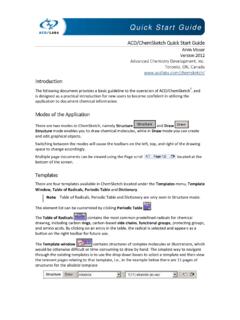
1 Quick Start Guide ACD/ChemSketch: Getting Started Advanced Chemistry Development, Inc. Toronto, ON, Canada Introduction Getting Started using ACD/ChemSketch? Get comfortable with basic functionality using this guide. Modes of the Application ChemSketch has two modes, each with different toolbar functions: You will start in Structure mode where you can draw molecules, reactions, and schema. Switch to Draw mode to create and edit graphical objects such as reaction diagrams, orbitals, lab equipment, and much more (read more under the Templates section below). Draw Molecules Start drawing a molecule with C-C bonds by simply clicking and dragging your cursor in the drawing window (Structure mode).
2 Draw Normal mode and Carbon are selected by default upon start-up. Use Draw Continuous mode to quickly link carbon atoms together or Draw Chains mode to draw a multi-carbon chain. To draw a branched structure click on an existing carbon atom. To change a bond , click repeatedly on the bond to toggle between single, double, and triple, or use the other bond options to access to change the type of bond . To change an atom in your molecule, select the desired atom from the left toolbar and then click a carbon in the structure to replace it. Click Atom Properties to change the valence, charge, and isotope of an atom. Customize Structures To remove an atom, click Erase and then click on an atom.
3 To standardize bond lengths and angles, click Clean Structure . To edit the properties and drawing style of a bond , double-click on it. You can also check for Tautomeric Forms and rotate the structure in 2D or 3D to see different views. ADVANCED CHEMISTRY DEVELOPMENT, INC. (ACD/LABS) 2 Quick Start Guide Customize your drawing with text fields by clicking Text (left toolbar in Draw mode). To modify the text fields later, click Edit Text . Copy and Paste Structures Select a structure by clicking Select or Lasso to draw a box or circle around the structure. To select just a single atom, click once near it to highlight it. To move a bond , select it and drag to the new position.
4 To make a copy of a structure, select it, then hold CTRL while dragging. Once a structure is selected, you can also use the Cut , Copy , and Paste options. Draw Reactions Add different reaction elements to your drawing with the reaction icons (top toolbar). Insert the plus sign and arrows between structures. Add Reaction Arrow Labels and use the Reaction Calculator to add summarized properties for the reaction elements to your drawing. Calculate Properties You can add various Calculated Properties for your structure to your drawing. On the status bar you will see the number of fragments and their combined properties at all times. To calculate the potential fragment losses for a molecule, select a bond and click MassSpec Scissors to display the Molecular Formula and Formula Weight of the two halves (golden pairs) of the molecule.
5 IUPAC Naming, SMILES and InChI Code To add the IUPAC name as a text field in your drawing, select the structure and click Generate Name for Structure . Additional naming features (including SMILES and InChI code) are also available; from the Tools menu, point to Generate to see the options. Templates Use the Periodic Table (left toolbar) to customize the element list for drawing structures. Use the Table of Radicals (right toolbar) to select common predefined radicals and insert them into your drawing. Use the Template Window (top toolbar) to browse numerous pre-drawn molecules, lab equipment, orbitals, and much more. Select a template and paste it into your drawing window for further editing.
6 ADVANCED CHEMISTRY DEVELOPMENT, INC. (ACD/LABS) 3 Quick Start Guide Use the Dictionary (right toolbar) to search over 165,000 entries of commercially available structures. Enter text to search for a structure and click OK to transfer it to the drawing window. Search for Structure Search for files on your computer containing the structure or substructure you have drawn by clicking Search for Structure . You can also search for similar structures based on a variety of factors. Conclusion This document describes the basic features of the software. For a more in-depth view of any of the individual features, please consult the software manual or Help menu.
7 Please also visit for more details. If your software is on a computer connected to the internet, our technical support team can be easily contacted by selecting Send Bug Report/Feature under the ACD/Labs menu, filling out the appropriate information and sending via Web or Mail.