Example: dental hygienist
ANSYS, Inc. Installation and Licensing Tutorials
ANSYS Workbench is automatically installed with most ANSYS, Inc. products; there is no individual product selection for ANSYS Workbench. If you select AutoCAD, Catia V5, Inventor, NX, Creo Parametric, Solid Edge, SolidWorks, ICEM CFD
Tags:
Information
Domain:
Source:
Link to this page:
Related documents

Introduction toIntroduction to ANSYS FLUENT
imechanica.org• To start FLUENT and/or Workbench, use the desktop icons. • It is recommended that you restart FLUENT and/or Workbench forIt is recommended that you restart FLUENT and/or Workbench for each tutorial to avoid mixing so lver settings from different
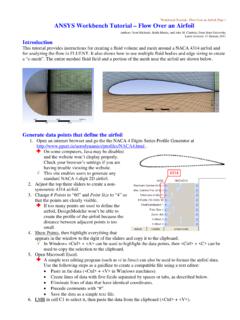
ANSYS Workbench Tutorial – Flow Over an Airfoil
www.me.psu.eduWorkbench Tutorial – Flow Over an Airfoil, Page 1 4314 ANSYS Workbench Tutorial – Flow Over an Airfoil . Authors: Scott Richards , Keith Martin, and John M. Cimbala, Penn State University Latest revision: 17 January 2011 . Introduction. This tutorial provides instructions for creating a fluid volume and mesh around a NACA 4314 airfoil and

TUTORIAL 1: Welcome to ANSYS! Opening the ANSYS …
sites.lafayette.eduTUTORIAL 1: Welcome to ANSYS! Opening the ANSYS Workbench Environment From the program menu list open the ANSYS 15.0 folder and select Workbench 15.0. Once ANSYS is active and you have closed the popup window presented, you will be able to view the Project tab. This view should look like the view below. Setting the UNITS

ANSYS Fluent Tutorial Part 1 - Clarkson University
webspace.clarkson.eduANSYS Fluent Tutorial Part 1 This tutorial introduces you to the ANSYS workbench and Fluent environments. Upon completing this tutorial you will understand: ANSYS workbench environment o Create a new project, create geometry, mesh the domain, identify and name boundary conditions, grid adaptation

Chapter 1: Introduction to Using ANSYS Fluent in ANSYS ...
www.fm.energy.lth.se1. From the Windows Start menu, select Start > All Programs > ANSYS 16.0 > Workbench 16.0 to start a new ANSYS Workbench session. This displays the ANSYS Workbench application window, which has the Toolbox on the left and the Project Schematic to its right. Various supported applications are listed in the Toolbox and the components of the analysis system will …
FLUENT Tutorial Guide - ANSYS.FEM.IR
www.ansys.fem.irANSYS FLUENT Tutorial Guide ANSYS, Inc. Release 14.0 Southpointe November 2011 275 Technology Drive Canonsburg, PA 15317 ANSYS, Inc. is certified to ISO 9001:2008. ansysinfo@ansys.com
Mechanical APDL Tutorials - Nitin Singh
nitinksingh.weebly.comANSYS Mechanical APDL Tutorials ANSYS, Inc. Release 13.0 Southpointe November 2010 275 Technology Drive Canonsburg, PA 15317 ANSYS, Inc. is certified to ISO 9001:2008. ansysinfo@ansys.com

ANSYS ICEM CFD Tutorial Manual - Purdue University
engineering.purdue.eduANSYS ICEM CFD Tutorial Manual ANSYS, Inc. ANSYS ICEM CFD 14.5 Southpointe October 2012 275 Technology Drive Canonsburg, PA 15317 ANSYS, Inc. is certified to ISO 9001:2008. ansysinfo@ansys.com

ANSYS Workbench Guide - University of Sydney
web.aeromech.usyd.edu.auMECH3361/9361*Mechanics*of*Solids*2* * 4* Exit*Engineering*Data*byclosing*the*tab*at*the*top*of*the*window*and*return*to*the* main*Project.* * Step2B:*Geometry*