Transcription of APX 8000 Model 2 User Guide - Motorola
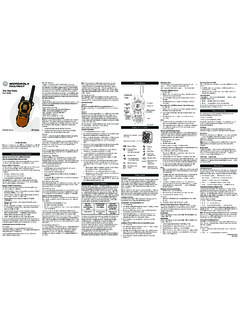
1 APX TWO-WAY RADIOSAPX 8000 Model 2 user Page 1 Friday, April 3, 2015 4:29 PMEnglishmASTRO APX 8000 Series digital Portable RadiosQuick Reference CardRF Energy Exposure and Product Safety Guide for Portable Two-Way RadiosATTENTION!This radio is restricted to Occupational use only. Before using the radio , read the RF Energy Exposure and Product Safety Guide for Portable Two-Way Radios which contains important operating instructions for safe usage and RF energy awareness and control for Compliance with applicable standards and Controls radio On/Off Zones and ChannelsReceiving and TransmittingSending an Emergency Alarm* Default timer of Emergency button press to activate Emergency is 50 milliseconds.
2 This timer is programmable, see Emergency Operation in the user Guide for exit emergency at any time, press and hold the Emergency (Orange) Button_____2-Position Concentric Switch_____Main DisplayMenu Select Buttons3-Position A/B/C Switch _____4-Way Navigation ButtonAccessory ConnectorHome ButtonMicrophoneData Feature Button On On/Off/Volume knob clockwise. Off On/Off/Volume knob counterclockwise. Zone Toggle the Zone switch or use the radio menu to the desired zone. Channel Turn the Channel knob or use the radio menu to the desired Select Knob _____On/Off/Volume Control KnobSide Button 1_____PTT ButtonTop Side (Select) Button_____Top DisplayBluetooth Pairing IndicatorMain SpeakerBatterySide Button 2_____Microphone1 Select for a and hold Volume Set Monitor button and listen for volume, if the PTT button to transmit; release to and hold the Emergency button*.
3 2 The display shows Emergency and the current zone/channel. You hear a short, medium-pitched tone, and the LED blinks red acknowledgment is received, you hear four beeps; alarm ends; and radio exits emergency.*PMLN7286A*PMLN7286 AMOTOROLA, MOTO, Motorola SOLUTIONS and the Stylized M logo are trademarks or registered trademarks of Motorola Trademark Holdings, LLC and are used under license. All other trademarks are the property of their respective owners. 2015 by Motorola Solutions, Inc. All Rights Reserved. Wi-Fi is a registered trademark of Wi-Fi Alliance . 06/151303 East Algonquin Road, Schaumburg, Illinois 60196, Navigation< or > to Menu Entry.
4 {, |, or } directly below Menu Entry to to or D to scroll through sub-list.{, |, or } directly below Menu Entry to an Emergency CallTo exit emergency at any time, press and hold the Emergency a Silent Emergency CallTo exit emergency at any time, press and hold the Emergency Status Icons1 Press the Emergency button. 2 Press and hold the PTT button. Speak clearly into the the PTT button to end and hold Emergency button to exit emergency. 1 Press the Emergency button. 2 The display does not change; the LED does not light up, and there is no emergency continues until you:Press and hold the Emergency button to exit emergency and release the PTT button to exit the Silent Emergency Alarm mode and enter regular dispatch or Emergency Call a call or dataTransmitting a call or datautBlinks when the battery is more stripes, the stronger the signal strength for the current site (trunking only).
5 Direct radio to radio communication or connected through a = DirectOff = RepeaterThis channel is being = radio is set at Low = radio is set at High a scan dot = Detects activity on the Priority-One Channel during dot = Detects activity on the Priority-Two Channel during vote scan feature is .ijkOn = Secure = Clear = Receiving an encrypted voice = AES Secure = Clear = Receiving an encrypted voice = GPS enabled, and location signal = GPS = GPS enabled, but location signal = user is currently associated with the = user is currently not associated with the = Device registration or user registration with the server failed due to an invalid username or activity is is is connected to the radio Wi-Fi network is number of bars displayed represent the signal strength of the Wi-Fi of Safety to Users (FCC and IndustryCanada).
6 11 Consignes de s curit 13 Avis aux utilisateurs (FCC et IndustrieCanada)..13 Computer Software to Use This Used in This Performance 25 Enhanced System Resilience (DSR).. 18 CrossTalk Integrated Data (EID).. Talkgroup and RadioScan Your Dealer/System AdministratorCan Tell Your radio for the the 20 Contents1 EnglishAttaching the 21 Removing and Attaching the AccessoryConnector 22 Using the Carry On the 25 Adjusting the radio Parts and radio 29 Assignable Settings or 32 Accessing the Preprogrammed Select Navigation Feature (PTT) Status Messaging Service (TMS)
7 Status Menu Type Lighting 44 Phone Call Displays and 49 General radio a a radio Select 51 Saving a Zone and a Channel to a Zone and a Channel to 52 Receiving and Responding to a radio and Responding to aTalkgroup and Responding to aPrivate Call (Trunking Only)..53 Receiving and Responding to aTelephone Call (Trunking Only)..54 Methods to Make a radio a Talkgroup a Private Call (TrunkingOnly).. 55 Making an Enhanced Private Call(Trunking Only)..56 Making a Telephone Call (TrunkingOnly).. 57 Switching Between Repeater or DirectOperation 58 Monitor 58 Monitoring a Conventional Call 61 Selective Call (ASTROC onventional Only).
8 61 Talkgroup Call Feature(Conventional Operation Only).. 62 Sending a Status 63 Responding to the DynamicRegrouping Feature (TrunkingOnly).. 63 Dynamic Zone Programming (DZP).. a Private Call from a Contact to a Call a Contact from a 68 Viewing Details of a a Scan the Scan the Scan List and Changing the Scan On or a Dynamic Priority Change(Conventional Scan Only)..72 Deleting a Nuisance 73 Restoring a Nuisance Alert a Call Alert a Call Alert an Emergency an Emergency Call(Trunking Only)..77 Sending an Emergency Alarm withEmergency 77 Sending a Silent Emergency of Channels Keep-Alive (Conventional Only).
9 79 Entering Fireground Zone to Evacuation Public Safety (TPS)(Conventional Only)..81 Using TPS Normal TPS 81 Man Alerts When Man DownFeature is 84 Triggering Alerts When Man DownEnhanced is Man Down Man the Man Down Registration Service (ARS)..87 Selecting or Changing the Login Messaging Service (TMS).. 89 Sending a Quick Text Status and Request Replyof a New Text Secure Clear 97 Managing Positioning System / GlobalNavigation Satellite Performance Outdoor Location Feature(Using GPS)..105 Military Grid Reference System(MGRS) 105 Accessing the Outdoor 106 Saving a a Saved a Single Saved All Saved the Distance andBearing from a Saved Feature in System 109 Operating in Failsoft Trunking 110 Locking and Unlocking a Display and Search Critical Wireless - Bluetooth 111 Turning On Bluetooth.
10 112 Turning Off the Drop with Low Frequency- Motorola Proximity Pairing (LF-MPP) 115 radio Indications of Lost Pairing Authentication in On the Bluetooth Audio(Routing the Audio from theRadio to the Headset)..122 Turning Off the Bluetooth Audio(Routing the Audio from theHeadset to the radio )..123 Adjusting the Volume of the Radiofrom Bluetooth Audio 123 Viewing and Clearing the BluetoothDevice All Bluetooth Programming (POP 25, astro 25, astro Conventional andWi-Fi)..125 Responding to the Notification Selectable Alerts ( astro 25)..128 Sending SSA Notification to SSA Notification to SSA Notification to AllAvailable 129 Stopping SSA Notification of aSingle SSA Notification of SSA Notification of AllAvailable 132 Turning Wi-Fi On or the Wi-Fi Configurationand Status of the Recent the Flip a Basic Zone an Enhanced Zone 135 Selecting the Power 135 Selecting a radio and Disabling the the Display 137 Locking and Unlocking the Controls.