Transcription of Attesting to MU4R - …
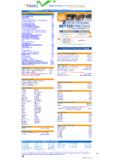
1 Attesting TO mu4r Updated: 12/23/2014 Copyright State Regulatory Registry LLC Page 1 of 2 If you are a Mortgage Loan Originator (MLO) and your employer has initiated a mu4r filing on your behalf, you will need to log into NMLS and review and confirm your information is true and accurate before your employer can submit the filing. You will receive an e-mail from when your employer sends you a mu4r filing for attestation. Confirming your mu4r Filing Information and Attesting : 1. Once you receive notification that you employer has sent you a filing for attestation, navigate to the NMLS Federal Registry Resource Center. 2. Click the Log in to NMLS button in the upper right corner. 3. Select the appropriate context: Federal, if applicable, and Log into NMLS. NOTE: Be sure you are in the Federal context by selecting Federal from the toggle. Your screen should display the Federal Registry watermark as shown below.
2 4. Click the Composite View tab to confirm your personal identifying information. 5. Click the View Individual link. 6. Click the View Personal Information link on the left navigation panel. 7. Confirm that your personal information is correct (Social Security Number, Date of Birth). 8. Click the Filing tab. 9. Click the mu4r link sub-menu option. NOTE: Do not click the Request New/Update button. If Request New/Update was already selected a. Click the mu4r link in the sub-menu again. b. Scroll down to the To Create, Update, or Submit an mu4r section and click the Delete button. c. Click the OK button when the pop up window opens. Updated: 12/23/2014 Copyright State Regulatory Registry LLC Page 2 of 2 10. On the mu4r Filing(s) screen there is a section titled TO ATTEST. You should see a filing with your employer s name under Entity Created By in an Attestation Required status. 11. Click the Review and Attest button next to the appropriate filing.
3 12. Click each section on the navigation panel on the left. On each page make any additions and/or changes necessary. These sections include Identifying Information , Other Names , Employment Records , Current Residence , Disclosure Questions , Disciplinary Actions and Criminal Background Check . 13. Select the Attest and Submit link on the left navigation panel. All items listed on the Attest and Submit page must be cleared before the Attest button will be active at the bottom of the page. 14. Click the box to certify that you are the named person above and agree to the language as stated and Attest at the bottom of the page to complete your attestation. **NMLS will send an email notification to your employer letting them know that you have completed your attestation** For further assistance, please contact your employer.