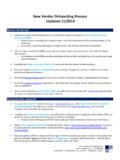
Transcription of BankOnnect Onboarding Registration
1 1 Bank -Index2 Title Slide 3 Getting started 5 Dashboard 11 Collect payments 13 Send payments 30 Cards Expense management 39 Banking Account overview 53 Finance 57 Integration & plugin 67 Offers 74 Subscription Plan 77 Service Architecture 79PG transaction pricing
2 81 Introduction3 Open Bank -IntroductionOpen Bank Connect platform offers:- Simplifiedbankstatementreconciliationfor allthebankaccountswith MultipleBankConnect Easy&swiftcollectionfrompayerswithINSTAN TMID forcollections Bulkpaymentformultiplevendorpayment&sala rytransfer ConnectingBusinessthroughHub:Connectwith supplierorbuyertopromoteyourbusiness Tallyplug-inforpayment&collection Manageyourbusinessexpensesthroughprepaid orvirtualcard Singleclickbookkeeping,hencesimplifiedac counting45Do Tired of lengthy KYC process onBank Connect Connect is live with new KYC flow that requires very minimal KYC documentation. Now customer has to upload couple of documents as per their constitution to complete their StartedPlease follow below steps to register on Bank over to website click on the Get Started to fill up all the details as asked in the form and hit SIGN UP.
3 6 Getting Started3. Customer to verify his mobile number by adding OTP received on Started8If customer is an individual or self-proprietorship, then customer to fill details of own PAN, basic details as asked in screen and press customer is a LLP or Private Limited firm, then details of business such as Business PAN, CIN and basic details about company needs to be filled. On completion of form continue to be Started9 The screen will confirm Registration and will display two Complete KYC or, directly go to Bank Customer chooses to FINISH MY KYC then he will be directed to a screen where he can complete his KYC by uploading relevant Started10 Here, if customer wants to activate the Online Payment Gateway or Get Your Card or other exciting features of Bank , he would be prompted to finish the -Dashboard Dashboard gives an overview of his account Customer can check cash flow in his account in last 15 days Five recent payout and collect request can be seen on dashboard Dashboard also allows customer to check balance in his virtual account12 Collect Payment13 Collect paymentsCollect payments is divided into three tabs All Transactions This tab contains all the collect transactions which are initiated.
4 Invoice-User can view and review all the invoices which are generated till date. Here user can see the status of the invoices and even create new GST ready invoices. Quick collect This functionality is meant for the user to easily collect. User can create payment links and share it with his customer, where they can make the payment easily through multiple payment payments It gives an overview of the payment received, outstanding amount & DSO against each customer. Daily sales outstanding (DSO) is a measure of the average number of days taken by a company to collect payments, once a sale has been paymentsB e l o w i s d e s c r i p t i o n o f l e g e nd s m a r k e d i n c o l l e c t i o n p a g e he c u s t o m e rfor w h o m t he invoice or q u i c k collect isg e n e r a t e d . hes u mofallt hevalue of q u i c k collect of invoice raised a g a i ns t t hec he totala m o u n t received tilld a t e.
5 He totalo ut s t a nd i n g a m o u n t w h i c h is not received payments Raising Invoice17 EasilycreateG STreadyinvoicesu s i n gtheC R E AT EI N VO I C EbuttonCollect payments Raising invoiceB e l o w i s d e sc r i p t i o n o f l e g e nd s m a r k e d i n I nv o i c e p a g e na b l e t hi s t o g g l e t o a d d t he p a y m e nt t e r m s t o i nv o i c e. T he p a y m e nt t e r m s c a n b e d ue o n r e c e i p t , p a y w i t hi n 3 0 d a y s e t c . na b l e t hi s t o g g l e t o a d d a ny s p e c i f i c no t e s o r i ns t r uc t i o n t o t he c l i e nt . na b l e t hi s o p t i o n t o a c c e p t t he o nl i ne t r a ns a c t i o n s t hr o ug h c r e d i t c a r d , d e b i t c a r d o r ne t b a nk i payments Raising n t e r t h ec u s t o m e r n a m l i c kont h e+A d d< c u s t o m e rn a m e >O n c eitisd o n eap o p u pwill a p p e a r w he r e thec u s t o m e r details c a n bee nt e r e dNote:If c u s t o m e r is alreadya d d e d , t he n a m e will automatically be fetched.
6 U s e r c a nclickont hena m e t o p r o c e e d f ur t he payments Adding Contact D i s p l a yN a m e T h eu n i q u en i c k n a m efort h h o u l db e u n i q u e for allc o n t a c t s C o n t a c tN a m e T h en a m eoft h ec u s t o m e r Mobile n u m b e r C o n t a c t details of t h e c u s t o m e r E m a i l E m a i lIDoft h ec u s t o m e r B i l l i n gA d d r e s s B illin gA d d r e s soft h ec u s t o m e r P i n c o d e T h elocationpin code,o n c eit sentered,t h ecitya n d state will au t op o p u l at e Ift h ebillinga d d r e s sa n ds h i p p i n ga d d r e s sisn ots a m e ,u n c h e c k t h ec h e c k b o xtoen t ert h es h i p p i n ga d d r e s s ClickonS A V Eaftere n t e r i n gallt h edetails. The customer added will be populated in invoice & get saved in contacts20 Collect payments Raising Invoice A d dadescriptionfortheinvoice Entertheproductn a m ea n dthenclick on+ A d d<ProductN a m e >N o t e :I f us e r ha s a l r e a d y a d d e d t he p r o d uc t, i t will a ut o m a t i c a l l y b e f e t c he d.
7 Us e r c a n j us t c l i c k o n t he na m e t o a d d i n i nv o i c e .21 Collect payments Adding description in invoiceType Selectifthei temisaproductorserviceI t e mN a m e Then a m eoftheItemUnit SelecttheunitofitemQuantityH S NorS A Ccode EntertheH S NcodeofproductorS A CforserviceS el ectTax EntertheG S Ttaxforthei temNote-Only SelectType a n d ItemName fieldsarem andator y others description details is saved, it will get populated in invoice and saved for further use22 Payments Collect payments Invoice If t he user w a n t s to a d d a n a d d i t i o n a l i t e m rowhec a nclickon+A D DI t e mtod o so Useralsoc a nc h a n g et heinvoice n u m b e rifhew a n ttodoso. O n c e it s done, t he user c a n S av e a n d S e n d t he invoice i m m e d i a t e l y or Save t heinvoiceforlateru s ea n d e v e n P r e v i e w t payment Quick Collect24 Quickcollectca nbeus e dtocollectthepa ym e ntbys e ndi ngjust the pa ym e payments Quick collectBelow is desc rip ti on of legend s ma rked in Q uic k Collec t pa n a b l e this t o g g l e tos e n d q u i c k collect in recurring n a b l e this t o g g l e if user iss e n d i n g q u i c k collect a ga inst a n y invoice hegenerated.
8 It will behelpful n a b l e this optionto a d d a description to your q u i c k n a b l e this t o g g l eto collect international pa payments Quick collect26 Afterfillingallthefieldsjustclickonthe SubmitRequest . Upon submission cu s t o m erwillreceiveanemail&SMSwith p a ym e n tlinkattached,W h e r ecustomerca nm a k ethep a ym e n tthroughmultipleoptionsCollection-How to pay27 Thecustomerwillreceiveanemail with the invoice attachedand payment link. On cho o si ng to m a k epayment now, he can pay using multiple options like credit card, debit card, UPI orNEFT/RTGS/IMPSC ollection How to Pay28 Therearemultipleoptionstom a k ea payment: C a r d s The client c an pay u s i n g their credit card a n d debit card. N e t b a n k i n g Bank supportsalmost all Indianb a n k swithnetb a n k i n gfeature. NEFT/RTGS/IMPS Platform supports RTGS, IMPS & NEFT for collection UPI Bank supports UPI for collectionCollection Charges29 Collection (INR)Charge1 Credit Cardless than 2kNilmore than 17 International Payments30 Send payments31 Sendpaymentsisdividedintofourtabs: AllTransactions Thistabcontainsallthepayments whi chareinitiated.
9 S i nglep a y m e n t-Usersca nviewa n dinitiateindividualtransactionsfromhere. B u l kp a y m e n t Usersca ninitiatebulkp a y mentsfromthistabbyuploadingaexcel sheet to theBank Payment Request: this tab is to be used in case of reimbursement paymentSend payment All Transactions32 Below is description of legends marked in Send Payments customeragainst whom the bills or single total a mo untoutstanding to last Total payment Single payment33 Below is desc rip ti on of legend s ma rked in Single Pa ymen t pa a c c o u n t from w h i c h thetransfer m u s t vendor details Justtypeindetailsthen +A d d<vendorn a m e > will a ppea r w here the beneficiary a c c o u n t n u m b e r c a n b e ofp a y m e n amount to bepa la nc e a va ila ble in A/C is show n a ga inst the ta b for user c onvenienc e.
10 1234 Send payment Single payments34 Once all the details is filled just click on the NEXT button On the next screen enter the OTP to initiate the payment Bulk paymentHereusersc ansendbulkpayoutsusingasimpleexcelfileca pturing payment payment Bulk payment36 Bul k paym ent tem pl ate can be si m pl ydownl oadfrom platform using the button shown Excel sheet BeneficiaryN a m e Beneficiary AccountN u m b e r IFSCCode A m o u n t Description(Optional)O n c edetails are captured file is to uploadon Bank payment Bulk payment37 Send payment Bulk payment38 Selecttheaccountfromw hi chthe a m o u n tis tobedebiteda n dclicko n submit. ThescreenwillappeartoenterOT Pto initiate transaction. O n c ethetransactionisd o n eusersca n download the detailed report of the a n k C o n n e c t 2 . 0offersthreetypes of cards: Founderscard Thisisacreditcardw hi chtheca nbeus e dforthebusinessa n d m a n a g i n gall yoursubscriptions.