Transcription of Bluetooth Connection Manual Mobile Printer - …
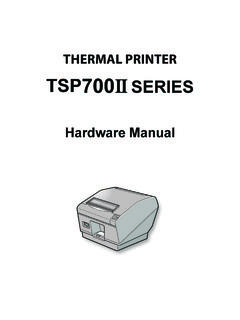
1 Bluetooth Connection Manual Mobile Printer Rev. SPP-R200II SPP-R300 SPP-R400 Rev. - 2 - Mobile Printer Table of Contents 1. Manual Information .. 3 2. Precautions .. 3 3. General Sequence for Bluetooth Connections .. 3 4. Bluetooth Connection Instructions .. 4 4-1 Connecting with an Intermec PDA (Device: CN2B, OS: Pocket PC ) .. 5 4-2 Connecting with a SYMBOL PDA (Device: SYMBOL MC70, OS: Windows Mobile ) .. 9 4-3 Connecting with an HP PDA (Device: iPAQ hx2700, OS: Windows Mobile ) .. 14 4-4 Connecting with a Mobile Compia PDA (Device: M3, OS: WinCE ) .. 18 4-5 Connecting with an InnoTeletek PDA (Device: MC3000, OS: WinCE ) .. 23 4-6 Connecting with a Widefly PDA (Device: WF35, OS: WinCE ) .. 27 4-7 Connecting with Bluetooth Dongle (BlueSoleil IVT Stack) .. 30 4-8 Connecting with Bluetooth Dongle (Widcomm Stack).
2 34 Rev. - 3 - Mobile Printer 1. Manual Information This Bluetooth Connection Manual provides information on the Connection of Bluetooth -enabled devices (PDAs, PCs, etc.) with the Printer . We at BIXOLON maintain ongoing efforts to enhance and upgrade the functions and quality of all our products. In following, product specifications and/or user Manual content may be changed without prior notice. 2. Precautions 2-1 To connect the Printer with another device via Bluetooth , the devices must be within 10m of one another. The Connection is broken if the distance between devices exceeds 10m. 2-2 The maximum separating distance may be shortened if transmission obstacles, such as cement walls, are present. 2-3 If a device (such as a microwave oven, wireless LAN, etc.) that uses the same frequen cy is present, transmission may be interrupted.
3 Separate the Printer and Bluetooth - enabled device from such interrupting devices by a distance of at least 5m. 3. General Sequence for Bluetooth Connections Bluetooth Connection methods vary by device. The following is the general sequence for Bluetooth connections, provided for reference purposes. 3-1 Turn on power of each device - PDAs, PCs ( Bluetooth Dongle), printers, etc. 3-2 Run a Bluetooth Connection program on the PDA or PC. 3-3 Search for the peripheral with which to establish the Connection . - Search for the Printer . 3-4 Register this Printer from the search results. - If a security setting is enabled, register after entering the PIN Code. (PIN Code=Pass Key: password of the Bluetooth device, Default code: 0000) 3-5 Test the Connection . - When connected, confirm the designated COM port of fixed COM port and print.
4 Rev. - 4 - Mobile Printer 4. Bluetooth Connection Instructions This Manual focuses on the use of the following devices. Please use this Manual as a guide when using devices other than those listed here. - Intermec PDA (Device: CN2B, OS: Pocket PC ) - SYMBOL PDA (Device: SYMBOL MC70, OS: Windows Mobile ) - HP PDA (Device: iPAQ hx2700, OS: Windows Mobile ) - Mobile Compia PDA (Device: M3, OS: WinCE ) - InnoTeletek PDA (Device: MC3000, OS: WinCE ) - Widefly PDA (Device: WF35, OS: WinCE ) - Bluetooth Dongle (BlueSoleil IVT Stack) - Bluetooth Dongle (Widcomm Stack) After turning on the power of all Bluetooth devices, perform the Connection process. - PDAs, PCs ( Bluetooth Dongle), printers, etc. Rev. - 5 - Mobile Printer 4-1 Connecting with an Intermec PDA (Device: CN2B, OS: Pocket PC ) 1) Click the icon.
5 2) Click Settings . 3) Click Connections . 4) Click the Bluetooth icon. Rev. - 6 - Mobile Printer 5) Click to check the On option. 6) Click the Wireless Printing menu bar 7) Click the Device Discovery button. 8) Select Devices of the Printer , and click the Connect button. Rev. - 7 - Mobile Printer 9) Select the COM port to be used. 10) Check the Enable Wireless Printing and Default checkboxes, and click the Printer Test Page button. 11) Click the OK button.
6 12) The PIN Code(Device PIN) window appears (if the Printer security function is enabled). Rev. - 8 - Mobile Printer 13) Input the PIN Code(Device PIN) 14) If after pressing the Print Test Page button, and click Next . (Default code: 0000) the BT LED of the Printer turns on and test printing is performed, the Connection is complete. Rev. - 9 - Mobile Printer 4-2 Connecting with a SYMBOL PDA (Device: SYMBOL MC70, OS: Windows Mobile ) 1) Click the icon. 2) Click Enable Bluetooth . 3) Click the icon. 4) Click Show BTExplorer.
7 Rev. - 10 - Mobile Printer 5) Click File . 6) Click New Connection . 7) Click Associate Serial Port . 8) Click the Next button. Rev. - 11 - Mobile Printer 9) Click the List window for 2 seconds and 10) Click Refresh . the function folder appears. 11) Bluetooth devices in the proximity are 12) Select the Device Address of the discovered. Printer , and click the Next button. Click for 2 seconds. Rev. - 12 - Mobile Printer 13) The Serial port is registered as COM9. 14) Click the Printer name for 2 seconds.
8 15) Click Connect . 16) The PIN Code window appears (if the Printer security function is enabled). Rev. - 13 - Mobile Printer 17) Input the PIN Code and click Enter . 18) The Connection Successful message (Default PIN Code: 0000) appears, and the Connection is complete when the BT LED of the Printer turns on. Rev. - 14 - Mobile Printer 4-3 Connecting with an HP PDA (Device: iPAQ hx2700, OS: Windows Mobile ) 1) To run Bluetooth , first click the 2) Click the Bluetooth logo button icon at the lower right of the screen. to activate the Bluetooth function.
9 3) When activated, the Bluetooth button turns 4) Click New . green. Click the Manager button to connect to the Printer . Not active Rev. - 15 - Mobile Printer 5) Click Explore a Bluetooth device . 6) Click the Printer icon from the Bluetooth devices displayed in the search results. 7) Select BIXOLON-SPP and click Next . 8) Click Done . Rev. - 16 - Mobile Printer 9) The Printer shortcut is produced. 10) Clicking the shortcut for 2 seconds brings up the function folder. Click Connect . 11) The Pass Key window appears (if the 12) Input the Pass Key and click Enter Printer security function is enabled).
10 (Default Pass Key: 0000) Rev. - 17 - Mobile Printer 13) The shortcut changes to show a green indicator as Shown below. The Connection is complete when the BT LED of the Printer turns on. Rev. - 18 - Mobile Printer 4-4 Connecting with a Mobile Compia PDA (Device: M3, OS: WinCE ) 1) Click the icon. 2) Click BT On . 3) Click the icon. 4) Click BT Manager . Rev. - 19 - Mobile Printer 5) Click Find All Devices . 6) Click the Next button. 7) Click Refresh . 8) Click the Printer from the Bluetooth devices in the search list, and click Next.