Transcription of CITRIx LoGIN FoR EPIC ACCEss
1 In order to ACCEss Epic, please follow the instructions below. There are two ways you can ACCEss Epic: Via the Desktop or CITRIx via the CITRIx via the DesktopIf you are accessing Epic from your hospital desktop computer, follow these instructions below: From the hospitals: (Greenwich Hospital,Bridgeport Hospital and Yale-New Haven Hospital)1. After you LoGIN to your hospital workstation with your network credentials, you will automatically see two Epic Hyperspace icons on your desktop computer, please double click that icon. The icons are environment specific: PRD is for Production and PLY is for the PLY icon if you would like to practice or test exercises from your training you do not see Epic icons after you LoGIN to your workstation, please move to Step 2.
2 2. After you LoGIN to your desktop computer and there is no Epic icon, please LoGIN to CITRIx . You will need your Username, Password and Domain. The domain may be one of the following: completing this step with CITRIx , you will now have ACCEss to the two Epic environments: PRD_Hyperspace: A production or live working area. PLY_Hyperspace: A post-class Playground area. Select this to practice or test what you have learned in your training classes or LoGIN FoR EPIC ACCEssNOTESHow to get into the Epic Playground:once you have completed your training classes, there is an expectation that you will play in a test environment.
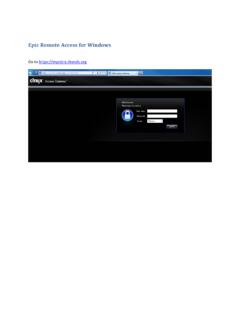
3 This allows you to practice and apply lessons from training class. Follow these steps to get into the Epic After you LoGIN to your hospital workstation with your network credentials, you will automatically see the Epic PLY_Hyperspace icon on your desktop computer, please double click that icon. Clicking that icon will give you ACCEss to the Epic PLY environment. This is your post-class Playground area. Select this if you would like to practice what you have learned in your training classes or LoGIN for Epic AccessAccessing CITRIx via the Portal1. open Internet Explorer and navigate to You will see the following LoGIN screen:2.
4 Enter your Username and Password, and then click Log On . You will be presented with the following screen:In order to ACCEss the post-class Playground environment, click on Epic Nonprod and then click on the Epic PLY_Hyperspace icon within. In order to ACCEss the Production environment, click on Epic Prod and the PRD_Hyperspace icon within. Clicking on the Main button in the top left of the application box will take you back to the two application folders. Clicking on the Main button does not require you to LoGIN Note: Please Note: You may be asked to install a plugin for Internet Explorer in order for CITRIx to work properly.
5 Follow the prompts to install the plugin if Problems? If you encounter any difficulties accessing CITRIx via the Desktop or Portal, please contact the ITS Help Desk at (203) 688-4357. Physicians, please call 203-502-4357 or 855-207-3742 CITRIx LoGIN FoR EPIC ACCEssNOTES