Transcription of Using Partners Dragon Remote
1 1 Using Partners Dragon Remote Dragon Medical 360/Epic Off- Network access March 28, 2016 Revised August 17th,2016 Jim McHugh 2 Contents Overview .. 3 Requirements .. 4 Limitations .. 5 5 Microphones .. 5 Computers .. 5 Using Dragon Remote (Production) .. 5 Using Dragon Remote (Non-Production) .. 8 Support .. 10 Helpful Hints .. 11 3 Overview The Partners Dragon 360 Remote configuration is designed to provide Dragon Medical 360 capability to users that are not on the Partners Network, such as home users or off-network users such as Mass Eye and Ear and PCPO.
2 When on the Partners network a local install of Dragon exists on the client computer. In this Dragon 360 Remote configuration, Dragon is instead installed on a Partners Citrix server which makes it accessible for any user over the internet via Citrix. In this configuration a full install of Dragon is not necessary. Only 2 small files are needed to provide compatibility for the microphone. Important to note: If a home user currently has a Partners laptop with VPN connectivity and is Using it for Dragon access , it is probably best to continue to use that configuration.
3 In most cases it provides more features than the Dragon Remote configuration. Do not try to use Dragon Remote if you are ON the Partners network. It is optimized for use by home and other off-network users. If it is used on the Partners network the available dictation sources are limited and performance will not be equal to our standard Dragon 360. 4 Requirements The requirements for Using Dragon Remote are: User must have completed a Dragon training class and have access to Dragon . User must have access to the Epic Production environment Microsoft Windows 7 computer (Windows 10 is currently not supported by the Dragon product) A connection to the internet Nuance PowerMic II or PowerMic III Download Plug-ins from if on the internet or \\peccifs2\pecdragp$\Remote_Plugins if on the Partners network.
4 5 Limitations This initial version of our Dragon Remote configuration has several important limitations. Some are related to an issue in the Dragon software which will be corrected by Nuance in a future release. Some are limitations that are inherent with this type of configuration where Dragon is hosted on a Citrix server; additional capabilities may be added in the future. Applications When Dragon is running on a local computer on the Partners network, Dragon can be used to dictate not only into Epic but also into any application running on the local PC such as a web page or Microsoft Office Application.
5 With the Dragon Remote configuration running over the internet, Dragon is only able to dictate into applications that exist on the Citrix server. That currently limits dictation to only Epic HyperSpace. Since Microsoft Office is not hosted on Citrix , dictation into Word or Outlook is not available at this time. The Citrix team hopes to offer support for Microsoft Office products at a future date. Also, there are plans to add LMR access in the near future. Microphones Due an issue with the current version of Dragon which was identified by Nuance, only the PowerMic II is supported at this time.
6 At some point, when Nuance has a solution to this limitation, we hope to add support for USB microphones. Support for PowerMic III which was just announced will be later this year. Computers Dragon Remote will only work on Windows based computers. Mac is not supported by Nuance Using Dragon Remote (Production) Before Using Dragon , it is necessary to install two plug-ins on the computer where you will be Using 1. Download the plugins from . This will download a ZIP file with the 2 files in it. Click the zip file to display the contents. Or you can copy them from a computer that is on the Partners network.
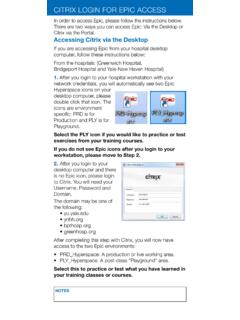
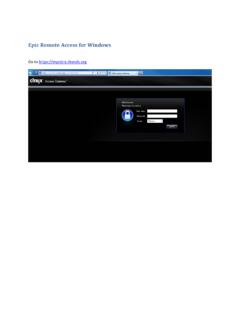
7 Copy the Dragon Citrix extensions from \\peccifs2\pecdragp$\Remote_Plugins to a flash drive or other storage 2. Install the Citrix Audio Plug in by clicking on it . 3. Install the PowerMic II Extensions PowerMic Citrix Extension by clicking on it. 4. From Internet Explorer, start Citrix by logging into Using your Partners credentials 5. Locate the icon labeled Epic Hyperspace with Dragon and click it. 6 * Please note Dragon no longer launches simultaneously with Epic 6. Dragon is now accessed by -Epic Button\PHS Applications\ Dragon Options\ Dragon Login 7 Users will no longer be prompted for their Partners Username & Password Dragon normally *As a recommended best practice we do suggest that the Dragon Logout button is used to end a Dragon session.
8 8 Using Dragon Remote (Non-Production) Before Using Dragon , it is necessary to install two plug-ins on the computer where you will be Using Dragon . 1. Download the plugins from . This will download a ZIP file with the 2 files in it. Click the zip file to display the contents. Or you can copy them from a computer that is on the Partners network. Copy the Dragon Citrix extensions from \\peccifs2\pecdragp$\Remote_Plugins to a flash drive or other storage 2. Install the Citrix Audio Plug in by clicking on it . 3. Install the PowerMic II Extensions PowerMic Citrix Extension by clicking on it.
9 4. From Internet Explorer, start Citrix by logging into Using your Partners credentials 5. Locate the icon labeled Epic Hyperspace with Dragon and click it. 9 7 Connect to Dragon via the Epic button as you would in production. 8 Use Dragon normally 9 When complete, use the Dragon Logout button 10 Support For support during regular business hours, open a ticket with the Partners Help desk for BWH Dragon BWH MGH Dragon MGH All others Dragon 360 PeC . Support is available only during regular business hours. 11 Helpful Hints This Remote configuration of Dragon has all of the same cautions about making sure you close your Dragon profile to prevent profile corruption.
10 Make sure to log off Dragon and insure that the profile is saved before shutting down your PC. If you have problem with the microphone being recognized, it may be because you have other microphones (such as a webcam) which are conflicting. Try disconnecting any other microphone if you are having trouble. If you get the message below, it means that the plug-in is not installed. Shut down Dragon and Epic and reinstall that file If Epic Hyperspace with Dragon does not show up on you MyApps page, click on the + sign on the left and locate it in the All Apps section 12