Transcription of CorelDRAW Graphics Suite 2020
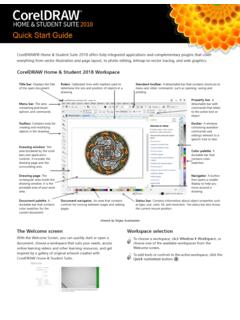
1 Quick Start Guide [ 1 ] CorelDRAW Graphics Suite 2020 CorelDRAW Graphics Suite 2020 offers fully- integrated applications CorelDRAW 2020, Corel PHOTO-PAINT 2020, and Corel Font Manager 2020 and complementary plugins that cover everything from vector illustration and page layout, to photo editing, bitmap-to- vector tracing, web Graphics , and font management. CorelDRAW 2020 WorkspaceTitle bar: Displays the title of the open : Calibrated lines with markers used to determine the size and position of objects in a toolbar: A detachable bar that contains shortcuts to menu and other commands, such as opening, saving and bar: The area containing pull-down options and bar: A detachable bar with commands that relate to the active tool or : Contains tools for creating and modifying objects in the : A window containing available commands and settings relevant to a specific tool or window: The area bordered by the scroll bars and application controls.
2 It includes the drawing page and the surrounding area, which is also known as palette: A dockable bar that contains color page: The rectangular area inside the drawing window. It is the printable area of your navigator: An area that contains controls for moving between pages and adding palette: A dockable bar that contains color swatches for the current : A button that opens a smaller display to help you move around a bar: Contains information about object properties such as type, size, color, fill, and resolution. The status bar also shows the current cursor Start Guide [ 2 ]With the Welcome Screen, you can quickly start or open a document, choose a workspace that suits your needs, access online learning videos and other learning resources, and get inspired by a gallery of original artwork created with CorelDRAW Graphics Suite .
3 Plus, discovery files can help you get started quickly with both CorelDRAW and Corel selectionThe collection of specialized workspaces are designed to help you increase your productivity by making more accessible the tools that you use most often in specific workflows or tasks. Available workspaces include Default, Touch, Lite, Illustration, Page Layout, and Adobe choose a workspace, click Window Workspace, or choose one of the available workspaces from the Welcome add tools or controls to the active workspace, click the Quick customize button .Quick Start Guide [ 3 ] CorelDRAW 2020 toolboxMany of the tools in the CorelDRAW toolbox are organized in flyouts. To access such tools, click the small arrow in the lower-right corner of a button.
4 The illustration below shows the toolbox and flyouts available in the default workspace, and can help you find tools easily. If you still don t see the tool you are looking for, click the Quick customize button at the bottom of the toolbox. With the help of the Quick customize button, you can also hide tools you don t use Start Guide [ 4 ]TemplatesWith the New from Template dialog box (File New from Template), you can browse and search modern, fresh templates to start design projects such as logos, brochures, stationary, and drawing tools from the Curve flyout let you draw curved and straight lines, and lines containing both curved and straight segments. The line segments are connected by nodes, which are depicted as small Freehand and Polyline tools let you draw freehand lines as if you were sketching on a B zier and Pen tools let you draw lines one segment at a time by placing each node with precision and controlling the shape of each curved segment.
5 The B-spline tool lets you create smooth curves with fewer nodes than curves drawn by using freehand paths. The LiveSketch tool offers the simplicity and speed of freehand sketching combined with intelligent stroke adjustment and vector drawing. As you sketch, CorelDRAW analyses your strokes, adjusts them, and converts them into B zier curves. ShapesCorelDRAW offers a wide variety of tools for drawing dragging diagonally with the Rectangle tool , you can draw a rectangle or a square (when holding down Ctrl). The 3-point rectangle tool lets you quickly draw rectangles at an Start Guide [ 5 ]EllipsesYou can draw an ellipse by dragging diagonally with the Ellipse tool.
6 Hold down Ctrl to constrain the shape to a circle. The 3-point ellipse tool lets you quickly draw an ellipse at an draw an arc or a pie shape, you can click the Arc or Pie button on the property bar and then shapesYou can use the tools on the Object flyout to draw polygons, grids, spirals, and two types of stars: perfect and complex. Use the property bar to change the number of polygon sides, star points, grid columns, or spiral shapesWith the Common Shapes tool on the Object flyout, you can also draw basic shapes, arrows, flowchart shapes, banners, and callout shapes. Select a preset shape on the property bar, and drag the diamond-shaped handle (glyph) to modify the appearance of some drawingCorelDRAW lets you create symmetrical objects and designs in real time.
7 You can include both vector and bitmap objects in your symmetrical create a symmetrical design, select or draw a curve or a shape, click Object Symmetry Create New Symmetry. Add more objects, and edit the objects as needed. To add more symmetry lines, type a number in the Mirror lines box on the floating toolbar. Click Object Symmetry Finish Editing Start Guide [ 6 ]Parallel drawingCorelDRAW allows you to simultaneously draw multiple parallel curves while controlling the distance between them. You can also add parallel lines to an existing line. To draw parallel lines, click a curve tool, and click the Parallel Drawing button on the property bar. On the Parallel Drawing toolbar, click the Parallel lines button , and draw in the drawing are two types of text you can add to drawings: paragraph text (1) and artistic text (2).
8 You can also import existing text from an external file or paste text from the text can be used for larger bodies of text that have greater formatting requirements. Before you add paragraph text, you must drag with the Text tool to create a text insert placeholder text, click in the empty text frame with the Text tool, and click Text Paragraph Text Frame Insert Placeholder Text. Placeholder text makes it easier to assess the appearance of your document prior to finalizing its can use artistic text for short lines of text to which you can apply a wide range of effects, such as drop shadows or contours. You can add artistic text to an open or a closed text to a pathTo fit text to a path, select the text, and click Text Fit Text to Path.
9 Move the pointer over a path and use the dynamic preview to position the text. Click to attach the text to the type text on a path, click the Text tool , and point to a path. When the pointer changes to a Fit to Path pointer, click to add fontsWith the Font list box in CorelDRAW and Corel PHOTO-PAINT, you can view, filter, and find fonts easily. Filter fonts based on weight, width, supported scripts, and more; use keywords to search for fonts; and download font packs with features and variable fontsOpenType features let you choose alternative appearances for individual characters (glyphs), provided that the font and selected characters support OpenType features. OpenType features include fractions, ligatures, ordinals, ornaments, small caps, swashes, and more.
10 OpenType fonts are based on Unicode, which makes them ideal for cross-platform and multi-language design work. In addition, CorelDRAW will suggest eligible OpenType features that you can apply to your Start Guide [ 7 ]Take advantage of the flexibility of OpenType variable fonts, which let you interactively fine-tune a font s appearance. You can change a variable font along one or more axes of variation such as width, weight, and slant; or along custom axes specified by the font adjust variable font properties, select text that uses a variable font using the Text tool . Click the Variable fonts button on the property bar, and adjust any available font dockerThe Glyphs docker (Text Glyphs)