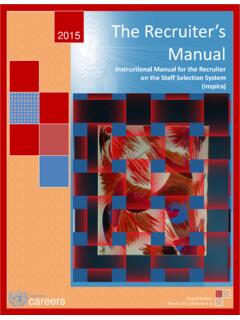
Transcription of e-PERFORMANCE
1 e-PERFORMANCE HANDBOOKTABLE OF CONTENTSG etting started ..3 Logging in to Inspira for the First your Functional Title ..4 Correct your Functional Title ..5 Process Overview ..7 Phase 1: Workplan ..8 Step 1: Create Workplan (Staff Member) ..8 Step 2: Approve Workplan (First Reporting Officer) ..13 Phase 2: Mid-Point 3: Start Mid-Point Review (Staff Member) ..14 Step 4: Complete Mid-Point Review (First Reporting Officer) ..16 Phase 3: End-of-Cycle 5: Self-Evaluation (Staff Member) ..18 Step 6: Evaluation (First Reporting Officer) ..19 Step 7: Approve Evaluation (Second Reporting Officer) ..21 Step 8: Acknowledge Evaluation (Staff Member).
2 23 Administrative Actions ..24 Change the First Reporting Officer (First Reporting Officer) ..24 Change the Second Reporting Officer (Staff Member) ..26 Additional Supervisor Functions ..27 Print a Completed Document (Staff Member) ..32 Print a Completed Document (First Reporting Officer) ..33 When you hover over the Table of Content or the right hand menu tabs found through out the guide a icon will appear to indicate a clickable quick HANDBOOK 3 GETTING STARTEDLOGGING IN TO INSPIRA FOR THE FIRST TIMEa. In your web browser, go to b. Enter your index number as your User IDc. Enter your year of birth followed by the first four letters of your last name in capital letters as your initial Password.
3 For example, if you were born in 1973 and your last name is Gonzalez, your initial password would be 1973 GONZ. If you were born in 1980 and your last name is Lee, you initial password would be Click Logine. You will now be prompted to change your passwordIt is recommended that you use Internet Explorer 8, Mozilla Firefox or aboveIndex number Year of birth + 1st four letters of last name (CAPITALIZED)After logging in for the first time you will be prompted to immediately change your password to something more HANDBOOK 4 CHECK YOUR FUNCTIONAL TITLEa. Click Main Menu Self Service Job Information Job Information Summaryb.
4 Review the information which is displayed on the screenc. If the functional title is incorrect follow the instructions on page 5If the level is incorrect, contact your human resources office. If you are on a special post allowance (SPA), it will not be reflected here. This information may be added by the staff member and supervisor in the overall comments section. If any of the other information displayed requires updating, please contact your personnel office to request that the appropriate personnel action be doneThe icon indicates a series of items you should click in sequence. For example, Main Menu Self Service indicates that you should click Main Menu and then click Self HANDBOOK 5 CORRECT YOUR FUNCTIONAL TITLEa.
5 Click Main Menu Self Service performance Management Additional Functionalityb. Click Functional Title Changec. Click Select new Functional Titled. Select Functional Title in the Search by drop down boxe. Enter the first few letters of your new title in the begins with box and click (Alternatively click on the button for the available titles) Self Service gives users access to create, review and modify their own performance Self Service gives access to FRO's and SRO's to review and approve documents for the staff that they supervise. ePERFORMANCE HANDBOOK 6 f. Select your new titleg.
6 Click to complete the processh. Click Home in the top-right corner of the page to return to the Inspira home pageePERFORMANCE HANDBOOK 7 PHASE 1: WORKPLANC reate Workplan (SM)1 Acronym and Color Key: SM = Staff Member FRO = First Reporting Officer SRO = Second Reporting OfficerApprove Workplan (FRO)2 PHASE 3: END-OF-CYCLE EVALUATIONA pprove Evaluation (SRO)7 Evaluation (FRO)6 Self Evaluation (SM)5 Acknowledge Evaluation (SM)8 PHASE 2: MID-POINT REVIEWC omplete Mid-Point Review (FRO)43 Start Mid-Point Review (SM)PROCESS OVERVIEWThe performance management process consists of three main phases.
7 Creating a work plan, conducting a mid-point review, and completing the end-of-cycle evaluation. The eight steps in this process are outlined Workplan (FRO)Start Mid-Point Review (SM)Complete Mid-Point Review (FRO)Self Evaluation (SM)Evaluation (FRO)Approve Evaluation (SRO)Acknowledge Evaluation (SM)Create Workplan (SM)ePERFORMANCE HANDBOOK 8 PHASE 1: WORKPLANSTEP 1: CREATE WORKPLAN (SM)Create the performance Documenta. Click Main Menu Self Service performance Management My performance Documents Create Documentb. Click the Cycle Start Year and select the appropriate yearc. Click the Document Type and select performance Documentd.
8 Click Select FROe. In the Person Search box, enter the FRO s last name and click f. Select the FRO s name and click g. Click on the Create performance Documents pageShould there be multiple staff members with the same first and last name you can find out their department and functional title by clicking on the information icon The performance period dates are not modifiable. You may however change the Actual Period dates on the work plan. See page icon indicates a series of items you should click in sequence. For example, Main Menu Self Service indicates that you should click Main Menu and then click Self technical help clickon the 'Contact Us' non-technical helpplease Workplan (FRO)Start Mid-Point Review (SM)Complete Mid-Point Review (FRO)Self Evaluation (SM)Evaluation (FRO)Approve Evaluation (SRO)Acknowledge Evaluation (SM)Create Workplan (SM)ePERFORMANCE HANDBOOK 9 Starting the Workplana.
9 Click Select/Update SROb. Enter the SRO s last name and click c. Select the SRO s name and click d. Click Start in the Workplan row to enter the workplanUpdate Your Actual Perioda. If the dates of your evaluation period differ from the performance cycle dates, you may indicate them in the Actual Period date Workplan (FRO)Start Mid-Point Review (SM)Complete Mid-Point Review (FRO)Self Evaluation (SM)Evaluation (FRO)Approve Evaluation (SRO)Acknowledge Evaluation (SM)Create Workplan (SM)ePERFORMANCE HANDBOOK 10 Enter Your Goalsa. In Section 1 of the workplan, click Add Goals b. Insert a goal description (title), related actions and success criteriac.
10 Click d. Repeat steps a. c. to add additional goalse. When you are finished adding your goals, click Review Core Valuesa. Review Section 2, which displays the core values that apply to all staffClick the icon to check your Workplan (FRO)Start Mid-Point Review (SM)Complete Mid-Point Review (FRO)Self Evaluation (SM)Evaluation (FRO)Approve Evaluation (SRO)Acknowledge Evaluation (SM)Create Workplan (SM)ePERFORMANCE HANDBOOK 11 Add Competenciesa. In Section 3, click Select/Add Core Competenciesb. Select the core competencies most relevant for this performance cyclec. Click Add Managerial Competenciesa.