Transcription of Finance Instructions - secure.sheffieldfinancial.com
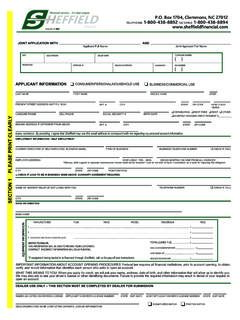
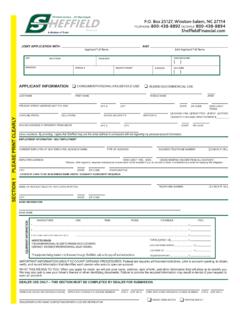
1 Check Loan Status and Print Contract 1. Enter your user name and password (must be registered as a dealer), then click Login. On the Application Status page, you can view limited previous application activity. 2. If the credit application has been Approved, you will see a Green 4 mark in the Process box. 3. To Print the contract, click on the Green 4 mark which will take you to the Complete Application page. On this page, complete the model and serial number information. Then click Next. 4. On the View Agreement page, Print the completed loan contract by clicking the Print icon. Funding 1. Upon approval, Sheffield generates and sends a loan document via fax OR email or uploads it into Dealer Suite. Dealer and customer both sign the bottom.
2 2. Fax documents to 800-438-8894 for funding: - Entire Contract signed by dealer and customer - Copy of sales receipt (receipt and contract should match exactly and include any down payment or trade-in, less any fees charged by Sheffield directly to customer) - For ATVs, UTVs, snowmobiles, motorcycles, personal water craft, trailers and other titled equipment, include a signed copy of the title application or a copy of the front and back of the MSO, or other legal documents with Sheffield Financial, a division of Truist Bank shown as the first lienholder. It is the dealers responsibility to ensure all lienholder documentation is properly completed. Appropriate documentation for lien execution of collateral is based on state titling requirements.
3 **All title/registration/MSO documentation must be listed in the debtor s name.** - Send copies of ancillary/service contracts (extended warranty, GAP, etc.) 3. You will be funded within 24 hours of receipt of required loan documentation. 4. Refer to Program Guidelines at for additional Application 1. Go to , click on Dealer section, then access dealer login and enter your username and password. (Must be registered as a dealer and have completed all three dealer registration steps to login.) Click on Login. 2. Click New Application. 3. Complete online application and click Submit. 4. After 30 seconds, refresh the website and select the Status Application page. If a red O is in the Process box, the application has been denied.
4 All other indicators will result in a phone call from a loan processor usually within 15 minutes during normal business hours (Monday-Saturday, 8 - 10:30 ET and Sunday, 1 - 8 ET). : 800-438-8892 Fax: Box 25127 Winston-Salem, NC 27114 Finance InstructionsSheffield Financial is a division of Truist Bank, Member FDIC. 2021 Truist Financial Corporation. Sheffield Financial, Truist and the Sheffield Financial logo are service marks of Truist Financial Corporation.