Transcription of GETTING STARTED Fire up your - LG Electronics
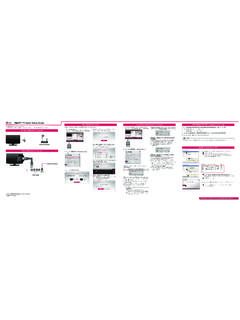
1 It s one touch to 360- degree photos or and just a few simple steps to learn the ins and outs of setup and ON your LG G5 (Friends Manager App pre-installed)SETUP ON your G5 OR COMPATIBLE SMARTPHONE* (LG 360 CAM Manager App installation required) OPERATION GUIDE1 Locate and open the LG Friends Manager Open Google Play Store or the App Store , search and download LG 360 CAM.* Supported on Android or later and iOS 8 or later. * Enters sleep mode automatically after period of inactivity. Notes: 1. A Wi-Fi connection is required during setup. 2. When a connection is lost, reconnection takes approximately 15 Press and hold the Power Button to turn on the LG 360 Once installed, open the app on your device and press and hold the Power Button to turn on the LG 360 Once detected, the 360 CAM will display under My devices tab on the LG Friends On the phone, press Start on the 360 CAM Manager app, and agree to all terms and Tap the download icon next to the 360 CAM.
2 Accept all prompts to Tap the 360 CAM. Once connected, you will see the battery level in the upper left corner of the Once downloaded, your 360 CAM is paired and ready to up yourPower OnPress & hold the Power Button (1 second)Power OffPress & hold the Power Button (4 seconds or longer)Take a photoPress the Shutter ButtonRecord a videoPress & hold the Shutter Button (1 second)Stop a recordingPress the Shutter ButtonEnter Sleep modePress & hold the Power Button (1 second)*Exit Sleep modePress the Power Button or Shutter ButtonForced shutdownPress & hold the Power button (12 seconds or longer) GETTING STARTED5 A Wi-Fi password can be created for your 360 CAM in the settings menu to allow pairing with only approved devices; default is 00 + the last 6 digits of your product s serial number or for products with a 5 digit serial number, use 000 + the 5 digit serial number. All materials in this instruction sheet including, without limitation, the design and the text are the property of LG Electronics MobileComm , Inc.
3 Copyright 2016 LG Electronics MobileComm , Inc. ALL RIGHTS RESERVED. LG, LG Life s Good, and the LG Logo are registered trademarks of LG Corp. Other trademarks and trade names are those of their respective owners. Screen shots are simulated and subject to change. All features, functionality, and other product specifications are subject to change without THE LG 360 CAMTake full advantage of your 360 CAM by using the LG 360 CAM Manager on your smartphone to easily control and capture content. 1. Install a microSD card (sold separately) by opening the bottom cover of the LG 360 CAM and inserting the card (gold pins face away from the USB port).2. Shooting with a Connected Device1. Open the 360 CAM Manager app and press and hold the Power Button to turn on the LG 360 The device should automatically connect to the LG 360 Tap the Camera icon on the 360 CAM Manager. Live image will appear on the connected Use the LG 360 CAM Manager App to adjust camera Press the Capture icon to take a photo OR the Record icon to record a Tap the Gallery icon to view the photo or video that was : Records surround sound using three without a Connected Device1.
4 Press the Power Button to turn on the LG 360 CAM. 2. To capture an image, press the LG 360 CAM Shutter Button once or long press to begin recording a video.** Supports video recordings up to 4 GB or 20 minutes. 1. Open the 360 CAM Manager Tap the Gallery icon on the 360 CAM Manager app home Tap the download Place a checkmark next to the files you want to download to your device OR tap Select All. 5. Tap DOWNLOAD and the files will download to your : Files must be transferred to your compatible device through the 360 CAM Manager App in order to be rendered and viewed. Files are saved in internal storage under DCIM/Accessory Camera Open the 360 CAM Manager Tap the Gallery icon on the 360 CAM Manager app home Select from your existing Gallery files or download a new Hit the Share icon and send to recent contacts or post to Google Street View or YouTube 360 services.*Note: File restrictions may apply depending on sharing method and/or application.
5 * Must download Google Street View or YouTube 360 apps from Google Play Store or App Store prior to sharing. 1. Select the image quality2. Select the shooting environment3. Select the camera direction4. Select a shooting mode (360 /180 )5. Set Normal or Manual mode6. Go to previous menu7. Take a photo8. Record a video9. View a previewBATTERY CHARGING & ALERTSThe Power LED indicates the battery charge the LG 360 CAM, open the bottom cover and connect the charger to the USB-C LG 360 CAM protective cap provides for a comfortable hand grip or can be used as a mini stand. Power LED (with the cable disconnected)GreenRedRed BlinkingBattery StatusMore than 15%5% - 15%Less than 5%CAPTURE 360 PHOTOS & VIDEOSTRANSFER IMAGE OR VIDEO FILESTIME TO SHAREMIC 3 SHUTTER BUTTONSHUTTER LEDDUAL CAMERALENSMIC 2 CONNECTOR CLIPMIC 1 PROTECTIVE CAPCAP RELEASEPOWER BUTTONMODE LEDs(360 / 180 )POWER LEDCHARGER/ USB PORTTRIPOD CONNECTIONMICROSD CARD SLOT