Transcription of Getting started with Logitech® Wireless Combo …
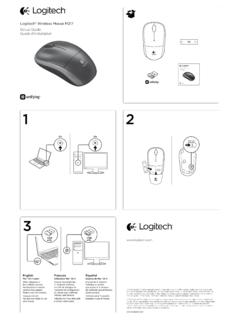
1 12K330M215 Getting started withLogitech Wireless Combo MK320 EnglishYour mouse and keyboard are now ready for ol Ya puedes usar el mouse y el sO teclado e o mouse est o prontos para ser features1. Left and right mouse buttons2. Scroll wheel Press the wheel down for middle button (function can vary by software application)3. Battery LED Flashes red when battery power is low4. On/Off slider switch5. Battery door release button6. Unifying receiver storageKeyboard featuresHot keys1. Switch applications2. Launch e-mail3. Home4. Launch media player5. Show Desktop6. Previous track7. Play/pause8. Next track9. Mute10. Volume down11. Volume upFN keysTo use the FN function, press and hold the FN key, and then press the F-key you want to Search13. Lock PC14. My computer15. PC sleep16. Contextual menu17.
2 Scroll lockEspa olCaracter sticas del mouse 1. Botones izquierdo y derecho 2. Bot n rueda Pulsa el bot n rueda para usarlo como bot n central (la funci n puede variar seg n la aplicaci n de software) 3. Diodo de estado de bater as Emite destellos rojos cuando la bater a se est agotando. 4. Conmutador de encendido/apagado 5. Bot n de compartimento de bater as 6. Almacenamiento de receptor UnifyingCaracter sticas del teclado Botones de acceso r pido 1. Cambia de aplicaci n 2. Inicia el correo electr nico 3. Inicio 4. Abre el reproductor de medios 5. Muestra el escritorio 6. Pista anterior 7. Reproducir/Pausa 8. Pista siguiente 9. Silencio 10. Bajar volumen 11. Subir volumen Teclas FN Para usar la funci n FN, con la tecla FN presionada, pulsa la tecla F que desees usar. 12. Buscar 13.
3 Bloquea la PC 14. Mi PC 15. Modo de suspensi n de PC 16. Men contextual 17. Bloq. sRecursos do mouse 1. Bot es esquerdo e direito do mouse 2. Roda de rolagem Pressione a roda para obter o bot o do meio (a fun o varia conforme o aplicativo de software) 3. LED de pilhas A luz vermelha pisca quando a pilha est fraca 4. Controle deslizante para ligar/desligar 5. Bot o do livramento da porta do compartimento de pilhas 6. Armazenamento do receptor UnifyingRecursos do teclado Teclas de acesso 1. Alternar aplicativos 2. Iniciar e-mail 3. Home 4. Iniciar media player 5. Mostrar rea de trabalho 6. Faixa anterior 7. Reproduzir/pausa 8. Pr xima faixa 9. Sem som 10. Menos volume 11. Mais volume Teclas FN Para usar a fun o FN, mantenha pressionada a tecla FN e pressione a tecla F que deseja usar.
4 12. Pesquisa 13. Bloquear o PC 14. Meu computador 15. Modo de dormir do PC 16. Menu de contexto 17. Scroll Lock1246531231213141516174567891011 OnOnUSBUSBG etting started withLogitech Wireless Combo MK330 EnglishThe logitech Unifying receiver Plug it. Forget it. Add to new logitech product ships with a logitech Unifying receiver. Did you know you can add a compatible logitech Wireless device that uses the same receiver as your current logitech Unifying product? Are you Unifying-ready?If you have a logitech Wireless device that s Unifying-ready, you can pair it with additional Unifying devices. Just look for the orange Unifying logo on the new device or its packaging. Build your ideal Combo . Add something. Replace something. It s easy, and you ll use only one USB port for up to six devices.
5 Getting started is easyIf you re ready to pair your device(s) via Unifying, here s what you need to do:1. Make sure your Unifying receiver is plugged If you haven t already, download the logitech Unifying software from Start the Unifying software* and follow the onscreen instructions to pair the new Wireless device with your existing Unifying receiver. *Go to Start / All Programs / logitech / Unifying / logitech Unifying SoftwareEspa olReceptor logitech Unifying Con ctalo. Olv date de l. Agrega m nuevo producto logitech se entrega con un receptor logitech Unifying. Sab as que puedes agregar un dispositivo inal mbrico logitech compatible que utiliza el mismo receptor que tu producto logitech Unifying actual? Est s listo para Unifying?Si tienes un dispositivo inal mbrico compatible con Unifying, puedes emparejarlo con otros dispositivos Unifying.
6 Busca el logo naranja de Unifying en el nuevo dispositivo o en su embalaje. Crea la combinaci n ideal. Agrega algo. Sustituye algo. Es sencillo: s lo utilizar s un puerto USB para hasta seis dispositivos. Es muy sencilloSi est s listo para emparejar los dispositivos mediante Unifying, sigue estos pasos:1. Comprueba que el receptor Unifying est Si no lo has hecho a n, descarga el software logitech Unifying desde Inicia el software* Unifying y sigue las instrucciones en pantalla para emparejar el nuevo dispositivo inal mbrico con el receptor Unifying existente. *Ve a Inicio / Todos los programas / logitech / Unifying / Software logitech UnifyingPortugu sO receptor logitech Unifying Conecte-o. Esque a-o. Adicione a novo produto da logitech inclui um receptor logitech Unifying. Sabia que poss vel adicionar um dispositivo sem fio compat vel da logitech que usa o mesmo receptor que o atual produto logitech Unifying?
7 Est preparado para Unifying?Se tiver um dispositivo sem fio da logitech que esteja preparado para Unifying, voc poder emparelh -lo com dispositivos Unifying adicionais. Procure o logotipo laranja do Unifying no novo dispositivo ou na embalagem. Fa a sua combina o ideal. Adicione algo. Substitua algo. f cil, e somente uma porta USB ser usada para at seis dispositivos. f cil come arSe estiver pronto para emparelhar dispositivos atrav s do Unifying, aqui est o que preciso fazer:1. 1. Verifique se o receptor Unifying est 2. Se ainda n o o fez, fa a o download do software logitech Unifying no site 3. Inicie o software Unifying* e siga as instru es na tela para emparelhar o novo dispositivo sem fio com o receptor Unifying existente. *V para Iniciar / Todos os programas / logitech / Unifying / logitech Unifying SoftwareEnglishHelp with setup Are the mouse and keyboard powered on?
8 Is the Unifying receiver securely plugged into a computer USB port? Try changing USB ports. If the Unifying receiver is plugged into a USB hub, try plugging it directly into a USB port on your computer. Did you pull the battery tab on the mouse and keyboard? Check the orientation of the batteries inside the mouse and keyboard, or replace the batteries. The mouse uses one AA alkaline battery and the keyboard uses two AAA alkaline batteries. Remove metallic objects between the mouse/keyboard and the Unifying receiver. Try moving the Unifying receiver to a USB port closer to the mouse and keyboard. Try reconnecting the mouse/keyboard and Unifying receiver using the logitech Unifying software. (Refer to the Unifying section in this guide.)Espa olAyuda con la instalaci n Has encendido el mouse y el teclado?
9 Est el receptor Unifying conectado correctamente a un puerto USB de la computadora? Prueba otros puertos USB. Si el receptor Unifying est conectado a un concentrador USB, con ctalo directamente a un puerto USB de la computadora. Tiraste de la leng eta de las bater as del mouse y el teclado? Comprueba la orientaci n de las bater as dentro del teclado y el mouse, o sustituye las bater as. El mouse usa una bater a alcalina AA y el teclado usa dos bater as alcalinas AAA. Retira cualquier objeto met lico situado entre el mouse y el teclado y el receptor Unifying. Lleva el receptor Unifying a un puerto USB m s cercano al mouse y el teclado. Vuelve a conectar el mouse y el teclado y el receptor Unifying mediante el software logitech Unifying. (Consulta la secci n Unifying de esta gu a).
10 Portugu sAjuda para a instala o O mouse e o teclado est o ligados? O receptor Unifying est conectado corretamente a uma porta USB do computador? Experimente mudar de porta USB. Se o receptor Unifying estiver conectado a um hub USB, experimente conect -lo diretamente a uma porta USB no computador. Tirou a ling eta das pilhas no mouse e no teclado? Verifique a orienta o das pilhas no interior do teclado e do mouse, ou substitua as pilhas. O mouse usa uma pilha alcalina AA e o teclado usa duas pilhas alcalinas AAA. Remova objetos met licos entre o mouse ou o teclado e o receptor Unifying. Experimente mover o receptor Unifying para uma porta USB mais pr xima do mouse e do teclado. Experimente reconectar o teclado ou o mouse e o receptor Unifying usando o software logitech Unifying. (Consulte a se o Unifying neste guia.)