Transcription of Getting started with Première utilisation Logitech ...
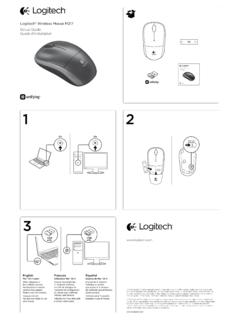
1 Getting started withPremi re utilisationLogitech wireless keyboard K270132 Getting started withPremi re utilisationLogitech wireless keyboard K270K270 EnglishFeatures1. Play/pause2. Mute volume3. Decrease volume4. Increase volume5. Navigate to Internet home6. Launch email application7. Place PC in standby mode8. Launch calculatorEspa olFunciones1. Reproducir/Pausa2. Silenciar volumen3. Bajar volumen4. Subir volumen5. Navegar a p gina de inicio de Internet6. Iniciar aplicaci n de correo electr nico7. Activar el modo de espera de la PC8. Abrir calculadoraFran aisFonctions1. Lecture/pause2. Sourdine3. Baisse du volume4.
2 Augmentation du volume5. Page d accueil Internet6. D marrage de l application de messagerie lectronique7. Mise en veille de l ordinateur8. Lancement de la calculatricePortugu sRecursos1. Reproduzir/pausa2. Desativar volume3. Diminuir o volume4. Aumentar o volume5. Navegar para homepage na Internet6. Iniciar aplicativo de e-mail7. Colocar o PC no modo de espera8. Iniciar a 2011 Logitech . All rights reserved. Logitech , the Logitech logo, and other Logitech marks are owned by Logitech and may be registered. All other trademarks are the property of their respective owners. Logitech assumes no responsibility for any errors that may appear in this manual.
3 Information contained herein is subject to change without notice. 2011 Logitech . Tous droits r serv s. Logitech , le logo Logitech et les autres marques Logitech sont la propri t exclusive de Logitech et sont susceptibles d tre des marques d pos es. Toutes les autres marques sont la propri t exclusive de leurs d tenteurs respectifs. Logitech d cline toute responsabilit en cas d erreurs dans ce manuel. Les informations nonc es dans le pr sent document peuvent faire l objet de modifications sans avis pr States +1 646-454-3200 Argentina +00800-555-3284 Brasil +0 800-891-4173 Canada +1 866-934-5644 Chile 1230 020 5484 Latin America +1 800-578-9619 Mexico 001 800 578 9619 What do you think?
4 Cu l es su opini n?Qu en pensez-vous?O que voc acha?Please take a minute to tell us. Thank you for purchasing our gustar a conocerla, si puede dedicarnos un minuto. Le agradecemos la adquisici n de nuestro quelques minutes pour nous faire part de vos commentaires. Vous venez d acheter ce produit et nous vous en um minuto para nos dizer. Obrigado por adquirir nosso with setup Is the keyboard powered on? Is the Unifying receiver securely plugged into a computer USB port? Try changing USB ports. If the Unifying receiver is plugged into a USB hub, try plugging it directly into a USB port on your computer. Did you pull the battery tab?
5 Check the orientation of the batteries inside the keyboard , or replace the two AAA alkaline batteries. Remove metallic objects between the keyboard and its Unifying receiver. Try moving the Unifying receiver to a USB port closer to the keyboard , or go to for a USB extender that will allow the receiver to be placed closer to the keyboard . Try reconnecting the keyboard and Unifying receiver using the Logitech Unifying software (Refer to the Unifying section in this guide.)Espa olAyuda con la instalaci n Has encendido el teclado? Est el receptor Unifying conectado correctamente a un puerto USB de la computadora?
6 Prueba otros puertos USB. Si el receptor Unifying est conectado a un concentrador USB, con ctalo directamente a un puerto USB de la computadora. Has tirado de la leng eta de las bater as? Comprueba la orientaci n de las bater as dentro del teclado, o sustituye las dos bater as alcalinas AAA. Retira cualquier objeto met lico situado entre el teclado y el receptor Unifying. Intenta mover el receptor Unifying a un puerto USB cercano al teclado,o visita para una extension USB que te permitir ubicar el receptor mas cerca del teclado. Vuelve a conectar el teclado y el receptor Unifying mediante el software Logitech Unifying.
7 (Consulta la secci n Unifying de esta gu a.)Fran ais Aide pour l installation Le clavier est-il sous tension? Le r cepteur Unifying est-il branch sur un port USB? R essayez en changeant de port USB. Si le r cepteur Unifying est branch dans un hub USB, branchez-le directement sur un port USB de l ordinateur. Avez-vous retir la languette de protection des piles? V rifiez le sens d insertion des piles dans le clavier ou remplacez les deux piles alcalines AAA. D placez tout objet m tallique se trouvant entre le clavier et le r cepteur Unifying. Branchez le r cepteur Unifying sur un port USB plus proche du clavier ou visitez la page afin d obtenir une rallonge USB qui vous permettra de rapprocher le r cepteur du clavier.
8 Reconnectez le clavier au r cepteur Unifying l aide du logiciel Logitech Unifying. (Reportez-vous la section Unifying de ce guide.)Portugu sAjuda para a configura o O teclado est ligado? O receptor Unifying est conectado corretamente a uma porta USB do computador? Experimente uma outra porta USB. Se o receptor Unifying estiver conectado a um concentrador USB, tente conect -lo diretamente a uma porta USB no computador. Abriu o compartimento de pilhas? Verifique a orienta o das pilhas no teclado ou substitua as duas pilhas alcalinas AAA. Remova objetos met licos entre o teclado e o receptor Unifying. Tente movendo o receptor Unifying a uma porta USB mais perto do keyboard , ou va a para um extensor de porta USB que facilitara o receptor estar mais perto do keyboard .
9 Experimente reconectar o teclado e o receptor Unifying usando o software Logitech Unifying. (Consulte a se o Unifying neste guia.)EnglishPlug it. Forget it. Add to new Logitech product ships with a Logitech Unifying receiver. Did you know you can add a compatible Logitech wireless device that uses the same receiver as your current Logitech Unifying product? Are you Unifying-ready?If you have a Logitech wireless device that s Unifying-ready, you can pair it with additional Unifying devices. Just look for the orange Unifying logo on the new device or its packaging. Build your ideal combo. Add something. Replace something.
10 It s easy, and you ll use only one USB port for up to six devices. Getting started is easyIf you re ready to pair your device(s) via Unifying, here s what you need to do:1. Make sure your Unifying receiver is plugged If you haven t already, download the Logitech Unifying software from Start the Unifying software* and follow the onscreen instructions to pair the new wireless device with your existing Unifying receiver. *Go to Start / All Programs / Logitech / Unifying / Logitech Unifying SoftwareEspa olCon ctalo. Olv date de l. Agrega m nuevo producto Logitech se entrega con un receptor Logitech Unifying. Sab as que puedes agregar un dispositivo inal mbrico Logitech compatible que utiliza el mismo receptor que tu producto Logitech Unifying actual?