Transcription of Getting started with Webex Meetings.
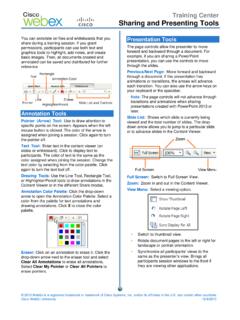
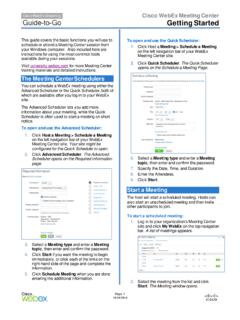
1 Download the Cisco Webex desktop and mobile apps from started with Webex your meetingRecommended: From the desktop app1. From the Webex Meetings desktop app, click Fill in the calendar invitation that pops up as you would normally do for meetings on Add Click the Add Webex Meeting logo in the Appointment Click the mobile app1. Tap on the Schedule icon in the top right hand corner of the Give your meeting a Edit the time and date of the Add attendees email Tap Schedule in the top right hand and joining meetingsRecommended: From the desktop app1. Open the Webex Meetings desktop To start a meeting on the fly, click Start a To join a scheduled meeting tap the big green Join button next to the meeting you want to Join.
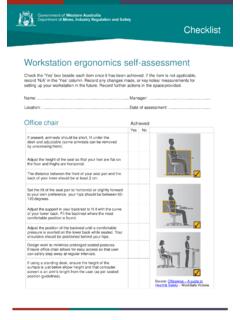
2 From the mobile app1. For a scheduled meeting, click the Join button on the notification or from the My Meetings page of the Tap Start Meeting to start an ad hoc meeting in your personal Alternatively, tap Join Meeting and enter the meeting number, URL, or help Getting started ? Visit Webex and joining meetingsFrom a web browser1. Open the meeting invitation and click the Join from your browser Authorize the use of your microphone and Click Start Meeting. Share your screenFrom within the meeting click the icon and select share your screen or a specific from home checklist:Remember to take chargers for laptops or other equipment you need from your sure your computer and apps are up to check your home internet connection and update your a workspace in your home that s ergonomic , comfortable, and clutter or personal items in the background that might distract others.
3 Face a window for natural light, or use a lamp, so your team can clearly see you on video. Use noise cancelling headphones or a headset for the best audio others in the home from doing high bandwidth activities, like streaming started with Webex help Getting started ? Visit Webex today.