Transcription of How to Create a Digital Signature in Adobe Acrobat
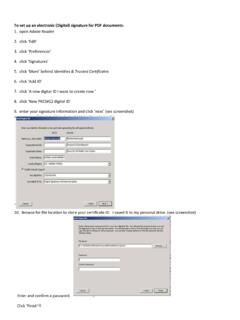
1 How to Create a Digital Signature in Adobe Note: This example is Adobe Acrobat Pro DC. If you find these instructions do not work for your version of Adobe , please contact your IT support person. 1) Open Acrobat Reader and navigate to the Preferences menu, as show below: 2) Under the Categories menu, choose Signatures. Then, next to Identities & Trusted Certificates, click More. 3) Click Add ID, then select A new Digital ID I want to Create now, and lastly click on Next. 4) Ensure that New PKCS#12 Digital ID file is selected, as shown below. Then click Next. 5) Fill out the appropriate portions of the window below. Do not change Country/Region, Key Algorithm, or Use Digital ID for. Click Next. 6) Choose a password for your Digital Signature . Note: If you forget this password, you will have to Create a new Digital Signature as there is no password recovery mechanism. Click Finish. 7) View your new Digital Signature .
2 You can now use your Digital Signature to sign Adobe Acrobat forms. The next section of this How To document covers signing documents in Adobe Reader. Sign an Adobe Document with Your Digital Signature 1) Make ALL necessary changes (if any) to your document first, before signing. Caution: If any changes are made after the Signature is in place, the document will display a note indicating changes that were made after signing. 2) Click on Certificates in the menu bar on the right of the screen. This will cause a new tool bar to open at the top of the screen. Note: If you do not have Certificates as an option in the menu on the right, you will need to take the following additional steps to add this option to the menu: - Select Tools (upper left portion of screen) - Locate Certificates and click Add 3) Select Digitally Sign and follow the instructions in the pop-up windows. You will be selecting the area where you wish the Signature to appear and then entering your password.
3 You will be instructed to save the document and then your Signature will appear. Procurement and Payment Services, 12/1/15