Transcription of How to generate a waybill? - …
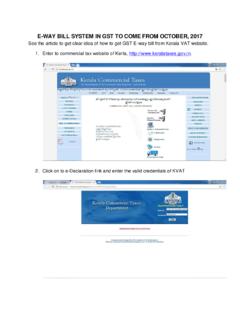
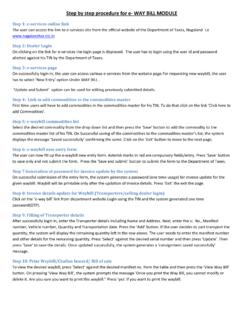
1 Commercial Taxes Division Finance, Revenue & Expenditure Department e-Services How to generate a waybill ? 1. In your web browser, go to 2. Click on Login button. 3. Use your username and password to login as a Dealer. 4. Click on Way bill tab to view the list of all the Way Bills you have created. 5. To generate a new waybill Way bill for Export, click on Create Export Way bill or for Import, click on Create Import Way bill . 6. For an export waybill , you can choose to create an Interstate Export Way bill or Local Export waybill . 7. Click on the Create Import waybill to create an import waybill . 8. The date will be pre filled and declaration value will be auto calculated based on the invoice values.
2 9. Enter the contact person s name and address in the delivery address section. 10. Enter the consignor details and the invoice details. 11. You can add more than one invoice by clicking the Add Invoice/commodity link. 12. You can also delete the invoice/commodity added by clicking the delete icon given. 13. The total value of the invoices will be auto calculated and shown as total. 14. You can add more than one consignor in a single waybill by clicking the Add Consignor link. 15. You can enter the details of the added consignor and the corresponding invoice details. 16. You can delete the added consignor by clicking the Delete Consignor link. 17. The total value of the invoices for all the consignors will be shown at the top of the waybill .
3 18. Click on the Save button to save the waybill . 19. On clicking the Save button, the waybill will be generated and success message is shown. 20. Also you will receive a SMS with your waybill number on the successful generation of the waybill . 21. To generate an export waybill , click in Create Export waybill button. 22. Select the export type of the waybill . 23. The date field is prefilled. 24. Enter the consignee details in the consignee section. 25. You can add more than one invoice/commodity by clicking the link Add invoice/commodity. 26. You delete the invoice/commodity by clicking the delete icon given. 27. You can add more than one consignee by clicking the Add Consignee link given.
4 28. You can delete the added consignee by clicking the Delete Consignee link given. 29. Click on Save button to generate waybill . 30. On clicking the Save button, the waybill will be generated and success message is shown. 31. Also you will receive a SMS with your waybill number on the successful generation of the waybill . 32. You can view the generated waybill by clicking View icon. 33. On clicking view button, the waybill will be shown in the view mode. 34. You can edit the not endorsed waybill by clicking the Edit icon. 35. On clicking the edit icon, the waybill will be shown in editable mode. 36. You can update the details and save the information by clicking the Save button.
5 37. On clicking Save button, you updates will be saved and success message is shown. 38. Also a SMS will be sent stating that your waybill has been updated.