Transcription of Lab 11.5.1: Basic Cisco Device Configuration
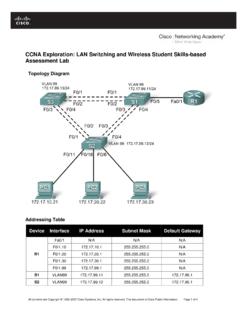
1 Lab : Basic Cisco Device Configuration Topology Diagram Learning Objectives Configure Cisco router global Configuration settings. Configure Cisco router password access. Configure Cisco router interfaces. Save the router Configuration file. Configure a Cisco switch. Background Hardware Qty Description Cisco Router 1 Part of ccna Lab bundle. Cisco Switch 1 Part of ccna Lab bundle. *Computer (host) 1 Lab computer. Console (rollover) cable 1 Connects computer host 1 to Router console port. UTP Cat 5 crossover cable 1 Connects computer host 1 to Router LAN interface Fa0/0 Straight Through Cable 3 Connects computer hosts to Switch and switch to router Table 1. Equipment and hardware required for this lab.
2 Gather the necessary equipment and cables. To configure the lab, make sure the equipment listed in Table 1 is available. Common Configuration tasks include setting the hostname, access passwords, and MOTD banner. Interface Configuration is extremely important. In addition to assigning a Layer 3 IP address, enter a description that describes the destination connection speeds troubleshooting time. All contents are Copyright 1992 2007 Cisco Systems, Inc. All rights reserved. This document is Cisco Public Information. Page 1 of 20 ccna exploration Network Fundamentals: Configuring and Testing Your Network Lab Basic Cisco Device Configuration Configuration changes are effective immediately. Configuration changes must be saved in NVRAM to be persistent across reboot.
3 Configuration changes may also be saved off-line in a text file for auditing or Device replacement. Cisco IOS switch Configuration is similar to Cisco IOS router Configuration . Scenario In this lab students will configure common settings on a Cisco Router and Cisco Switch. Given an IP address of , with 4 bits borrowed for subnets, fill in the following information in the table below. (Hint: fill in the subnet number, then the host address. Address information will be easy to compute with the subnet number filled in first) Maximum number of usable subnets (including the 0th subnet): _____ Number of usable hosts per subnet: _____ IP Address: Subnet mask: # Subnet First host address Last host address Broadcast 0 Before proceeding, verify your addresses with the instructor.
4 The instructor will assign subnetworks. All contents are Copyright 1992 2007 Cisco Systems, Inc. All rights reserved. This document is Cisco Public Information. Page 2 of 20 ccna exploration Network Fundamentals: Configuring and Testing Your Network Lab Basic Cisco Device Configuration Task 1: Configure Cisco Router Global Configuration Settings. Figure 1. Lab cabling. Step 1: Physically connect devices . Refer to Figure 1. Connect the console or rollover cable to the console port on the router. Connect the other end of the cable to the host computer using a DB-9 or DB-25 adapter to the COM 1 port. Connect the crossover cable between the host computer s network interface card (NIC) and Router interface Fa0/0. Connect a straight-through cable between the Router interface Fa0/1 and any of the switch s interfaces (1-24).
5 Ensure that power has been applied to the host computer, switch and router. Step 2: Connect host computer to router through HyperTerminal. From the Widows taskbar, start the HyperTerminal program by clicking on Start | Programs | Accessories | Communications | HyperTerminal. Configure HyperTerminal with the proper settings: Connection Description Name: Lab 11_2_11 Icon: Personal choice Connect to Connect Using: COM1 (or appropriate COM port) All contents are Copyright 1992 2007 Cisco Systems, Inc. All rights reserved. This document is Cisco Public Information. Page 3 of 20 ccna exploration Network Fundamentals: Configuring and Testing Your Network Lab Basic Cisco Device Configuration COM1 Properties Bits per second: 9600 Data bits: 8 Parity: None Stop bits: 1 Flow Control: None When the HyperTerminal session window comes up, press the Enter key until there is a response from the router.
6 If the router terminal is in the Configuration mode, exit by typing NO. Would you like to enter the initial Configuration dialog? [yes/no]:no Press RETURN to get started! Router> When in privileged exec command mode, any misspelled or unrecognized commands will attempt to be translated by the router as a domain name. Since there is no domain server configured, there will be a delay while the request times out. This can take between several seconds to several minutes. To terminate the wait, simultaneously hold down the <CTRL> <SHIFT>6 keys then release and press x: Router>enabel Translating "enabel"..domain server ( ) % Briefly hold down the keys <CTRL> <SHIFT>6, release and press x Name lookup aborted Router> From the user exec mode, enter privileged exec mode: Router> enable Router# Verify a clean Configuration file with the privileged exec command show running-config.
7 If a Configuration file was previously saved, it will have to be removed. Appendix 1 shows a typical default router s Configuration . Depending on router s model and IOS version, your Configuration may look slightly different. However, there should be no configured passwords or IP addresses. If your router does not have a default Configuration , ask the instructor to remove the Configuration . Step 3: Configure global Configuration hostname setting. What two commands may be used to leave the privileged exec mode? _____ What shortcut command can be used to enter the privileged exec mode? _____ All contents are Copyright 1992 2007 Cisco Systems, Inc. All rights reserved. This document is Cisco Public Information. Page 4 of 20 ccna exploration Network Fundamentals: Configuring and Testing Your Network Lab Basic Cisco Device Configuration Examine the different Configuration modes that can be entered with the command configure?
8 Write down the list of Configuration modes and description: _____ _____ _____ _____ _____ _____ From the privileged exec mode, enter global Configuration mode: Router# Configuration terminal Router(config)# What three commands may be used to leave the global Configuration mode and return to the privileged exec mode? _____ _____ What shortcut command can be used to enter the global Configuration mode? _____ Set the Device hostname to Router1: router(config)# hostname Router1 Router1(config)# How can the hostname be removed? _____ _____ Step 5: Configure the MOTD banner. In production networks, banner content may have a significant legal impact on the organization. For example, a friendly Welcome message may be interpreted by a court that an attacker has been granted permission to hack into the router.
9 A banner should include information about authorization, penalties for unauthorized access, connection logging, and applicable local laws. The corporate security policy should provide policy on all banner messages. All contents are Copyright 1992 2007 Cisco Systems, Inc. All rights reserved. This document is Cisco Public Information. Page 5 of 20 ccna exploration Network Fundamentals: Configuring and Testing Your Network Lab Basic Cisco Device Configuration Create a suitable MOTD banner. Only system administrators of the ABC Company are authorized access, unauthorized access will be prosecuted, and all connection information will be logged. _____ _____ _____ _____ _____ _____ Examine the different banner modes that can be entered. Write down the list of banner modes and description.
10 Router1(config)# banner ? _____ _____ _____ _____ _____ _____ Choose a terminating character that will not be used in the message Configure the MOTD banner. The MOTD banner is displayed on all connections before the login prompt. Use the terminating character on a blank line to end the MOTD entry: Router1(config)# banner motd % Enter TEXT message. End with the character '%' **You are connected to an ABC network Device . Access is granted to only current ABC company system administrators with prior written approval. ** ** Unauthorized access is prohibited, and will be prosecuted. ** ** All connections are continuously logged. ** % Router1(config)# What is the global Configuration command to remove the MOTD banner? _____ All contents are Copyright 1992 2007 Cisco Systems, Inc.