Transcription of Managing Your Electronic Earnings Statements - …
1 Self-Service User Guide 4-8-2010 1 Managing your Electronic Earnings Statements State employees can view, download, or print Earnings Statements online . Each new statement is available the Friday before pay day, and stays online for 40 pay periods ( years). Viewing Earnings Statements online From the Gateway page ( ) the Earnings Statement icon goes directly to your Statements . Or you can log into your Self-Service account (from Work or Home) and use the Earnings Statement link under the Pay menu. Either way, enter your User Name and Password and your All Payments table displays. The most recent statement is always at the top.
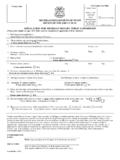
2 Click the purple diamond to the left of a payment date to view that statement in detail. The selected statement opens in a new window (see picture at right). To log out, click the Logout button and then close ALL your browser windows. Please Note: Year-to-date Earnings may not add up to year-to-date Total Gross on each statement: Earnings descriptions (like holiday or annual leave hours) only show up on a statement when used that pay period. If you don t use annual leave one pay period, that statement won t show any annual leave hours or a year-to-date annual leave total. But year-to-date gross still includes all Earnings for the year.
3 Self-Service User Guide 4-8-2010 2 Downloading Earnings Statements Right-click on the open statement and a menu appears. Check for the option to convert to a PDF or to Export to Excel. If neither option is available (or desirable), click File, then click Save As. At the prompt, select where you want the file saved, name the file and choose Web Archive, Single File (*.mht) as the file type. Converting data to Word: Highlight the statement text starting from the header Statement of Earnings & Deductions to the end of the Leave Balances box (do not include the State Seal or the Back link at the end of the page).
4 Right click on the highlighted area and select Copy from the pop-up menu. Paste the data into Word and format as desired. Printing an Earnings Statement Right click on the open statement and select Print from the menu that appears. Browser font size, printer settings, and total number of deduction lines all affect the length of your statement and thus the number of pages that may print. If the Print screen has a Preferences button, click and choose the 2 pages per sheet option under Layouts. This reduces most Statements to one page. Go Green! Save Trees! Use online Statements whenever possible! IMPORTANT: Do not save personal documents, like Earnings Statements , on state issued computers or shared kiosk computers.
5 If you download Statements , PLEASE REMOVE your FLASH DRIVE OR DISK BEFORE LEAVING THE COMPUTER! Remember to log out and close ALL browser windows when you are done working in MI HR Self-Service.