Transcription of Modem and Smart Router connection guide - Optimum
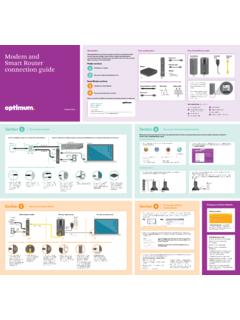
1 Modem and Smart Router connection guide Version Sagemcom 1. Introduction Your Modem parts OUT. This guide will show you how to connect your phone and internet IN. OUT. as well as how to get your laptops, mobile phones, tablets and IN. OUT. OUT. Power cord If you're connecting a Modem for the first time you'll IN. also OUT have these: other devices connected wirelessly. Complete every step within IN. OUT OUT. IN. IN. IN. Cable clips each of the four sections before moving on to the next section. Modem Ethernet cable Coaxial cables (6 and 25 ) Cable splitter OUT. Modem sections front Wrench Phone cord IN. 1. back Connect your Modem Your Smart Router parts 2 Set up your internet and phone service Electrical Ethernet You'll need the default WiFi Smart Router plug cable name (SSID) and password/pin found Smart Router sections on the back of your Smart Router as shown. If you're replacing an existing 3. Router , use your current WiFi Connect your Smart Router front back name (SSID) and password/pin to set up your new Smart Router .
2 Your devices should automatically connect. 4 Set up your wireless home network We're here to help. Reach us 24/7: Write your new WiFi name (SSID) and password/pin below and keep it somewhere safe. 1-866-684-4688. Explore Optimum Channel 900 and Optimum Channel 14. WiFi name (SSID): @OptimumHelp Password/pin: Optimum ID: Optimum ID Password: If you need to create or recover an Optimum ID go to 2. OUT. IN. Section 1 Connect your Modem If you're installing a Modem for the first time, start at Step 1. If you're replacing an existing Modem , disconnect everything from your existing Modem and start at Step 4. 4 Digital cable box Wall outlet 1 2 3 Computer Coaxial cable OUT. IN. Modem Coaxial cable Coaxial cable Ethernet cable Cable splitter 4. Electrical 5 6. outlet Power cord OUT. IN. Use the wrench provided to ensure all your connections are tightly secured. OUT. IN. OUT. OUT. ININ. OUT. IN. OUT. IN. 1 Keep your main cable 2 Connect the open end 3 Now, using both coaxial 4 Connect the open end of 5 Plug your Modem 's power 6 Connect the Ethernet cable 7 Wait five minutes for the line connected to your of the cable to the IN cables provided, connect one coaxial cable to your cord into the electrical outlet.
3 Provided from the yellow Modem to start up before wall outlet, but disconnect end on the cable splitter each one to the OUT digital cable box (if you port on the Modem , to your moving on to Section 2. the other end from the TV provided as shown here. ends on the cable splitter have one) or TV, and the computer. Don't connect You'll know your Modem is or digital cable box as shown here. other open end of the the Router just yet. powered up when the four (if you have one). coaxial cable to the back lights are solid. of the new Modem . 3. Section 2 Set up your internet and phone service Make sure to set up your internet first. Then if you also have Optimum Voice, connect your phone. If you're only connecting internet, go straight to Section 3 after completing Steps 1 and 2. Connect your internet 1 Turn on your computer, open your web browser and follow the 2 If you already signed in with your Optimum ID in Step 1, you can skip this step. If you on-screen instructions.
4 Haven't created an Optimum ID yet, create a new one now. To recover an existing ID, go to Google Chrome Safari Firefox Internet Explorer (version or higher). You'll need your 13-digit account number, which you can find in any of these places: - Optimum bill - Packing slip - Optimum store receipt - Explore Optimum Channel 900. Connect your phone 3 Connect your phone cord between the Modem and phone as shown below. 4 If your phone has an electrical cord, plug it in now. A new phone will need to For two phone lines, connect a second phone cord. charge overnight before using. 5 If you're connecting phone service for the first time, you'll need to register, set up and manage your calling features at after you've connected the phone. Phone cord Electrical outlet Electrical cord Modem Phone Phone Phone 4. OUT. I. OUT. OUT. IN. IN. Section 3 Connect your Smart Router OUT. IN. What's already installed What you need to set up For wired connections only Cable Electrical Computer outlet Modem outlet Smart Router Coaxial cable Ethernet cable 4.
5 Existing Ethernet Electrical cable (wired only). outlet 1, 3 6. 2. Make sure your Smart Router isn't obstructed by anything. Also, if you already have an existing WiFi name (SSID) and password/pin for your current Router , have them somewhere handy. You'll need them. 1 Unplug the power cord 2 Connect the yellow Ethernet 3 Plug the power cord back 4 Plug the Smart Router into 5 Wait five minutes while the Router 6 Reconnect your existing from the back of your Modem cable from the Modem to the into the back of your Modem the electrical outlet. Don't checks for updates. You'll know Ethernet cable between and disconnect the battery red WAN port of the Smart and reconnect the battery see the power light? Press the Router is done when you see your computer and one of backup if you're using one. Router . backup if you're using one. the power button on the back the alternating green lights. If the four open LAN ports on Also disconnect the Ethernet You'll know your Modem is of the Smart Router .
6 You're using a wireless device the back of the Smart Router . cable from your Modem and powered up when the four to set up your Router move on to the back of your computer. lights are solid. This may take Section 4. If you're using a wired a few minutes. computer go to Step 6. 5. Section 4 Set up your wireless home network Manage your home network 1 If you're setting up your wireless network using a wired connection , move on to Step 2. If you're setting up your wireless network using a wireless laptop, computer or device, go to Adjust your settings the WiFi settings on your computer or device (examples below), select your default WiFi name (SSID), and then enter your password/pin. PC Mac Close out of any pop-up windows if they appear. At you can see which devices are connected, personalize your WiFi name (SSID), change your password/pin, settings and more anytime. 2 Open your web browser and you'll be automatically directed to this page. If it doesn't automatically load, go to Follow the on-screen instructions for establishing a WiFi name (SSID) and password/pin.
7 If you're replacing a previous Router , use your previous Router 's WiFi name (SSID) and password/pin A few tips to keep in mind to automatically keep your devices connected. Having trouble connecting? Try these steps: Write down your new WiFi name (SSID) and 1 Make sure all your connections are tightly secured. password/pin on page 2. 2 Stand your Smart Router upright. 3 Reboot instructions for Modem and Smart Router : -Unplug the power from your Modem . If you're using a battery backup, you'll also need to disconnect it from the 3 To connect more devices to your wireless home network, go to the WiFi settings on the Modem . device, select your WiFi name (SSID) and enter your password/pin. -Unplug the power from your Smart Router . Here's where to access your e Other wireless devices, like gaming wireless settings: consoles, wireless printers, etc.: Use the -Plug the Modem back in and wait until it has fully a iPhone: Settings 4 WiFi WPS push button method (see device's restarted.)
8 This can take up to a few minutes. If you're owner's manual) using a battery backup, reconnect it to the Modem . b Android device: Settings 4 wireless Networks or WiFi . f Devices that don't have wireless -Plug the Smart Router back in and wait 30 seconds. capabilities: Connect your computer Now check your internet connection by c PC: wireless Network connection icon to one of the Router 's LAN ports using opening a web browser. in the system tray another Ethernet cable d Mac: Airport icon in the menu bar 6. 6.