Example: confidence

OUTLOOK WEB APP(OWA) FOR ANDROID SETUP

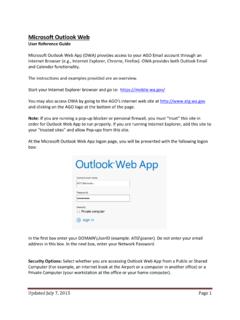
OUTLOOK WEB APP(OWA) FOR ANDROID SETUP This document is to inform you on how to SETUP your email on your Smart phone. 1. Open The Play store 2. On the search bar, type OWA, download and click open once the installation has completed. 3. Once you have downloaded the app, you will be prompted to click Continue. 4. Next type your username and password. Here is an example on how to login. Username: Password: Sonisweb PIN Student ID: Sonisweb PIN: 5. After you ve clicked on the sign in button, it will bring you to the following screen: Finding your server (this may take a moment).. 6. Once the connection has been established. You will be taken to a series of helpful tips asking you to swipe to the next page. At the last page, it will ask you to go to inbox. 7. Once you ve clicked on Inbox, it will take you to your student email. 8.

OUTLOOK WEB APP(OWA) FOR ANDROID SETUP This document is to inform you on how to setup your email on your Smart phone. 1. Open The Play store . 2. On the search bar, type OWA, download and click open once the installation has completed. 3. Once you have downloaded the app, you will be prompted to click

Tags:

  Outlook, Outlook web app

Information

Domain:

Source:

Link to this page:

Please notify us if you found a problem with this document:

Other abuse

Advertisement

Transcription of OUTLOOK WEB APP(OWA) FOR ANDROID SETUP

1 OUTLOOK WEB APP(OWA) FOR ANDROID SETUP This document is to inform you on how to SETUP your email on your Smart phone. 1. Open The Play store 2. On the search bar, type OWA, download and click open once the installation has completed. 3. Once you have downloaded the app, you will be prompted to click Continue. 4. Next type your username and password. Here is an example on how to login. Username: Password: Sonisweb PIN Student ID: Sonisweb PIN: 5. After you ve clicked on the sign in button, it will bring you to the following screen: Finding your server (this may take a moment).. 6. Once the connection has been established. You will be taken to a series of helpful tips asking you to swipe to the next page. At the last page, it will ask you to go to inbox. 7. Once you ve clicked on Inbox, it will take you to your student email. 8.

2 END


Related search queries