Transcription of QRZ Logbook
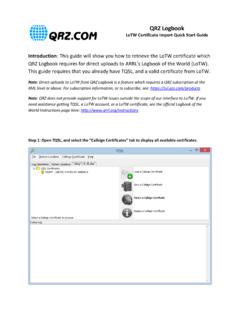
1 QRZ Logbook lotw Download Quick Start Guide Introduction: This guide will show you how to download your QSOs from lotw . into your QRZ Logbook , along with confirmation credit. This guide requires that you already have an lotw account. Note: This guide is for DOWN loads from lotw , which is free for ALL QRZ users. However, direct UPloads to lotw from QRZ Logbook is a feature which requires a QRZ subscription at the XML level or above. For subscription information, or to subscribe, see: Note: QRZ does not provide support for lotw issues outside the scope of our interface to lotw . If you need assistance getting TQSL, a lotw account, or a lotw certificate, see the official Logbook of the World Instructions page here: To begin downloading from lotw , follow the simple instructions below. If you are a subscriber, and have already setup lotw support, skip to Step 3.
2 Step 1: Open your QRZ Logbook , and click "Settings." From there you will see a section like the image below (yours will say "Disabled" in red.) Click "Setup". QRZ Logbook lotw Download Quick Start Guide Step 2: From this page, the only thing you need to enter is your lotw Username. Click Save. Note: If you are a subscriber, you can upload your lotw Certificate Container File (.p12) to enable Uploading QSOs from your QRZ Logbook to lotw , however that part is optional for enabling downloads. The setup instructions for lotw uploads can be found here: You will now be back at the settings page as seen in the image for Step 1. Your lotw Access will now say "Enabled" or "Enabled (Download-Only).". Step 3: Click the "Download from lotw " button as shown below. QRZ Logbook lotw Download Quick Start Guide Step 4: Enter your lotw password in the prompt as shown below.
3 This is the password used to access the lotw website and MAY, or MAY NOT be the same as the password you use to sign ADIF files for upload. Note: Your password is required to perform a download from lotw . It is never saved, or stored at or by QRZ, and never viewed by QRZ staff. It is used to immediately download your QSOs from lotw , then safely, and immediately discarded. Step 5: After you click "OK" on the prompt shown in Step 4, we wait. At this point, QRZ is downloading your QSOs from lotw , comparing them to the QSOs in the your QRZ Logbook (s), then updating the existing, matching QSO, or inserting the QSO as needed. While this process is occurring, you will see a "spinner" like shown below. Note: This may take a long time if you have a large number of QSOs on lotw . Progress will appear on- screen as we process the QSOs.
4 If you do not wish to wait, you can to move on. The process will continue in the background. If you DO scroll away, you will not be notified upon completion, but you can view the report under "File Import / Export History" on the Settings page once the process has completed. QRZ Logbook lotw Download Quick Start Guide Step 6: The process is complete! The spinner has been replaced by a success message like the one shown below. Clicking the button will give you a detailed report of what happened.