Transcription of Quick Install Guide - D-Link
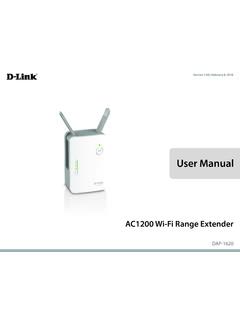
1 DAP-1620 Quick Install GuideAC1200 Wi-Fi Range Extender2 DAP-1620 Install GuidePackage ContentsDAP-1620 AC1200 Wi-Fi Range ExtenderWi-Fi Configuration CardQuick Install GuideIf any of the above items are missing, please contact your reseller. Make sure the area that you want to plug the extender into has a solid connection to your router. Use a wireless laptop, tablet, or mobile phone in that area to test the connection to verify. If your wireless router or access point does not support WPS, follow the steps under Configure the DAP-1620 Using a Web Browser to connect to the DAP-1620 and run the Setup Wizard. If you are not sure how to enable WPS on your wireless router, please refer to your router s user You BeginDAP-1620 Install Guide3 Product OverviewStatus LEDS ignal Strength IndicatorsWPS ButtonEthernet PortReset ButtonLEDC olorStatusDescriptionStatus LEDRedSolidThe device is powering on/booting device is ready but not connected to an uplink that the DAP-1620 is securely connected to your wireless router or access WPS button has been pushed and the device is processing a Strength IndicatorsVery Weak (Amber)Weak (Green)GoodBest4 DAP-1620 Install GuideConnect to Your RouterUsing WPS1 Find an available outlet near your wireless router.
2 Plug in the DAP-1620 and wait until the Status LED is blinking the WPS (Wi-Fi Protected Setup) button on your wireless router. Within one minute, press the WPS button on the DAP-1620. The Status LED will start to Install Guide54 When the Status LED turns solid green, this indicates that the DAP-1620 is securely connected to your wireless router or access point. You can now unplug and move the DAP-1620 to a location between your wireless router and the area that you need wireless the signal strength indicators are showing one single amber bar or if the DAP-1620 is not connecting, move the DAP-1620 to a wall outlet closer to your wireless router or access Install GuideConnect Your Wireless Devices56 Your device is now connected to the DAP-1620 and can connect to your wireless router. If you want to change your network settings, password, etc., follow the steps on the next page to configure the DAP-1620.
3 To connect additional devices, repeat step setup is complete! Extended networkOriginalnetworkFrom your wireless device go to the Wireless Utility to display the available wireless SSID on the DAP-1620 will automatically be assigned the following: (Your Router s SSID)-EXT 5 GHz (Your Router s SSID)-EXT5 GThe Wi-Fi password for the DAP-1620 will be the same as your step 5 to connect additional Wi-Fi devices to the Install Guide7 Configure the DAP-1620 Using a Web BrowserWi-Fi Name(SSID) :dlink-xxxxWi-Fi Name(SSID) 5 GHz:dlink-xxxx-5 GHzPassword: xxxxxxxxTo con gure your extender, go to: : Admin Password: (leave the eld blank)Open the wireless utility on your wireless device or computer. Select the Wi-Fi Network name (from the Wi-Fi Configuration Card) and enter the password. You may also connect the DAP-1620 to your router or computer using an Ethernet may log into the web-based configuration utility on the DAP-1620 to perform the following tasks: Upgrade firmware Change wireless and network settings Change the login password1 Plug the DAP-1620 in an available outlet near your router.
4 You may move it to a more suitable location after a web browser ( , Internet Explorer, Firefox, Safari, or Chrome) and enter You may also enter the IP address of the DAP-1620. 38 DAP-1620 Install GuideOnce you connect, the login page will appear. Enter your password and click Log in. By default the password is : If this is the first time logging in to the DAP-1620, you will be directed to the Wizard automatically. Skip to step : The default IP address is Once the DAP-1620 connects to your router, it will get assigned a new IP address based on your router/network s DHCP settings. You will need to log in to your router and view the DHCP table to see what IP address was assigned to the DAP-1620. The MAC address is printed on the label on the home page will display your current status. A green check mark represents a successful connection to your wireless router or Access Point (AP).
5 A red X means there is not a connection to your router or access point. Click the Uplink Router Install Guide9 Select your language from the drop-down menu and then click WPS process will be started on the DAP-1620 automatically. Press the WPS button on your wireless router or access point. If you want to manually select the wireless network you want to extend, click Extend an existing wireless network and go to the next page. If you want to connect the DAP-1620 to a wired network using an Ethernet cable, click Add wireless to your wired network and skip to page Install GuideA list of detected wireless networks within range of the DAP-1620 will appear. Click on the network you want to extend. If you want to manually type in the Wi-Fi network name (SSID), click Manual at the your wireless network is secure/encrypted, enter the Wi-Fi password and click Next to you clicked Extend an existing wireless network If you clicked Manual, enter the SSID and security information (Wi-Fi password) of the wireless network you want to extend and click Next to to page 12 to continueDAP-1620 Install Guide11 Connect the DAP-1620 to your network using an Ethernet cable.
6 The wizard will automatically go to step 10 on the next page. If you wish to connect the DAP-1620 later, click you clicked Add wireless to your wired network 12 DAP-1620 Install GuideEnter a new Wi-Fi network name for the DAP-1620 and enter a new Wi-Fi password. Click Next to an administrator password for the DAP-1620. This is the password you will use to enter the web-based configuration. Click Next to Install Guide13A summary page will display your settings. Click Finish and the DAP-1620 will reboot. If you want to make any changes, click Back. 12 Setup is now complete. Allow about two minutes for the DAP-1620 reboot. Verify that the Status light is green and the signal strength indicators are lit. You can now unplug the DAP-1620 and connect to a different location if needed. 14 DAP-1620 Install GuideTroubleshootingWhy can t I connect to my wireless router or my wireless connection drops?1. Verify that the DAP-1620 is within range of your wireless router.
7 Try plugging it into a location closer to the router and verify the Status LED is solid Note that when repeating a wireless signal from a router or access point, devices connected to the repeater will not get the same speed/throughput as when connected directly to the router. How do I change the wireless settings on the DAP-1620?1. Open a web browser ( , Internet Explorer, Firefox, Chrome or Safari) and go to or enter the IP address ( by default).2. At the login screen, enter your password and click Log Go to Setup > Enter a new Wi-Fi Network Name (SSID) for the and 5 GHz bands, and modify the security (Wi-Fi password) settings as needed. 5. Click : If you have changed the Wi-Fi Network name, the device you are currently using to connect to the DAP-1620 will drop. You will need to open your wireless utility and connect to the DAP-1620 using the new network name and Install Guide15 Where should I place my DAP-1620 when using it as a range extender?
8 A Range Extender only works as well as the signal it is extending. Therefore, proper placement of your DAP-1620 is important in achieving desired !!!PoorlocationIdeallocation!!!A Range Extender only works as well as the signal it is extending. Therefore, proper placement of your DAP-1620 is important in achieving desired best performance, place your DAP-1620 in between your router and your dead zone, making sure it s placed in a location where the Wi-Fi signal is still strong. Use the Smart Signal Indicator to help find a location with a strong signal. The more bars lit on the signal indicator, the stronger the Wi-Fi signal Install GuideWhat if I forgot my DAP-1620 password?1. If you forgot your password or want to reset the DAP-1620 back to the factory default settings, press and hold the reset button on the bottom of the extender using a paper clip and release after a minimum of 10 seconds.
9 The Status light will turn red. Note: This process will erase all your settings. 2. You may repeat the WPS process on page 5. Follow the steps under Connect to Your Router Using ButtonDAP-1620 Install Guide17 GPL Code StatementThis D-Link product includes software code developed by third parties, including software code subject to the GNU General Public License ( GPL ) or GNU Lesser General Public License ( LGPL ). As applicable, the terms of the GPL and LGPL, and information on obtaining access to the GPL code and LGPL code used in this product, are available to you at: GPL code and LGPL code used in this product is distributed WITHOUT ANY WARRANTY and is subject to the copyrights of one or more authors. For details, see the GPL code and the LGPL code for this product and the terms of the GPL and Offer for GPL and LGPL Source CodeWhere such specific license terms entitle you to the source code of such software, D-Link will provide upon written request via email and/or traditional paper mail the applicable GPL and LGPL source code files via CD-ROM for a nominal cost to cover shipping and media charges as allowed under the GPL and LGPL.
10 Please direct all inquiries Mail:Attn: GPLSOURCE REQUESTD- link Systems, Mt. Herrmann StreetFountain Valley, CA 92708 GNU GENERAL PUBLIC LICENSEV ersion 3, 29 June 2007 Copyright (C) 2007 Free Software Foundation, Inc. < > View the full GPL Code Statement at Install GuideNotesDAP-1620 Install Guide19 NotesTechnical SupportThis Guide is for first time configuration. Please refer to the user manual to learn and Canadian customers can contact D-Link Technical Support through our (NA)_85X125 Septerber 25, 2015290726001620A15 2015 D-Link . All rights reserved. D-Link and the D-Link logo are trademarks or registered trademarks of D-Link Corporation or its subsidiaries. All other third-party marks mentioned herein may be trademarks of their respective owners. This publication may not be reproduced, in whole or in part, without prior express written permission from D-Link Systems, d installation rapideProlongateur de port e Wi-Fi AC12002 DAP-1620 Install GuideContenu de la bo teProlongateur de port e Wi-Fi AC1200 DAP-1620 Carte de configuration du Wi-FiGuide d installation rapideContactez votre revendeur s'il manque l'un des l ments ci-dessus.