Example: air traffic controller
DIR-822 - D-Link
5 LAN LEDs (1-4) A solid green light indicates a connection to an Ethernet-enabled device on ports 1-4 respectively. 6 LAN Ports (1-4) Connect Ethernet devices such as computers, switches, and game consoles. 7 Internet Port Connect a broadband modem to this port using an Ethernet cable. 8 Reset Button
Tags:
Information
Domain:
Source:
Link to this page:
Documents from same domain

Quick Install Guide - D-Link
support.dlink.comDAP-1325 N300 Wi-Fi Range Extender Wi-Fi Configuration Card Quick Install Guide If any of the above items are missing, please contact your reseller. • Make sure the area that you want to plug the extender into has a strong connection to your router. Use a wireless laptop, tablet, or mobile phone in that area to test the connection to verify.

DGS-1100 Series EasySmart Switch User Manual B1 v1
support.dlink.comPress the Reset button for 1to 5 seconds to reboot the Switch. Press the Reset button for 6to10 seconds to reset the Switch back to the default settings. The LED will light up solid amber for 2 seconds. When pressing the Reset button for longer than 10 seconds, the device will enter loader mode and the LED will light up solid green for 2 seconds.
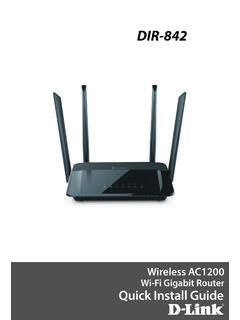
DIR-842 - D-Link
support.dlink.com2. Select the Wi-Fi Network name you assigned in the wizard and connect. Note: If you did not run the setup wizard or you reset the router to its default settings, refer to the Wi-Fi Configuration Card included for the default Wi-Fi Network Name and Wi-Fi Password. You can also connect wireless devices to the DIR-842 router using WPS: 1.

User Manual - D-Link
support.dlink.comH.264 Codec for Smooth, Space-Efficient Video This camera supports use of the H.264 video codec, which gives you high-quality video with reduced bandwidth requirements. This means that you can enjoy smoother, more reliable video streaming over the Internet, and less disk space is required to save recordings.
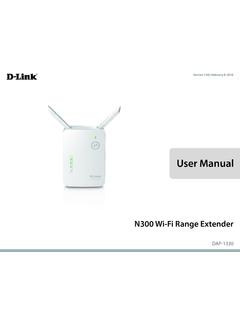
User Manual - D-Link
support.dlink.comMar 08, 2021 · The DAP-1330 N300 Wi-Fi Range Extender lets you easily extend a secure wireless network with a press of a button. Connect the DAP-1330 to a router via Wi-Fi or Ethernet and share your high-speed Internet access in more places throughout your home or small office. High-speed Wireless Performance With Wireless 802.11n Technology
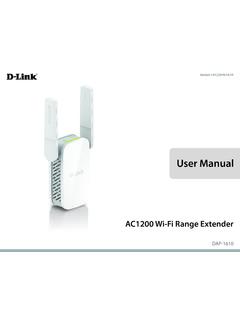
User Manual - D-Link
support.dlink.comDec 19, 2019 · D-Link DAP-1610 User Manual 2 Section 1 - Product Overview Network Requirements • A wireless router with an active Internet connection. • IEEE 802.11ac, 802.11n, 802.11g, 802.11b, or 802.11a

User Manual - D-Link
support.dlink.comSep 15, 2020 · D-Link DCS-8525LH User Manual 14 Section 3 - mydlink Camera Presets Save and quickly access up to 5 different camera views. The button is your Home Point. To set other viewpoints, tap the button, then tap the live view screen and use the arrows to set your view preset. Long press on the button to save a snapshot of that location.

Quick Install Guide - D-Link
support.dlink.comQuick Install Guide If any of the above items are missing, please contact your reseller. • Make sure the area that you want to plug the extender into has a solid connection to your router. Use a wireless laptop, tablet, or mobile phone in that area to test the connection to verify.

User Manual - D-Link Technical Support
support.dlink.com1 Reset Button Press and hold the reset button on the side of DAP-1720 for 10 seconds to restore the factory default settings. 2 Power Switch Use the power switch to power off the DAP-1720 when it will not be in use for an extended period of time. The factory default is ON. 1 2

User Manual - D-Link
support.dlink.comD-Link DWA-131 User Manual 4 Section 1 - Product Overview Introduction The DWA-131 Wireless N Nano USB Adapter is a convenient wireless connectivity solution for desktop or notebook PCs. Instead of stringing Ethernet cables to your PC or dismantling your desktop computer case, the DWA-131 can enable 802.11n wireless
Related documents
Quick Install Guide - D-Link
support.dlink.com1 Find an available outlet near your wireless router. Plug in the DAP-1620 and wait until the Status LED is blinking amber. 2 Press the WPS (Wi-Fi Protected Setup) button on your wireless router. Within one minute, press the WPS button on the DAP-1620. The Status LED will start to blink. 3 …