Transcription of Quick Installation Guide
1 Indoor/ outdoor Access PointOverviewPackage ContentsPanel Layout 2021 TP-Link 7106509266 LED: On: Power onOff: Power offNote: EAP225- outdoor does not support the Remote Reset PoE Adapter Remote Reset: Press and hold for about 8 seconds until the LED is quickly flashing yellow then green. The EAP will restore to factory default settings. LED StatusIndicationSolid greenThe device is initializing or working yellowSystem errors. RAM, Flash, Ethernet, WLAN or firmware may be yellow, greenFirmware update is in progress.
2 Do not disconnect or power off the flashing yellow, green The device is being reset to its factory default green twiceInitialization is LED ExplanationFlashing green slowly(Only for EAP225- outdoor )The device is in an isolated state. 1 Lightning and ESD ProtectionBefore mounting the EAP, you should consider Lightning and ESD Protection to ensure safety. Proper grounding is extremely important for outdoor devices. By using a shielded CAT5e (or above) cable for connection, you can reduce the damage of ESD InstallationMount the EAPThe EAP can be pole-mounted or wall-mounted.
3 Follow the steps below for the appropriate 1: Pole MountingLead the end of the pole mounting strap through the back of the EAP. Step 1:Position the EAP and wrap the pole mounting strap around the pole. Feed the end through the screw-block and tighten the strap until the EAP is 2:Option 2: Wall MountingStep 1:Place the mounting bracket (for EAP) in the right position. Mark two positions for the screw holes .Drill two 6 mm holes for the screws at the marked positions. Step 2:Insert the plastic wall anchors into the 6 mm holes.
4 Align the bracket (for EAP) to the plastic wall anchors and drive the self-tapping screws into the anchors through the bracket (for EAP). Step 3:Align the mounting tabs on the back of the EAP with the slot of the mounting bracket (for EAP). Push and slide the EAP downward until it locks into CablesFirmly grasp the rear of the interface cover and pull it 1:Use an adequate Ethernet cable to connect the LAN port. The length of cable is up to 100 m for steady power supply. Shielded CAT5e (or above) cable is recommended.
5 Step 2:Step 3:Attach the waterproof rubber insert to the groove at the underside of the device for waterproofing. Move the Ethernet cable to the hole of the waterproof rubber the waterproof rubber insert until it gets parallel to the device. Replace the cover until it firmly locks into 4:EAPG rounded PoE AdapterShielded CAT5e (or above) Cable Grounded 3-wirePower OutletRESETS hielded EthernetPort LANP assive PoE Adapter(Mounting Bracket Included)Power CordM3 28 Plastic Wall Anchors ( )M3 20 Self-tapping Screws ( )EAPA ntennas ( )Mounting Bracket(for EAP) Installation GuidePole Mounting StrapWaterproof Rubber InsertM3 16 Self-tapping Screws ( )4545 Connect the antennas to the EAP.
6 For optimal Wi-Fi performance, adjust the direction of the antennas. It is recom-mended to position the antennas at 45-degree 3:4545 Step 4:Connect the antennas to the EAP. For optimal Wi-Fi performance, adjust the direction of the antennas. It is recom-mended to position the antennas at 45-degree Installation GuideSetup with videosVisit or scan the QR code to search for the setup video of your product 2: Via PoE Switch (Only for EAP225- outdoor )PoE SwitchConnect an Ethernet cable from the PoE switch to the Ethernet OnThe EAP can be powered via the provided passive PoE adapter or a PSE device (such as a PoE switch).
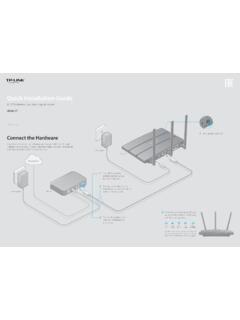
7 Connect the EAP to a Power over Ethernet (PoE) adapter as follows:Option 1: Via Passive PoE AdapterConnecting the PoE AdapterPoELANE thernet cable length up to 100 mMounting the PoE Adapter (Optional)Note: To ensure the passive PoE adapter is attached most securely, it is recommended to install the adapter with the Ethernet port facing 1:Remove the mounting bracket from the passive PoE two holes on the wall and insert the plastic wall anchors into the the holes. Secure the mounting bracket to the wall.
8 Make sure the shoulders at the corners of the mounting bracket are on the outside and pointing 2:Attach the passive PoE adapter to the mounting bracket (for PoE Adapter) by sliding the adapter in the direction of the arrows until it locks into Configuration4 Via Omada AppVia Web Browser1. Connect wirelessly by using the default SSID (format: ) printed on the label at the bottom of the Launch a web browser and enter in the address bar. Use admin for both Username and Password to log Set up a new Username and Password for secure management purpose.
9 Modify the wireless parameters and reconnect your wireless devices to the new wireless configure other EAPs, connect your device to the EAP by the coresponding default SSID and repeat the steps listed above. You can configure some basic functions in Standalone Mode. If you want to configure advanced functions, use Controller Download the TP-Link Omada App on your mobile device. It can be downloaded from App Store or Google Play:2. Connect your mobile device to the EAP by using the default SSID (format: ) printed on the label at the bottom of the Open the Omada App, and wait for the EAP to appear on the Standalone APs page.
10 Tap on the EAP you want to configure. The Omada App is designed to help you quickly configure the common settings. If you want to configure advanced settings, use the web page of your EAP or use Controller for Omada AppDownload Omada ApporMethod 1: Standalone ModeNote: Before you start, be sure to power up and connect your devices according to the topology DHCP server (typically a router with DHCP function enabled) is required to assign IP addresses to the EAPs and clients in your local from the following methods to set up your EAPs.