Transcription of SDRuno basics - quick start guide - SDRplay
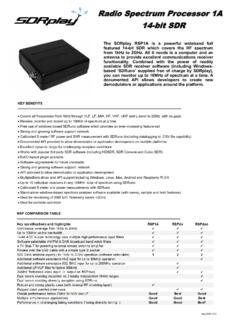
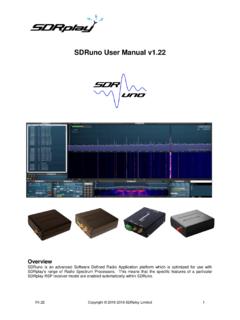
1 Copyright 2020 SDRplay Limited 1 SDRuno basics - quick start guide July 2020 This quick start guide is a basic how-to. Please consult the SDRuno manual for advanced operations: SDRuno User Manual This guide assumes you have no prior experience using SDRuno or an RSP Software Defined Radio Receiver. It is assumed that you have successfully installed SDRuno : StartHere Installation guide Copyright 2020 SDRplay Limited 2 SDRuno quick start Launching SDRuno After installing SDRuno , double click the SDRuno shortcut to launch the SDRuno application: The following steps are the only steps needed to listen to radio stations on your RSP. No other settings need to be altered until you are ready to optimize performance. Copyright 2020 SDRplay Limited 3 SDRuno quick start 1. Starting the data stream (powering on).
2 Clicking the PLAY button on the MAIN panel will start the data stream (power on). Clicking the STOP button on the MAIN panel will stop the data stream (power down). Copyright 2020 SDRplay Limited 4 SDRuno quick start 2. Antenna input selection. Depending on the model RSP (2/2pro, duo & dx) you can select different inputs for that device. Please be sure the correct input is selected within the MAIN panel and that your coax is terminated to that input on the device. The RSP1 and RSP1A have a single input so no input selection buttons will appear. Note: Device inputs may have frequency limitations : The RSP2/2pro and RSPduo HI-Z input is available (selectable) from 1kHz 30 MHz. The RSPdx input C input is available (selectable) from 1 kHz 200 MHz. All other inputs (SMA) can tune across the full device receive range 1kHz 2 GHz Copyright 2020 SDRplay Limited 5 SDRuno quick start 3.
3 Adjusting the RF GAIN. The RF GAIN slider should be placed at maximum or as close to maximum as possible unless an OVERLOAD warning message is displayed. If an OVERLOAD message appears, lower the RF GAIN slider until the OVERLOAD message is no longer displayed. Copyright 2020 SDRplay Limited 6 SDRuno quick start 4. Tuning Hello world - Listening to FM broadcast or Medium Wave broadcast stations. Tuning to FM broadcast or Medium Wave (AM) broadcast stations is recommended for new users to familiarize themselves with using SDRuno . FM and Medium Wave broadcast are usually very strong, allowing you to use the most basic of antennas. Select the AM or FM mode button as appropriate in RX Control. Then tune to the desired frequency in SDRuno via the frequency readout of the RX CONTROL panel: Simply place your mouse cursor over the digit displayed and change the frequency digit using your mouse wheel up or down.
4 An indicator will appear on the top of the digit that you can adjust using the mouse wheel: (Alternatively, you can right click on the frequency display and type in the desired frequency, followed by <return>, see the User Manual for further info on various tuning methods available) Copyright 2020 SDRplay Limited 7 SDRuno quick start Note: The frequency displayed in the RX CONTROL panel is shown in GHz, MHz, kHz and Hz. Be sure the frequency you have entered is indeed your desired frequency, refer to the following diagram: At this point you should be seeing signals in the Waterfall and RF Spectrum windows and be hearing sounds through your speakers. You can adjust the volume using the Volume slider in RX Control and/or your Windows volume control. Refer back to the User Manual (available via the OPT button in the Main Window) to help you adjust additional settings to optimize performance and explore the many features of SDRuno .
5 For more information please visit: SDRplay Support Center Copyright 2020 SDRplay Limited 8 SDRuno quick start Legal Information SDRplay modules use a Mirics chipset and software. The information supplied hereunder is provided to you by SDRplay under license from Mirics. Mirics hereby grants you a perpetual, worldwide, royalty free license to use the information herein for the purpose of designing software that utilizes SDRplay modules, under the following conditions: There are no express or implied copyright licenses granted hereunder to design or fabricate any integrated circuits or integrated circuits based on the information in this document. Mirics reserves the right to make changes without further notice to any of its products. Mirics makes no warranty, representation or guarantee regarding the suitability of its products for any particular purpose, nor does Mirics assume any liability arising out of the application or use of any product or circuit, and specifically disclaims any and all liability, including without limitation consequential or incidental damages.
6 Typical parameters that may be provided in Mirics data sheets and/or specifications can and do vary in different applications and actual performance may vary over time . All operating parameters must be validated for each customer application by the buyer s technical experts. SDRplay and Mirics products are not designed, intended, or authorized for use as components in systems intended for surgical implant into the body, or other applications intended to support or sustain life, or for any other application in which the failure of the Mirics product could create a situation where personal injury or death may occur. Should Buyer purchase or use SDRplay or Mirics products for any such unintended or unauthorized application, Buyer shall indemnify and hold both SDRplay and Mirics and their officers, employees, subsidiaries, affiliates, and distributors harmless against all claims, costs, damages, and expenses, and reasonable attorney fees arising out of, directly or indirectly, any claim of personal injury or death associated with such unintended or unauthorized use, even if such claim alleges that either SDRplay or Mirics were negligent regarding the design or manufacture of the part.
7 Mirics FlexiRF , Mirics FlexiTV and Mirics are trademarks of Mirics . SDRplay is the trading name of SDRplay Limited a company registered in England # 09035244. Mirics is the trading name of Mirics Limited a company registered in England # 05046393