Transcription of Setup Guide Logitech® USB Headset H540
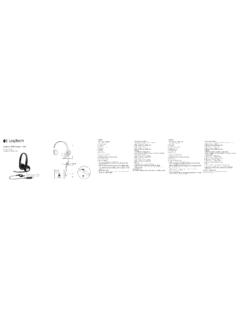
1 Setup Guide logitech USB Headset H540. logitech USB Headset H540 logitech USB Headset H540. English .. 3 esk verze ..59 Know your product 1 1. USB Headset H540. Deutsch .. 7 Po polsku .. 63. 2. Adjustable headband Fran ais .. 11 Eesti .. 67 3. Volume (+/ ) control 2 4. Microphone mute Italiano .. 15 Latviski ..71. 5. Microphone mute LED1. Espa ol ..19 Lietuvi .. 75 6. Microphone boom 7. Microphone Portugu s .. 23 Hrvatski .. 79. 8. Documentation Nederlands .. 27 Srpski .. 83 9. USB connector 3 1 Turns red when the microphone is on mute. Svenska ..31 Sloven ina .. 87. 4. Dansk .. 35 Sloven ina.
2 91. 6. Norsk .. 39 Rom n .. 95. 7. Suomi .. 43 Български ..99.. 47 Укра нська .. 103 5 Setup Guide Guide d' installation 8 logitech USB Headset H540. По-русски .. 51 T rk e .. 107. 9. Magyar .. 55 111 .. 115. 2 English 3. logitech USB Headset H540 logitech USB Headset H540. Visit Product Central Troubleshooting There's more information and support Headset not working windows Vista and windows 7. online for your product. Take a moment Adjust Headset volume. 1. Go to Start > Control Panel > Sound >. to visit Product Central to learn more about Make sure the microphone is not on Playback tab.
3 Your new Headset . mute. The microphone mute LED turns 2. Choose logitech USB Headset Browse online articles for Setup help, red when mute has been activated. H540.. usage tips, or information about additional features. Check the USB cable connection to 3. Click Set Default, and then click USB your computer. Try a different USB port Connect with other users in our Community OK.. on your computer. Connect directly Forums to get advice, ask questions, 4. Select the Recording Tab. to your computer. Do not use a USB hub. and share solutions. 5. Choose logitech USB Headset At Product Central, you'll find a wide In your application and operating Set up your product system, check the volume and H540.
4 Selection of content: 1. Turn on your computer. microphone settings. Restart your 6. Click Set Default, and then Tutorials click OK.. 2. Connect the Headset to a computer application. Troubleshooting USB port. Close all applications and make sure Support community the Headset is the default input/output Software downloads device for your operating system: Online documentation Warranty information Spare parts (when available). Go to 4 English English 5. logitech USB Headset H540 logitech USB Headset H540. windows 8 Mac OS X Produkt auf einen Blick 1. From Start Menu, select Desktop tile 1.
5 Open System Preferences and select 1 1. USB Headset H540. 2. From Charms menu, select Sound. 2. Verstellbarer Kopfb gel Settings>Control Panel>Hardware 2. Select the Input tab, and then choose and Sound 3. Lautst rkeregler (+/ ). logitech USB Headset H540.. 3. Go to Sound>Playback tab 2 4. Mikrofon-Stummschalter 3. Select the Output tab, and then 4. Choose logitech USB Headset choose the logitech USB Headset 5. Mikrofon-Stummschalter-LED1. H540. H540. Close the window. 6. Mikrofonb gel 5. Click Set Default, and then click No emergency calls with Skype 7. Mikrofon OK. 8. Bedienungsanleitung Skype is not a replacement for your 6.
6 Select the Recording Tab. ordinary telephone and can't be used 9. USB-Stecker 7. Choose logitech USB Headset for emergency calling. 3 1 Leuchtet rot, wenn das Mikrofon stummgeschaltet ist. H540.. 8. Click Set Default, and then click 4. OK.. 6. What do you think? 7. Please take a minute to tell us. Thank you for purchasing our product. 5 Setup Guide Guide d' installation 8 logitech USB Headset H540. 9. 6 English Deutsch 7. logitech USB Headset H540 logitech USB Headset H540. Produktzentrale Fehlerbehebung Hier erhalten Sie weiterf hrende Das Headset funktioniert nicht windows Vista und windows 7.
7 Informationen und den Online-Kunden- Passen Sie die Lautst rke 1. Klicken Sie auf Start >. dienst f r Ihr Produkt. Nehmen Sie sich des Headsets an. Systemsteuerung > Sounds . einen Augenblick Zeit und besuchen Sie Vergewissern Sie sich, dass das Mikrofon und w hlen Sie die Registerkarte die Produktzentrale, um mehr ber nicht stummgeschaltet ist. Die Mikrofon- Wiedergabe . Ihr neues Headset herauszufinden. Stummschalter-LED leuchtet rot, 2. W hlen Sie logitech USB. USB Durchsuchen Sie Online-Artikel zur wenn die Stummschaltung aktiviert ist. Headset H540 aus. Unterst tzung beim Einrichten, f r Tipps zur Nutzung und f r Informationen berpr fen Sie die Verbindung des USB- 3.
8 Klicken Sie auf Als Standard . zu weiteren Funktionen. Kabels zum Computer. Verwenden Sie und anschlie end auf OK . einen anderen USB-Anschluss Treten Sie in unseren Community-Foren 4. Klicken Sie auf die Registerkarte Einrichtung des Produkts mit anderen Benutzern in Verbindung des Computers. Stellen Sie eine Aufnahme . 1. Schalten Sie den Computer ein. direkte Verbindung zum Computer her. und holen Sie sich Tipps, stellen Sie Fragen 5. W hlen Sie logitech USB. Verwenden Sie keinen USB-Hub. 2. Schlie en Sie das Headset an einen USB- und teilen Sie Ihre Probleml sungen Headset H540 aus. Anschluss des Computers an.
9 Mit anderen. berpr fen Sie die Lautst rke- und Mikrofoneinstellungen sowohl in der 6. Klicken Sie auf Als Standard . In der Produktzentrale finden Sie ein Anwendung als auch im Betriebssystem. und anschlie end auf OK . umfangreiches Informationsangebot: Starten Sie die Anwendung neu. Tutorials Fehlerbehebung Schlie en Sie alle Anwendungen und Support-Community achten Sie darauf, dass das Headset als Standard-Ausgangsger t bzw. Software-Downloads -Eingangsger t Ihres Betriebssystems Online-Bedienungsanleitungen eingerichtet ist: Garantieinformationen Ersatzteile (falls verf gbar). ffnen Sie die Seite support/H540.
10 8 Deutsch Deutsch 9. logitech USB Headset H540 logitech USB Headset H540. windows 8 Mac OS X Pr sentation du produit 1. W hlen Sie aus dem Startmen 1. ffnen Sie die Systemeinstellungen 1 1. Casque USB Headset H540. die Desktop-Kachel. und w hlen Sie die Registerkarte Ton . 2. Bandeau r glable 2. W hlen Sie im Charms-Men 2. Klicken Sie auf Eingabe 3. R glage du volume (+/ ). Einstellungen > Systemsteuerung > und w hlen Sie logitech USB. Hardware und Sound Headset H540 aus. 2 4. Mise en sourdine du microphone 3. W hlen Sie Sound > Wiedergabe 3. Klicken Sie auf Ausgabe 5. T moin de sourdine du microphone1.