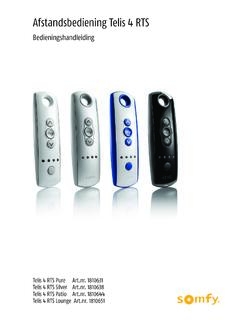
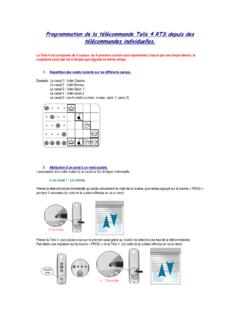
Transcription of SOMFY INSTRUCTIONS TELIS RTS REMOTE CONTROLS …
1 BACKSOMFY INSTRUCTIONSTELIS RTS REMOTE CONTROLSSINGLE & FIVE CHANNELPart # s1810632 TELIS 1 RTS Pure1810633 TELIS 5 RTS Pure1810639 TELIS 1 RTS Silver1810641 TELIS 5 RTS Silver1810650 TELIS 1 RTS Lounge1810652 TELIS 5 RTS Lounge1810643 TELIS 1 RTS Patio1810645 TELIS 5 RTS PatiomyChannelSelectorProgrammingButtonU PSTOPDOWNBACKFive ChannelVersionmyUPSTOPDOWNS ingle ChannelVersionLED IndicatorLightLED Lights Copyright SOMFY Systems, Inc. 1/2010 programming ADDING A NEW REMOTE OR OPERATING CHANNELA dding a TELIS 1 RTS Transmitter only:1. Using the previously programmed TELIS REMOTE , press and hold the programming button on back of REMOTE until window covering jogs.
2 Adding a TELIS 5 RTS Transmitter only:1. Using the previously programmed TELIS REMOTE , press and hold the programming button on back of REMOTE until window covering jogs. 2. Using the new TELIS 1 REMOTE , briefly press the programming button until the window covering jogs. Window covering has now learned the commands of the new TELIS previously programmed REMOTE can be used in order to add a new REMOTE or channel to the Motorized Window a TELIS Transmitter has not been previously programmed, please refer to the installation INSTRUCTIONS of the relevant RTS motorized window VIEWP rogrammingButtonPenBACK VIEWP rogrammingButtonPen2.
3 Using the new TELIS 5 REMOTE , select the desired channel using the CHANNEL SELECTOR BUTTON. (The LED will illuminate each time the Channel Selector Button is pressed, indicating the selected channel)3. Using the TELIS 5 REMOTE , briefly press the programming button until the motorized window covering jogs . The RTS motorized window covering has now learned the commands of the new TELIS 5 remoteNew TELIS 1remote to be addedmyChannelSelectorBACK VIEWP rogrammingButtonPenPAGE 1 REV 6 LED LightsNew TELIS 5remote to be addedBACK VIEWP rogrammingButtonPenPreviouslyprogrammed remotemymyNOTE: IN CASE OF A LOST TRANSMITTER, PROFESSIONAL programming ASSISTANCE IS REQUIRED.
4 PLEASE CONTACT SOMFY AT OR YOUR LOCAL DEALER AT THE BATTERY1. Using a small screwdriver loosen the screws on the reverse side of the REMOTE control and remove the back cover. 2. Replace the battery with one 2430 Lithium 3V battery. programming - SETTING A FAVORITE POSITION (MY)2. Press ans hold the MY ( ) Button until the window covering jogs. Favorite position is now 1 RTS Transmitter only:1. Using the UP ( ) or DOWN ( ) Buttons, activate the window covering to a desired position, for example halfway Open or Closed.
5 Briefly press the MY ( ) (stop) Button to stop the window covering once position is Copyright SOMFY SYSTEMS, INC. 1/2010 PAGE 2 REV 6In addition to standard OPEN and CLOSE features, the TELIS REMOTE enables the user to pre-establish a favorite stop location. MY favorite position. An example could be to command the RTS motorized window covering to a 50% or 75% open or closed positionwhen the MY button is briefly 5 RTS Transmitter only:1a. Using the TELIS 5 REMOTE , select the appropriate channel using the CHANNEL SELECTOR BUTTON.
6 (The LED lights will illuminate each time the Channel Selector Button is pressed, indicating the selected channel) 1b. Using the UP ( ) or DOWN ( ) Buttons, activate window covering to a desired position, for example halfway Open or Closed. Briefly press the MY ( ) (stop) Button to stop the window covering once position is 1 RTS Transmitter only:1. Use the UP ( ) or DOWN ( )Buttons to open or close the window covering. If a specific position is necessary, briefly press the MY ( ) (stop) Button to stop the window covering once position is 5 RTS Transmitter only:1.
7 Using the TELIS 5 REMOTE , select the appropriate channel using the CHANNEL SELECTOR BUTTON. (The LED lights will illuminate each time the Channel Selector Button is pressed, indicating the selected channel)2. Using the UP ( ) or DOWN ( ) Buttons to open or close the window covering. If a specific position is necessary, briefly press the MY (stop) ( ) Button to stop the window covering once position is reached. myChannelSelectorLED LightsmyChannelSelectorLED Lightsmymymymymymymymy3.
8 Favorite MY ( ) position can be activated from any previous window covering position. Example: Briefly press the MY ( ) button while window coverings in a Open or Closed position. OPERATING THE MOTORIZED WINDOW COVERING Note: Activating window covering to a Favorite position while already in-motion will require two brief presses of the MY (stop) covering MUST BE in a stationary (Stopped) position before the MY favorite position can be