Transcription of The Fundamentals Rows & Columns
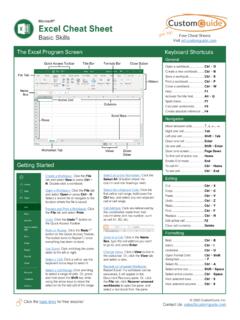
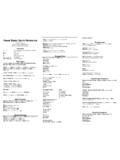
1 excel 2007 / 2010 / 2013+ quick Reference The Most Important Keyboard Shortcuts for Finance (IB, PE, HF/AM, ER, CF, etc.) The Fundamentals Ctrl + O Open File Ctrl + N New File Ctrl + P Print Ctrl + S Save File F12 Save File As Ctrl + F4 Close File Alt + F4 Close excel Esc Exit Dialog Ctrl + C Copy Ctrl + X Cut Ctrl + V Paste Ctrl + Z Undo Ctrl + Y Redo Ctrl + A Select All Ctrl + F Find Ctrl + H Replace Alt + Tab Switch Windows Alt + T + O Options Menu F4 Repeat Last Action Ctrl + F1 Show / Hide Ribbon Menu Navigation & Data Selection Arrow Keys Move Around Ctrl + Arrows Jump to Boundary Shift + Arrows Select Cells Shift + Ctrl + Arrows Select to Boundary Shift + F8 Select Multiple Areas Editing Ce lls F2 Edit Cell Del Delete Cell Contents Ctrl + Arrows Skip Word(s) Ctrl + Shift + Arrows Highlight Word(s)
2 Alt + Enter New Line in Cell Ctrl + Enter / Tab / Shift + Tab Edit Stay in Place / Go Left / Go Rig ht Rows & Columns Ctrl + Spacebar Select Column Shift + Spacebar Select Row Ctrl + Shift + + Insert Cells / Rows / Columns Ctrl + Delete Cells / Rows / Columns Right Mouse Button + E Insert Cut Cells and S hift Over Alt + A + G + G Group Rows / Columns Shift + Alt + Right Group Rows / Columns Alt + A + U + U Ungroup Rows / Columns Shift + Alt + Left Ungroup Rows / Columns Alt + A + J Show Grouped Rows / Columns Alt + A + H Hide Grouped Rows / Columns Workbooks & Worksheets Ctrl + N New Workbook Ctrl + Tab Switch Workbook Shift + F11 New Worksheet Alt + H + D + S Del Worksheet Ctrl + PgUp Move to Left Worksheet Ctrl + PgDn Move to Rig ht Worksheet Alt + H + O + M Move / Copy Worksheet Shift + Ctrl + PgUp / PgDn Select Multiple Worksheets Alt + H + O + U + S Hide Worksheet Alt + H + O + U + H Show Worksheet Alt + H + O + R Rename Worksheet Alt + H + O + T Color Tab Basic Formatting Alt + H Format Menu Ctrl + 1 Format Dialog Ctrl + Alt + V Paste Special Ctrl + Alt + V + T Paste Formats Ctrl + Alt + V + V Paste Values Ctrl + Alt + V + F Paste Formulas Alt + H + FC Font Color Alt + H + H Fill Color Alt + H + B Border Options Alt + H + A + L / C / R Align Left / Cent er/ Rig ht Alt + H + 6 Increase Indent Alt + H + 5 Decrease Indent Alt + H + 0 Increase Decimal Places Alt + H + 9 Decrease Decimal Places Ctrl + B Bold Ctrl + I Italics Ctrl + U Underli ne Ctrl + 5
3 Strikethrough Ctrl + Shift + & Add Borders Ctrl + Shift + Delete Borders Shift + Ctrl + ~ General Shift + Ctrl + ! Number Shift + Ctrl + @ Time Shift + Ctrl + # Date Shift + Ctrl + $ Currency Shift + Ctrl + % Percentage Shift + Ctrl + ^ Scientific =TEXT(Cell, Format) Displays cell using custom format Alt + H + O + I Auto-Fit Col. Alt + H + O + A Auto-Fit Row Alt + H + O + W Column Width Alt + H + O + H Row Height Alt + H + L + R Conditional Formatting Alt + H + T Format as Table excel 2007 / 2010 / 2013+ quick Reference The Most Important Keyboard Shortcuts for Finance (IB, PE, HF/AM, ER, CF, etc.) Dates & Times =DATE (Year, Mont h, Day) Creates new Date =NETWORKDAYS (Start, End Date) Business days in between 2 dates =EOMONTH (Start Date, # Mont hs) Last day of mont h aft er # mont hs Ctrl + Shift + ; Current Time Ctrl +.
4 Current Date Text Tools & Functions Alt + A + FT Text File Import =LEFT Chars from left =RIGHT Chars from right =MID Chars =FIND Search for text within text =SEARCH Same, but not case sensitive =LEN Lengt h of t ext =SUBSTITUTE Replace text in text with search =REPLACE Same, but use position i nst ead Alt + A + E Text to Columns =TRIM Deletes Extra Spaces =PROPER Capitalize All First Letters =UPPER Make All Caps =LOWER Make All Lower Display & Printing Alt + W + F + F Freeze Panes Alt + W + Q Zoom Ctrl + Mouse Scroll Wheel Zoom Alt + P + S + P Page Setup Alt + P + R + S Set Print Range to Selected Area Ctrl + F2 Print Preview Alt + W + I Page Break View Alt + W + L Normal View Alt + W + VG Toggle Gridlines Formulas and Ca lculations = Enter Formula F9 Refresh All F4 Anchor Cell Ctrl + F3 Name Cell F5 Jump to Cell Tab Use Suggested Name Shift + F3 Enter Built-In Function Ctrl + Alt + V + F Paste Formulas Ctrl + Alt + V + R Paste Formats & Formulas Ctrl + D Copy Down Ctrl + R Copy Right Ctrl + Copy from Above
5 F5, Alt + S + F + X Go to Formulas F5, Alt + S + O + X Go to Constants Ctrl + ~ Show Formulas =IFERROR(Value, Value If Error) Calculates only if no error Lookups & Related Functions =VLOOKUP (Value, Table, Column #) Match Value i n Left Column and Ret ur n from Column # =HLOOKUP (Value, Table, Row #) Match Value i n Top Row a nd Ret ur n from Row # =MATCH (Value, Row or Column Ra nge) Find Item s Position in Row/Column =INDEX (Table, Row #, Col #) Ret ur n Item at Row # a nd Column # =INDIRECT (Ref) Returns cell at reference given by text =ADDRESS (Row #, Col #) Creates cell reference Common Built-In Functions =SUM Sum Numbers Alt + = Sum Adj acent Cells =COUNT Count # E ntri es =AVERAGE Average =MAX Maximum =MIN Mi nimum =SUMIF / =SUMIFS Conditional Sum =COUNTIF / =COUNTIFS Conditional Count =SUMPRODUCT Multiply and Sum Ra nge =ABS Absolute Value =IF Conditional =OR One Must Be Tr ue =AND All Must Be Tr ue =NPV (Discount Rate, Cash Flows) Net Present Value of Cash Flows =XNPV (Rate, Values, Dates) NPV wit h irregular dates =IRR (Values) Inter nal Rat e of Ret ur n of Investment =XIRR (Values, Dates) IRR with irregular dates Database and Array Functions =DSUM (DB, Field, Criteria) Sums records that match criteria =DCOUNT (DB, Field, Criteria)
6 Counts records that match criteria Ctrl + Shift + Enter Enter Array Function =TRANSPOSE (Rows or Columns ) Converts rows to Columns a nd vice versa excel 2007 / 2010 / 2013+ quick Reference The Most Important Keyboard Shortcuts for Finance (IB, PE, HF/AM, ER, CF, etc.) Auditing Formulas Ctrl + [ Immediate Precedents Ctrl + ] Immediate Dependents Alt + M + P Trace Precedents Alt + M + D Trace Dependents Alt + M + A + A Erase Traces Shift + Ctrl + { All Precedents Shift + Ctrl + } All Dependents F5 + Enter Jump to Original Cell Shift + F2 Add/Edit Comment Alt + R + D Del Comment Alt + R + A Show All Comments F5, Alt + S + C Highlight Cells w/ Comments Pivot Tables Alt + N + V Pivot Table Filtering, Sorting & Validating Alt + A + SS Sort Data Alt + A + SA Sort Ascendi ng Alt + A + SD Sort Descendi ng Ctrl + Shift + L Filter Data Alt + A + Q Advanced Data Filter Right Mouse Button + E + V Filter by Cell s Properties Alt + A + M Remove Duplicates Alt + A + V + V Validate Data Scenarios & Sensitivities =CHOOSE (Number, Item1, )
7 Select from List based on Number =OFFSET(Cell, # Rows, # Cols) Move # of Rows and Columns from Cell Alt + A + W + S Scenario Manager Alt + A + W + G Goal Seek Alt + A + W + T Data Table Row Input Cell = Discount Rate Column Input Cell = Ter mi nal Growt h Rate Macros, VBA, and Forms Alt + F11 VBA Editor F5 (in VBA) Run Macro F2 (in VBA) Obj ect Browser Ctrl + G (in VBA) Immediate Window Alt + L + I Form Control Alt + W + M + U Use Relative References Alt + W + M + R Record Macro Alt + W + M + V View Macros Graphs & Charts Alt + N + C Column C hart Alt + N + N Line Chart Alt + N + Q Pie Chart Alt + N + B Bar Chart Alt + N + X Text Box Alt + N + SD Combo Chart (2013+) Alt + N + R Recommended Chart (2013+) Alt + JC + A Add Chart Element (2013+) Alt + JC Design Tab Alt + JA Layout Tab ( 2007 , 2010) Alt + JO Format Tab ( 2007 , 2010) Alt + JA Format Tab (2013) excel 2007 / 2010 / 2013+ quick Reference The Most Important Keyboard Shortcuts for Finance (IB, PE, HF/AM, ER, CF, etc.)
8 Custom Number Formats Example Data: Displayed As: Used For: 5 Valuation Multiples -1200 (1, ) Negative Expenses 0 Balanced! Balance Sheet Checks Wal-Mart Model Wal-Mart Titles & Headers Text on Left: [Blue] x;[Red](#,## );"Balanced!";"Model - "@ 1. The order for Custom Number Formats is: [Positive Style]; [Negative Style]; [Zero Style]; [Text Style] 2. If you includ e t he @ symbol and text, the text will appear and the @ will be replaced by what s in the cell. 3. [Red] and [Blue] can be used for color coding. 4. For more on custom number formats, please see our separate guide this is just a brief summary. Custom Keyboard Shortcuts excel 2007 / 2010 / 2013+ In excel 2007 / 2010 / 2013+, you can add custom shortcuts by right clicking the quick Access Toolbar and going to Customize quick Access Toolbar or you can rig ht-click the button itself and go to Add to quick Access Toolbar.
9 Then, you activate the shortcut by pressing the Alt key and the number it s assigned to. Here, Alt + 4 would cha nge the spreadsheet to a Page Break view. The Optimal excel Settings IMPORTANT! Always make sure you go to the Options menu (Alt + T + O), select Formulas, and use the settings shown on t he rig ht: Ideally, you will also disable the language bar and a ny pl ug-i ns, add-ins, or macros that interfere with shortcuts, and a ny pr ograms that override built-in excel shortcuts. You can disable automatic error-checking if you want, but we recommend leaving it on unless you re a pro; if you go the Advanced tab you can cha nge i n t he dir ection the cursor moves in after editing a cell, but we usually leave that one alone.