Transcription of UNIVERSAL REMOTE CONTROL USER’S GUIDE
1 UNIVERSAL REMOTE CONTROL user S GUIDECONTROL REMOTO UNIVERSAL GU A DEL 13/13/2007 3:53:51 PMTABLE OF CONTENTSI ntroduction ..3 Features And Functions ..4 Installing Batteries ..8 Programming Device CONTROL ..9 Programming TV/VCR Combo CONTROL ..10 Searching For Your Code ..12 Checking The Codes ..13 Programming ID Lock ..14 Programming Channel CONTROL Lock.. 15 Using The Master Power Key .. 15 Re-Assigning Device Keys ..16 Changing Volume Lock ..17 Troubleshooting ..18 Additional Information ..19 Manufacturer s Codes ..38 TABLA DE CONTENIDOSI ntroducci n ..21 Caracter sticas y Funciones ..22 Instalaci n de las Bater as ..26 Programaci n de CONTROL de Dispositivos ..27 Programaci n de CONTROL de Combos TV/VCR .. 29B squeda de su C digo .. 30 Comprobaci n de los C digos.
2 31 Programaci n del Bloqueo de ID ..32 Programaci n del Bloqueo del CONTROL de Canal ..32 Utilizaci n del Bot n de Encendido Principal ..33 Reasignaci n de Teclas de Dispositivos ..34 Cambio del Bloqueo de Volumen ..35 Resoluci n de Problemas ..36 Informaci n Adicional ..37C digos del Fabricante .. 38 23/13/2007 3:53:51 PMINTRODUCTIONThe Cox UNIVERSAL REMOTE CONTROL by UNIVERSAL Electronics is our latest generation UNIVERSAL REMOTE CONTROL . It is designed with sophisticated technology that will allow you to consolidate the clutter of all of the original REMOTE controls in your home entertainment system. Moreover, it s packed with easy-to-use features such as: Preprogrammed to operate the cable converter supplied by Cox Communications Preprogrammed interactive technology links hot keys to your interactive service Master Power key for master on/off CONTROL of all your equipment with a single keystroke Cable ID Lock to lock your REMOTE CONTROL for use only with the cable converter Channel Lock to lock channel selection only to the cable converter Code Search to help you program CONTROL of older or discontinued components Code library for video and audio devices Color-coded keys to quickly locate popular functions Dedicated keys to CONTROL popular functions on your DVR (Digital Video Recorder)
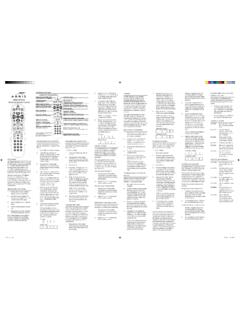
3 Before using the product, you will need to program it to operate the specific home entertainment devices you wish to CONTROL . Follow the instructions detailed in this manual to set up your unit, and then start enjoying your new REMOTE 33/13/2007 3:53:51 PMFEATURES AND FUNCTIONSUse the illustration below to locate features on the Cox UNIVERSAL REMOTE CONTROL and then study the Key Charts (on the next three pages) to learn how they 43/13/2007 3:53:53 PMKEY CHARTSUse SETUP for all programming sequences. Press POWER once to turn on or off a home entertainment device. Press and hold MASTER POWER for 3 seconds to turn on or off all home entertainment devices (see Using The Master Power Key on page 15).Press AUX, DVD, TV, or CABLE once to select a home entertainment device to CONTROL .
4 Each key has an embedded LED (red light) that blinks upon selection and indicates that the REMOTE CONTROL is working and is sending signals. In the DVD and TV modes, use REW, PLAY, FFWD, STOP, and PAUSE to CONTROL your VCR, DVD player, or PVR. To record a program in the DVD or AUX mode, press RECORD the CABLE mode, use these keys(except RECORD) to CONTROL VOD(Video On Demand). Press to replay the last 8 sec onds of a program or recording (Insatnt Replay)Press On DEMAND once to access Cox Communications On DEMAND DVR LIST once to display a list of the recorded shows on your LIVE to return to watching live INFO to display the current channel and program informationUse PAGE+ to page up throughmenu screens and program GUIDE ) 53/13/2007 3:53:55 PM Press HD ZOOM to change the aspect ratio on your Scientific Atlanta or Motorola HD receiver.
5 (Not available on all receivers.) Use the Cursor keys to move the cursor in the program GUIDE and menu screens, and to navigate within the interactive SELECT to choose options and PPV events, and to tune pro grams from the program GUIDE . Use GUIDE to display the PAGE- to page down through menu screens and program EXIT to exit your cableconverter s menu and GUIDE . Use A, B, or C to access additional cable features (see your cableconverter s manual ).Use SETTINGS to access addition-al cable features (see your cable converter s manual ).Press MENU once to display the available interactive VOL+ (or VOL ) to raise (or lower) the sound LAST once to recall the last FAV to cycle through your favorite channels stored in your cable MUTE once to turn the sound off or on.
6 63/13/2007 3:53:57 PM Use CH+ (or CH ) to select the next higher (or lower) channel. Use INPUT to CONTROL the input select feature on most TVs. In CABLE mode, use INPUT to view other video sources (A or B) instead of cable. In all othermodes, use IN PUT to watch TV or video programs on a desired device. For amplifiers/receiv ers, use IN PUT to select an input source. Press ENTER once after entering channel numbers on some televi sions. Use the keypad (0 ~ 9) to directly select channels ( , 09 or 31). Use Picture in Picture SWAP to switch images and sound between the main and window pictures. Use Picture in Picture ON-OFF to switch the Picture-In-Picture fea- ture on or off (if available on your TV or cable service). Use Picture in Picture MOVE to move the window picture to differ ent positions in the main picture.
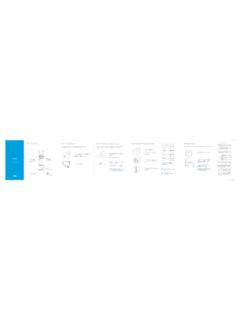
7 Use Picture in Picture CH+ (or CH-) to select the next higher (or lower) PIP 73/13/2007 3:53:58 PM8 INSTALLING BATTERIES1. On the back of the REMOTE CONTROL , push the tab and lift off the battery cover. 2. Obtain two (2) fully-charged AA alkaline batteries. Match the + and marks on the batteries to the + and marks in the battery case, then insert the new Align the cover s keys with the case s holes and press the cover back into place. The tab should click when the cover is Test the unit by pressing POWER and any mode key (for example, AUX, DVD, TV, or CABLE). If the batteries are inserted correctly, the selected mode key will blink : Whenever batteries need replacement, the REMOTE CONTROL will cease to operate. Simply replace the batteries and the REMOTE CONTROL will be restored to its full functionality, complete with your favorite settings.
8 83/13/2007 3:53:59 PM9 PROGRAMMING DEVICE CONTROLThe Cox UNIVERSAL REMOTE CONTROL is preprogrammed to operate your cable converter, an RCA TV, a SONY DVD, and a Pioneer audio receiver. To CONTROL devices other than the default brands, perform the following steps; otherwise skip this section:NOTES: To CONTROL a VCR player, or a PVR, program the DVD key. To CONTROL a stereo amplifier or receiver, program the AUX key. For TV/VCR Combo CONTROL , skip this section and perform the instructions on the next page. If you have another brand of cable converter and inter-active service you would like to CONTROL , you ll first need to unlock the cable ID Lock before changing the con-verter code see Programming ID Lock on page 13. 1. Turn on a device and, if applicable, insert video media ( , cassette or disc).
9 NOTE: Please read steps 2 4 completely before proceeding. Highlight or write down the codes and device you wish to program before moving on to step On the REMOTE CONTROL , press a device key once ( , AUX, DVD, TV, or CABLE). Press and hold SETUP until the selected mode key blinks twice, then release Use the Manufacturer s Codes (starting on page-38) to locate the the type of device and brand name, then enter the first four-digit code for your device. If performed correctly, the selected mode key will blink twice. NOTE: If the selected mode key emits a long blink, the code is invalid. Repeat steps 2 through 3 and try entering the same code Aim the REMOTE CONTROL at the device and press 93/13/2007 3:53:59 PM10 POWER once. The device should turn off.
10 If it does not, repeat steps 2 3, trying each code for your brand until you find one that works. If it still does not work, try searching for the code (see Searching For Your Code on page 12).NOTE: If the device does not have a POWER key, press the (Play) key. 5. Repeat steps 1 4 for each device you want the the REMOTE CONTROL to CONTROL . For future refer-ence, write down each working device code in the following boxes: AUX AUX Device _____ VCR TV CABLE PROGRAMMING TV/VCR COMBO CONTROLIf you own a TV/VCR Combo, perform the following instructions to CONTROL this device: 1. Turn on your TV/VCR Combo and insert a video On the REMOTE CONTROL , press DVD once. Press and hold SETUP until the DVD key blinks twice, then release Use the setup codes for TV/VCR combos on page-56 to locate the brand name and then enter the first four-digit code for your TV/VCR Combo.