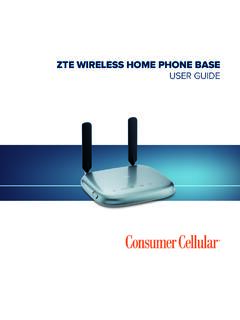
Transcription of User Guide - AT&T
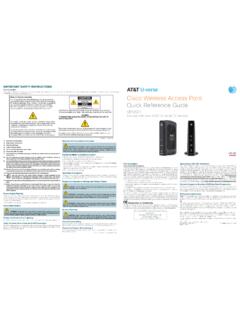
1 User GuideAT&T Wireless Home PhoneiWireless Home phone ( WHP ) device is a mobile device that may be used with home phone equipment in different locations in the WHP device requires a battery to be installed in the device at all times to operate. In the event of a power outage, the battery can be used as a backup battery. However, a cordless phone connected to the WHP device will not operate during a power outage. To use backup battery power, you must plug a corded phone into the WHP device. Corded or landline phone equipment is not provided with service. For emergency calls, you may have to provide your location address to the 911 operator. Provides voice service only. Not compatible with data or messaging services, home security systems, fax service, medical alert systems, medical monitoring systems, credit card machines, IP/PBX phone systems, or dial-up Internet service. May not be compatible with your DVR/Satellite systems, please check with your provider.
2 DSL customers should contact their provider before transferring a phone number to ensure uninterrupted DSL Internet service. WHP device is sold for use on the AT&T wireless network and cannot be activated on other carriers wireless networks. If your WHP device is roaming, AT&T s off-net usage restrictions apply. Service provided by AT&T Mobility. Portions 2016 AT&T Intellectual Property. All rights reserved. AT&T is a registered trademark of AT&T Intellectual Property. All other marks contained herein are the property of their respective Copyright 2016 ZTE CORPORATION. All rights part of this publication may be excerpted, reproduced, translated or utilized in any form or by any means, electronic or mechanical, including photocopying and microfilm, without the prior written permission of ZTE manual is published by ZTE Corporation. We reserve the right to make modifications on print errors or update specifications without prior No.
3 : Edition Time: January 2016 Manual No.: 081704100548 Welcome to AT&TThank you for purchasing an AT&T Wireless Home phone device (Model: WF721). To get the most from your new device, check out our videos and interactive tutorials at Started ..1 In the Box ..1 Getting to Know Your Device ..2 How It Device Installation ..5 Voicemail ..11 Transferring a phone Number ..12 Using Your Device ..13 Making Calls ..13 Three-Way Call Waiting ..13 Call Forwarding ..14 Helpful Tips ..15 Important Information ..18 E911 Service ..18 Power Outages ..18 Battery ..18 Device In-Home Wiring ..19 Frequently Asked Questions ..20 Troubleshooting ..23iv1 Getting StartedIn the BoxThe package contains the following items: AT&T Wireless Home phone deviceBatteryBattery Cover and Power CordPhone Cable (Optional)Also IncludedQuick StartUser GuideSpecifications ..29 Safety Instructions ..30 Radio Frequency (RF) Energy ..32 FCC Compliance ..33 Warranty.
4 34 How to Get Warranty Service ..36 Other Warranty Programs ..36 Notes ..3732 Getting to Know Your DevicePower VoicemailBattery ChargeWireless ServiceOn/OffPower InputTelephone Ports Service Port*Antenna *Reserved for AT&T technical port is designed for diagnostic purposes only, not for customer use. Never place a USB-based device into the Service port of the device under any circumstance. Doing so may damage the device and negate its CoverLED IndicatorsThe table below describes possible states for each of the LED NameStatusCondition PowerGreen SolidOnOffNo power VoicemailGreen BlinkingNew message waitingOffNo messages waiting Battery ChargeGreen SolidHigh Green Blinking Battery in use (High)Yellow SolidMediumYellow BlinkingBattery in use (Medium)Red SolidLowRed Steady BlinkingBattery in use (Low)Red Rapid BlinkingNo battery installedOffNo charge(Continued on next page)45 KeyIcon NameStatusConditionWireless ServiceGreen Solid (1 to 5 bars)Signal Strength (Low to High)Green Blinking Bars AT&T 3G MicroCellTM Service*No Bars LitNo serviceRed Blinking BarsCheck SIMRed Solid BarsSoftware updating* For MicroCell owners only.
5 MicroCell sold It WorksThe Wireless Home phone device uses the AT&T cellular network to provide phone service to your cordless or corded home phone (s). Place it anywhere in your house where you have a wireless signal. It does not require the use of a home phone wall jack like traditional home phone Wireless Home phone device provides many calling services, such as voicemail, Caller Number ID, Call Waiting, Call Forwarding, and Three-way Calling for your home phone (s). Device InstallationBefore You BeginYour device works exclusively with the AT&T cellular network and DOES NOT use your home phone wall device should be located: Where you have a strong cellular signal, typically near a window or outside wall. Signal strength may vary in different parts of your home. Near an electrical wall which phone (s) you will use with the Wireless Home phone device: A cordless phone system with multiple handsets should be used to place phones throughout your home.
6 If using an existing phone , unplug it from the wall jack. LED Indicators (continued)Note: A software update is in progress when the Wireless Service LED is solid red and all others are solid Install the Battery Insert the battery. Note: Battery must be installed at all times for your Wireless Home phone device to operate. Install the battery : The battery must be installed at all times for your Wireless Home phone device to operate properly, even when plugged into a power source. It may take five (5) hours to fully charge (battery will charge inside the device while connected to a power supply). Charge time may be impacted by environmental factors, and the battery will stop charging when the ambient temperature is outside of the temperature range allowed for charging (32 F 131 F). Turn on Your Device Plug the power cord into an electrical wall outlet that is not controlled by a wall switch.
7 Insert the small end of the power cord into the round Power Input port on the back of your Wireless Home phone device. Slide the On/Off switch to the On position. Check the Wireless Signal Raise the antenna to an upright position and check the signal strength. More green bars indicate a stronger signal. Your device can be relocated in your home for best Strength89 Connect the Device to a Phone1) Unplug your phone from your home phone wall ) Plug your phone into the phone 1 port on the Wireless Home phone device, using your existing phone cable or included phone cable. Place a Test Call Place a test call from your connected home phone . Make sure to dial the 10-digit phone number, including area code. For best results, place the cordless phone base at least 12 inches from the Wireless Home phone device. Note: Keep your cordless phone plugged into a power : DO NOT plug the Wireless HomePhone device or your phones into your wall Set up Voicemail and Additional Phones Voicemail is included with your service.
8 Dial 1 to set up and access. If you choose to use an answering machine instead, set it to fewer than 4 rings. To place phones throughout your home, use a cordless phone system with multiple handsets. Wall jacks are not used with Wireless Home Tips Transferring a phone number can take about four days, so you should keep a phone plugged into your wall jack to receive calls on your old service (including 911) until your transfer completes. However, you can make calls immediately on your Wireless Home phone device. Check transfer status at The phone 2 port can be used to connect an additional phone or stand-alone answering machine. It uses the same phone number as the phone 1 port. Your AT&T Wireless Home phone device does not support incoming or outgoing fax service. Your AT&T Wireless Home phone device does not support rotary or pulse-dialing phones. VoicemailYour Wireless Home phone device comes with standard wireless voicemail.
9 Follow the steps below to set up and use your voicemail. SetupDial 1 on any home phone connected to the Wireless Home phone device and wait four (4) seconds to connect to your AT&T wireless voicemail. Simply follow the voice prompts to complete setup. To enable remote voicemail retrieval and for added security be sure to create a password during setup. For more help on setting up your AT&T voicemail, go to WaitingThere are two indicators for a new message waiting: 1) the voicemail icon; and 2) an intermittent dial voicemail icon on your Wireless Home phone device blinks when a voicemail message is waiting. You will also hear an intermittent dial tone on any connected phone handset before placing a call. 1213 Using Your DeviceMaking CallsUsing a phone connected to your Wireless Home phone device, place and receive calls as you normally would. The Wireless Home phone device supports both cordless and corded phone dialing : You will need to dial 10 digits even for local CallingWhile on an existing call, press the Flash (or phone /Talk) key on your phone to put the first party on hold.
10 When you hear a dial tone, dial the second party s number (wait up to four [4] seconds). When the second party answers, press the Flash (or phone /Talk) key again to complete the three-way connection. If the second party does not answer, press the Flash (or phone /Talk) key to end the connection and return to the first : If your phone does not have a Flash (or phone /Talk) key, use the off-hook mechanism supported by your phone WaitingYou will hear two tones if someone calls while you are already on a call. To hold the current call and accept the waiting call, press the Flash (or phone /Talk) key. You can press the Flash (or phone /Talk) key anytime to switch back and forth between clear the current call and accept the waiting call, enter 1 and press the Flash (or phone /Talk) key. To reject (User Busy) the waiting call, enter 0 and press the Flash (or phone /Talk) key. Retrieving MessagesTo retrieve voice messages, dial 1 on any home phone connected to the Wireless Home phone device and wait four (4) seconds to connect to your AT&T wireless voicemail box.