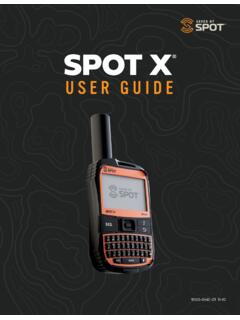
Transcription of USER GUIDE - findmespot.com
1 1 user | MESSAGE | TRACK | CHECK IN | SOCIALTABLE OF CONTENTSWELCOME What s in the your SPOT X ..1 ACTIVATING YOUR SPOT XConfiguring your SPOT X ..1 Electronic Serial Number (ESN), Authorization Code and Mobile Device Number (MDN) ..2 Activating Your SPOT X and Selecting a Service Plan ..2 SPOT X Firmware Update Required ..2 SPOT X AT A GLANCED evice Overview ..3 Main Menu Actions ..3 Device Overview Functions ..4 Status Bar Icons ..5 Menu Display Icons ..5 SPOT X Directional Pad ..6 Screen Lock ..6 Keyboard and Display Backlighting ..6 SPOT X APP AT A GLANCEC onnect the App with your Mobile Device ..6 GETTING STARTED Important SPOT X Tips.
2 7 SPOT X Operating Temperatures ..7 CONTACTS Manually Adding a Contact ..8 Deleting a Contact ..9 2-WAY MESSAGINGC reating & Sending Messages ..10 Predefined Messages ..11 Social Media ..11 Viewing All Messages ..11 Viewing Individual Messages ..12 Deleting Individual Message Threads ..12 Replying to a Message ..12 CHECK IN Sending a Check In Message ..13 How to View Your Sent Check In Messages ..13 Cancel Messages ..13 SPOT (SAVE OUR VEHICLE) Initiating SPOT ..14 Initiating .. 15 Canceling ..16 TRACKING Select Tracking Interval ..17 Initiating Tracking ..17 Canceling Tracking ..18 Suspended Tracking Mode ..18 MESSAGE FETCHING Selecting a Message Fetching Rate.
3 19 Manually Fetching New Messages ..19 NAVIGATION Calibrating the Compass ..20 Trip Information Data Fields ..21 Configuring Trip Information Data Fields ..21 WAYPOINTS Creating a Waypoint ..22 Navigating to a Waypoint ..22 SYSTEM SETTINGS Viewing Data Usage ..23 Viewing Service Plan Details ..23 Language Settings ..24 Time and Date Settings ..24 Distance Unit Settings ..25 Display Settings ..25 SPOT X Information ..25 Restore Factory Settings ..25 Demo/Retail Mode ..25 Regulatory Information ..25 Sounds ..25 Security ..26 SPOT MY ACCOUNT My Account Overview ..26 MY ACCOUNT MY DEVICES SPOT X My Devices Overview ..27 MY ACCOUNT - DEVICE NAME TABP ersonalize the Device Name.
4 29 MY ACCOUNT TRACKING TAB Tracking ..30MY ACCOUNT MOVEMENT ALERT TABC onfiguring Movement Alerts ..31 MY ACCOUNT THIRD PARTY GPS FORWARDING TABE nter a Third Party Identification Code ..32 MY ACCOUNT DUPPLICATE SETTINGS TABCopy Device Setting to Another SPOT X ..33MY ACCOUNT TABE nter the Primary and Secondary Emergency Contacts ..34MY ACCOUNT CONTACTS TABC reate New Contact ..35 Create New Contact Group ..35 Adding Contacts to the SPOT X ..35 Delete Contacts ..36MY ACCOUNT SPOT TABSPOT (Save Our Vehicle) ..37 SPOT Assist ACCOUNT SOCIAL MEDIA TABT witter ..38MY ACCOUNT MESSAGE BLOCKER TABS electing a Blocking Mode.
5 39 Add to the Blacklist ..39 Add to the Whitelist ..39 Delete from the Blacklist ..40 Delete from Whitelist ..40MY ACCOUNT PREDEFINED MESSAGES TABC reating a Predefined Message ..41 Deleting a Predefined Message ..41 Editing a Predefined Message ..42 Synching Predefined Messages to the SPOT X ..42MY ACCOUNT CHECK IN TABC onfiguring the Check In Message ..43 Editing an Email Address or Mobile Number ..44 Deleting an Email Address or Mobile Number ..44MY ACCOUNT UNDELIVERED MESSAGE NOTIFICATION TABE nable or Disable Undelivered Message Notification ..45MY ACCOUNT WAYPOINTS TABC reating a Waypoint ..46 Deleting a Waypoint.
6 46 Editing a Waypoint ..46 Synching Waypoints to the SPOT X ..46MY ACCOUNT MY LOCATIONST racking ..47 Set Filters ..48 Locate ..49 MY ACCOUNT SHARE & GET SPOTTED PAGESC reate a Share Page ..50 Create a Get Spotted Page ..51MY ACCOUNT SETTINGS AND BILLINGS ettings & Billing Overview ..52 SPOT X Message Usage ..53 SYNCHING AND UPDATING FIRMWARE WITH MY ACCOUNT Synching SPOT X ..54 SPOT X Firmware Update ..54 Troubleshooting ..54 SPOT X SPECIFICATIONS SPOT X Specifications ..55 CERTIFICATIONS FCC Compliance Statement ..56 FCC Regulatory ..56R glementation de la FCC ..56 ISED RSS-GEN Notice ..56 Industry Canada Regulatory.
7 57 Canada Regulatory ..57R glementation du Canada ..57 Declaration of Conformity for European Customers ..57 GENERAL WARNINGSG eneral Warnings ..581 WELCOMEACTIVATING YOUR SPOT XThank you for purchasing your SPOT X. Now you can stay connected with family, friends, co-workers,and Search & Rescue services whenever you re off the grid. WHAT S IN THE BOX? SPOT X Device Strap and Carabiner 18 Micro USB Data/Power Cable Quick Start GuideIMPORTANT: YOUR SPOT X REQUIRES AN ACTIVE SPOT SERVICE PLAN SUBSCRIPTION TO COMMUNICATE. SPOT X FEATURES, INCLUDING , WILL NOT WORK WITHOUT FIRST ACTIVATING YOUR DEVICE. IF YOU ENCOUNTER ISSUES DURING ACTIVATION, PLEASE VISIT FOR YOUR SPOT X1.
8 Power on the SPOT X by quick pressing the Power You can start the configuration process by selecting your desired language, time and date setting and follow all onscreen The device ESN and Auth code will now be displayed for your reference during activation. Warranty Card GEOS Reference GUIDE Mirrored StickerCHARGING YOUR SPOT XConnect the Micro USB Data/Power Cable to the SPOT X USB Data/Power Port and connect to either a computer or an AC Power Adapter. The battery with the lightning bolt icon will be visible while the battery icon indicates a full charge, disconnect the USB Cable from the SPOT X. Make sure the USB cover is firmly sealed to ensure the device s waterproof Data/Power Port2 ACTIVATING YOUR SPOT X AND SELECTING A SERVICE PLAN1.
9 Go to New SPOT customers should select Begin Activation to create a new account. Existing SPOT customers should login to their current SPOT account and select Add New SPOT Device. NOTE: ELECTRONIC SERIAL NUMBER (ESN), AUTHORIZATION CODE, AND MOBILE DEVICE NUMBER (MDN) The ESN and Authorization Code can be found on the SPOT X device by selecting System Settings and scrolling to and selecting SPOT X Info. The ESN can also be found on the bottom of your SPOT X retail box or on the back of your device. You will need both the ESN and Authorization code when setting up your SPOT MY ACCOUNT. Your MDN will be assigned after you complete the SPOT MY ACCOUNT activation process.
10 Share this number with others so they can message you directly!3. Follow the onscreen instructions to create an account, choose a service plan and additional services for your SPOT X. Confirm your order to finish the SPOT MY ACCOUNT activation X FIRMWARE UPDATE REQUIREDONCE YOU COMPLETE THE SPOT MY ACCOUNT ACTIVATION, MAKE SURE YOUR DEVICE IS UPDATED WITH THE LATEST FIRMWARE. SYNCING SPOT X WITH YOUR SPOT MY ACCOUNT WILL BE REQUIRED FOR SEVERAL FEATURES SUCH AS CONTACTS AND PREDEFINED MESSAGES TO APPEAR ON YOUR TO DOWNLOAD THE LATEST SPOT X FIRMWARE UPDATER. 3 SPOT X AT A GLANCEDEVICE OVERVIEWP ower/Backlight ButtonPower LED Display Button Directional PadSelect Button Track Button Back ButtonQWERTY Keyboard USB Power/Data Port12345678910123455678 MAIN MENU ACTIONSO pens Messages ScreenCreates New MessagesOpens Contacts ScreenSends Check In MessageOpens Track and Fetch Intervals ScreenFetches New MessagesOpens Navigation ScreenOpens System Settings1234567891012345678 TimeStatus BarMain Menu4 DISPLAY BUTTONPOWER BUTTONDIRECTIONAL PADTRACKING BUTTONBACK BUTTONQWERTY KEYPADUSB POWER/DATA PORTW hile the SPOT X is powered ON.