Transcription of SPOT X
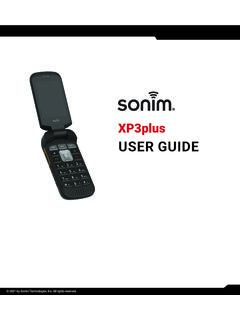
1 SPOT X.. USER GUIDE. 9100-0461-01 R-10. TABLE OF CONTENTS. WHAT'S IN THE BOX?.. 1. CONFIGURING YOUR SPOT 1. FULLY CHARGE YOUR SPOT X AFTER 1. ACTIVATING YOUR SPOT ACTIVATING YOUR SPOT X AND SELECTING A SERVICE SPOT X AT A 3. DEVICE 3. MAIN MENU 3. DEVICE OVERVIEW SPOT X DIRECTIONAL 6. SCREEN 6. KEYBOARD AND DISPLAY 6. SPOT X APP AT A CONNECT THE APP WITH YOUR MOBILE 6. GETTING 7. IMPORTANT SPOT X 7. SPOT X OPERATING 7. MANUALLY ADDING A 8. DELETING A 9. 2-WAY 10. CREATE & SEND A 10. PREDEFINED 11. SOCIAL 11. VIEWING ALL 11. VIEWING INDIVIDUAL 12. DELETING INDIVIDUAL MESSAGE 12. REPLYING TO A 12. CHECK 13. SENDING A CHECK IN 13. HOW TO VIEW YOUR SENT CHECK IN 13. CANCEL 13. SPOT (SAVE OUR VEHICLE).. 14. INITIATING SPOT 14. 15. INITIATING .. 15. CANCELLING 16. 17. SELECTING A TRACKING 17. INITIATING 17. CANCELLING SUSPENDED TRACKING MESSAGE 19.
2 SELECTING A MESSAGE FETCHING MANUALLY FETCHING NEW 20. CALIBRATING THE 20. TRIP INFORMATION DATA 21. CONFIGURING TRIP INFORMATION DATA 21. CREATING A 22. NAVIGATING TO A 22. SYSTEM 23. VIEWING DATA 23. VIEWING SERVICE PLAN 23. LANGUAGE 24. TIME AND DATE 24. DISTANCE UNIT 25. DISPLAY 25. SPOT X 25. RESTORE FACTORY 25. DEMO/RETAIL 25. REGULATORY 25. 26. 26. MY ACCOUNT MY SPOT X MY DEVICES 27. DEVICE NAME 29. TRACKING 30. TEST MODE 31. THIRD PARTY GPS FORWARDING 32. DUPLICATE SETTINGS 33. COPY DEVICE SETTINGS TO ANOTHER SPOT 33. MOVEMENT ALERTS 34. CONFIGURING MOVEMENT 34. 35. MY CONTACTS CREATE NEW CREATE NEW CONTACT ADDING CONTACTS TO THE SPOT 37. DELETING 37. SOCIAL MEDIA 38. 38. MESSAGE BLOCKER SELECTING A BLOCKING ADD TO THE BLOCK LIST ..39. ADD TO THE ALLOW 40. DELETE FROM THE BLOCK LIST .. 40. DELETE FROM THE ALLOW 40. SPOT (SAVE OUR VEHICLE).
3 41. SPOT ASSIST 41. PREDEFINED MESSAGES 42. CREATING A PREDEFINED 42. DELETING A PREDEFINED 42. EDITING A PREDEFINED 43. SYNCING PREDEFINED MESSAGES TO THE SPOT CHECK IN 44. CONFIGURING THE CHECK IN 44. EDITING AN EMAIL ADDRESS OR MOBILE 45. DELETING AN EMAIL ADDRESS OR MOBILE 45. UNDELIVERED MESSAGE NOTIFICATION WAYPOINTS 47. CREATING A 47. DELETING A 47. SYNCHING WAYPOINTS TO THE SPOT 47. MY ACCOUNT 48. 48. MY ACCOUNT SETTINGS & 49. 49. SPOT X MESSAGE 50. SYNCING SPOT X WITH MY 51. SPOT X FIRMWARE 51. SPOT X 52. 53. FCC COMPLIANCE STATEMENT .. 53. FCC PART 15 CLAUSE - DO NOT MODIFY WARNING:.. 53. FCC 53. R GLEMENTATION DE LA FCC: .. 53. ISED RSS-GEN 53. INDUSTRY CANADA 54. CANADA 54. R GLEMENTATION DU CANADA:.. 54. DECLARATION OF CONFORMITY FOR EUROPEAN 54. GENERAL 55. WELCOME. Thank you for purchasing your SPOT X. Now you can stay connected with family, friends, co-workers, and Search & Rescue services whenever you're off the grid.
4 WHAT'S IN THE BOX? SPOT X Device Warranty Card Strap and Carabiner Mirrored Sticker 18 Micro USB Data/Power Cable Important Safety & Product Information Guide Quick Start Guide Kickstand FULLY CHARGE YOUR SPOT X AFTER UNBOXING. Connect the Micro USB Data/Power Cable to the SPOT X USB Data/Power Port and connect to either a computer or an AC Power Adapter. The battery with the lightning bolt will be visible while charging. Charging time is approximately 6 hours. Once the battery has been fully charged, a notification will pop up on the screen, and the USB Cable can be disconnected from the SPOT X. Make sure the USB cover is firmly sealed to ensure the device's waterproof capability. USB Data/Power Port ACTIVATING YOUR SPOT X. IMPORTANT: YOUR SPOT X REQUIRES AN ACTIVE SPOT SERVICE PLAN SUBSCRIPTION TO COMMUNICATE. SPOT X FEATURES, INCLUDING , WILL NOT WORK WITHOUT FIRST ACTIVATING YOUR DEVICE.
5 IF YOU ENCOUNTER ISSUES DURING ACTIVATION, PLEASE VISIT FOR ASSISTANCE. CONFIGURING YOUR SPOT X. 1. Power on the SPOT X by quick pressing the Power button. 2. You can start the configuration process by selecting your desired language, time and date setting and follow all onscreen instructions. 3. The device ESN and Auth code will now be displayed for your reference during activation. 1. ACTIVATING YOUR SPOT X AND SELECTING A SERVICE PLAN. 1. Go to 2. New SPOT customers should select Begin Activation to create a new account. Existing SPOT customers should login to their current SPOT account and select Add New SPOT Device. NOTE: ELECTRONIC SERIAL NUMBER (ESN), AUTHORIZATION. CODE, AND MOBILE DEVICE NUMBER (MDN). The ESN and Authorization Code can be found on the SPOT X device by selecting System Settings and scrolling to and selecting SPOT X Info.
6 The ESN can also be found on the bottom of your SPOT X retail box or on the back of your device. You will need both the ESN and Authorization code when setting up your SPOT MY ACCOUNT. Your MDN will be assigned after you complete the SPOT MY ACCOUNT activation process. Share this number with others so they can message you directly! 3. Follow the onscreen instructions to create an account, choose a service plan and additional services for your SPOT X. Confirm your order to finish the SPOT MY ACCOUNT activation process. SPOT X FIRMWARE UPDATE REQUIRED. ONCE YOU COMPLETE THE SPOT MY ACCOUNT ACTIVATION, MAKE SURE YOUR. DEVICE IS UPDATED WITH THE LATEST FIRMWARE. SYNCING SPOT X WITH YOUR. SPOT MY ACCOUNT WILL BE REQUIRED FOR SEVERAL FEATURES SUCH AS. CONTACTS AND PREDEFINED MESSAGES TO APPEAR ON YOUR DEVICE. VISIT TO DOWNLOAD THE LATEST SPOT X.
7 FIRMWARE UPDATER. 2. SPOT X AT A GLANCE. DEVICE OVERVIEW. 1 Power/Backlight Button 2 Power LED. 3 Display Screen 4 Button 1. 5 Directional Pad 2. 6 Select Button 3. 7 Track Button 8 Back Button 9 QWERTY Keyboard 4 5 7. 10 USB Power/Data Port 8. 6. 9. 10. Status Bar Time MAIN MENU ACTIONS. Main Menu 1 Opens Messages Screen 1 2 3 4. 2 Creates New Messages 5 6 7 8. 3 Opens Contacts Screen 4 Sends Check In Message 5 Opens Track and Fetch Intervals Screen 6 Fetches New Messages 7 Opens Navigation Screen 8 Opens System Settings 3. DEVICE OVERVIEW FUNCTIONS. BLINKING GREEN BLINKING RED NO LED. SPOT X is powered SPOT X is powered SPOT X has either entered POWER LED power saving mode due to on and battery life is on and battery life no button press or the unit is above 20%. is below 20%. powered off. Press the Power button to power on the While the SPOT X is powered ON, quick POWER BUTTON SPOT X.
8 Long press the Power button for press the Power button to toggle the 3 seconds to power OFF. screen and keyboard backlight on and off. Long press the button for 3. While is active, long press the seconds or until the screen is BUTTON button for 3 seconds to cancel the displayed to initiate with search and initiation. rescue services. Long press the Track button for 3 While Tracking Mode is active, long TRACKING BUTTON seconds to initiate tracking mode at press the Track button for 3 seconds to your set interval rate. cancel Tracking. Press up, down, left and right to Press the Select button to make DIRECTIONAL PAD navigate to and highlight a section on a selection. the screen. Quick press the Back button to Press and hold the Back button to go BACK BUTTON. navigate to the previous screen. back to the Main Menu screen. Use the keyboard to create messages, contact names and other manual entries as required.
9 QWERTY KEYPAD Use the ALT key (to the left of the space bar) to access ALTERNATE key functions such as numbers or symbols ( @, !,?..). Long-press a key to access the soft keys that can be selected using the directional pad and select button. The SPOT X Display screen allows for interaction with the Main Menu, DISPLAY SCREEN. sub-menus, and other onscreen features. USB POWER/ Used to connect a Micro USB Cable to the SPOT X USB Port to charge the SPOT X. DATA PORT device and to sync with SPOT MY ACCOUNT. 4. STATUS BAR ICONS MENU DISPLAY ICONS. BATTERY MESSAGES. Battery Strength Create New Message Low Battery Send Message Battery Charging Reply to Message Predefined Messages GPS SIGNAL. GPS Signal Available CONTACTS. GPS Signal Unavailable Contact List Create New Contact DEVICE. GPS. Sync Required Include Elevation with Message MESSAGES Include GPS Coordinates with Message New Received Messages Create New Waypoint Fetching New Messages Navigate to Location Pending Queued Messages OTHER.
10 Sending Check In Message Delete MODES Save Active Back Tracking Active Content Count (current/total). Suspended Tracking CONTACTS. TIME Email Contact 5:00 PM 12-Hour Format Mobile Contact 17:00 24-Hour Format Group Contact Twitter SENT MESSAGE STATUS. Message Delivered Message Failed Message Sent to Queue Message Sent - Delivery Unconfirmed 5. SPOT X DIRECTIONAL PAD. The SPOT X Main Menu screen displays icons/buttons that you SELECT UP RIGHT. can select to send messages, activate navigation, and manage other features. After making an initial selection, sub-menu screens may be displayed. Use the Directional Pad (Up Down Left Right) to highlight your selection and then press the Select button. Use the Back button to cancel or go back to the previous screen. LEFT DOWN BACK. SCREEN LOCK. To prevent the accidental transmission of data, you can enable the screen lock feature on the SPOT X.