Transcription of Weapon Control System - Thrustmaster
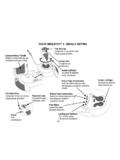
1 - USER manual - MANUEL DE L UTILISATEUR- BENUTZERHANDBUCH- HANDLEIDING- MANUALE D USO- manual DEL USUARIO- manual DO UTILIZADOR - РУКОВОДСТВО ПОЛЬЗОВАТЕЛЯ- - KULLANIM KILAVUZU- INSTRUKCJA OBS UGIW eapon Control System 1/10 User manual TECHNICAL SPECIFICATIONS 1. Throttle axis 2. Antenna axis 3. Mini-stick with push-button axes 4. Rocker switch axes 5. 14 action buttons 6. TFRP rudder connector 7. Friction adjustment screw 8. USB connector 2/10 SETUP INSTRUCTIONS FOR PC 1. Go to Select Joysticks / TWCS Throttle, then select Drivers. Download and install the PC driver and its custom Windows Control Panel-based interface.
2 2. After installing the PC driver, connect the USB connector to one of your PC s USB ports. 3. To access the Control Panel, select: - Start / Applications / Thrustmaster / Control Panel or Start / Control Panel (in Windows 10 / / 8) - Start / All Programs / Thrustmaster / Control Panel or Start / Control Panel (in Windows 7 / Vista) The Game controllers dialog box is displayed. The device appears under the name TWCS Throttle, with the status OK. 4. In the Game Controllers dialog box, select Properties to test and view all functions. Note: The Enable Center Deadzone tab allows you to activate or deactivate the mini-stick s axes center dead zone.
3 Your selection is automatically saved to the TWCS s internal memory. You are now ready to play! 3/10 MAPPING OF THE 14 BUTTONS AND 8 AXES 4/10 5/10 INSTALLING THE TFRP RUDDER ON THE TWCS THROTTLE The TWCS throttle features 8 axes, including 3 axes dedicated to the TFRP rudder pedals. The TFRP rudder pedals connect directly to the TWCS Throttle. 1. Connect the rudder pedals RJ12 male connector to the RJ12 female connector located at the back of the TWCS Throttle. 2. Connect the TWCS Throttle s USB connector to one of your PC s USB ports.
4 Important notes regarding automatic axis calibration: - Always leave the rudder axis centered when connecting the TFRP pedal set to the TWCS Throttle. Do not rest your feet on the pedals. - The rudder pedals 3 axes self-calibrate after a few movements and when the physical stops of the rudder s axis and the 2 differential brake axes are reached. ADVANCED PROGRAMMING SOFTWARE ( Thrustmaster Advanced pRogramming Graphical EdiTor) Go to Select Joysticks / TWCS Throttle, then select Software. Download and install the advanced programming software. main specifications: - Multiple axis configurations.
5 - Multiple programming levels: Basic, Advanced and Script. - Drag and Drop controls. - Ability to combine the TWCS Throttle with other Thrustmaster joysticks (HOTAS Cougar, HOTAS Warthog, , MFD Cougar Pack, also compatible with ), allowing controllers to be recognized as a single USB device. - Access to advanced profiles created by the Thrustmaster community. 6/10 FRICTION ADJUSTMENT Push the throttle s axis to the maximum position, then turn the TWCS Throttle over to access the friction adjustment screw. To increase friction, turn the screw clockwise.
6 7/10 To reduce friction, turn the screw counter-clockwise. - Do not over-tighten the adjustment screw, as this could cause damage to the friction System . Stop turning the screw as soon as any resistance is felt. - Do not loosen the adjustment screw completely, as it could fall inside the TWCS Throttle s internal housing. TROUBLESHOOTING AND WARNING My TWCS Throttle does not operate properly or seems incorrectly calibrated. - Turn off your PC, unplug the TWCS Throttle s USB connector, then reconnect it; turn on your computer (or your games console), then restart the game.
7 - When connecting the TWCS Throttle s USB connector, always leave the rudder s axis in the center position. Do not rest your feet on the pedals. I can t configure my TWCS Throttle. - In the game s Options / Controller / Throttle or Joystick menu, select the appropriate configuration or fully reconfigure the controller s options. - Please refer to your game s user manual or online help for more information. - Use the ( Thrustmaster Advanced pRogramming Graphical EdiTor) software. My TWCS Throttle is too sensitive or not sensitive enough.
8 - The TWCS Throttle s axes self-calibrate after a few movements and when the axes physical stops are reached. - In the game s Options / Controller / Throttle or Joystick menu, adjust your controller s sensitivity and dead zones, if available. - Use the ( Thrustmaster Advanced pRogramming Graphical EdiTor) software. 8/10 CONSUMER WARRANTY INFORMATION Worldwide, Guillemot Corporation , whose registered office is located at Place du Granier, 97143, 35571 Chantepie, France (hereinafter Guillemot ) warrants to the consumer that this Thrustmaster product shall be free from defects in materials and workmanship, for a warranty period which corresponds to the time limit to bring an action for conformity with respect to this product.
9 In the countries of the European Union, this corresponds to a period of two (2) years from delivery of the Thrustmaster product. In other countries, the warranty period corresponds to the time limit to bring an action for conformity with respect to the Thrustmaster product according to applicable laws of the country in which the consumer was domiciled on the date of purchase of the Thrustmaster product (if no such action exists in the corresponding country, then the warranty period shall be one (1) year from the original date of purchase of the Thrustmaster product).
10 Notwithstanding the above, rechargeable batteries are covered by a warranty period of six (6) months from the date of original purchase. Should the product appear to be defective during the warranty period, immediately contact Technical Support, who will indicate the procedure to follow. If the defect is confirmed, the product must be returned to its place of purchase (or any other location indicated by Technical Support). Within the context of this warranty, the consumer s defective product shall, at Technical Support s option, be either replaced or returned to working order.