Transcription of WELCOME TO EDSBY
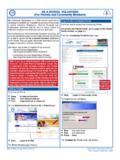
1 WELCOME TO EDSBY . How to sign in to your parent account already set up If you already have an EDSBY account set up, goto and input your email address we have on file for you and the password that you used to create the account. You may choose to download the EDSBY app onto your smartphone or tablet. How your parent account is set up and how to attach multiple children to your account If you are new to the school and do not have an EDSBY account, you will be receiving an email from the school, to set up your account and/or attach an existing account to each child.
2 You only need one EDSBY parent account but, will receive a separate email invitation from each school your children attend. Click the link(s) in the email(s) you were sent, and a browser will send you to a screen like the one below on the left: If you need to create an account If you don't already have an EDSBY parent account, click the I don't have an EDSBY account button in the email. You'll then be prompted on a second screen to enter and confirm a password. Your email address and your username will already be entered.
3 Click Create EDSBY Account. You'll be logged into your EDSBY Account and a WELCOME to EDSBY message will be sent to your email address. The information for at least one of your children will be immediately visible to you. Add additional children to an existing EDSBY account Find EDSBY invitation email(s) for your addition children(s). Click the link in the email, and then choose the Login to your existing EDSBY account button in the screen above. Enter your EDSBY username and password. Your existing EDSBY account will now include an additional child.
4 Did you know that you can now receive school news through your EDSBY account? To stay up-to-date on all of our current school news and receive a notification each time we post something new on the EDSBY News River, please follow the steps below . 1. Sign into your EDSBY account at 2. Go to your account settings 3. Select Notifications . 4. Choose Windham Ridge Public School . 5. Check the box News Item Posted . 6. Select Notify Activity Via and choose how you would like to be notified email, EDSBY and/or push 7.
5 Save Did you know that you can now report a child's absence through your EDSBY account? Parent Planned Absences EDSBY enables parents to inform their child's school of an absence quickly and easily. To submit a parent planned absence, log into EDSBY . Scroll to the child that the absence will be submitted on behalf of. The parent has two options when scheduling absences: Absent Today and Schedule Absence. Absent Today If the child is going to be away for the whole day, click Absent Today to open the Planned Absence form.
6 The name of the child will automatically be filled in the form. Select a reason for the absence from the drop-down menu. The comment is optional. When the form is complete, click Send to School Office. The Office will review and approve the planned absence. Schedule Absence parents can also report future absences, partial day absences, and multi-day absences through EDSBY . To submit these kinds of absences, click Schedule Absence to open the Planned Absence form. The name of the child will automatically be filled in the form.
7 Choose the date the child will be absent. Select the start time of the absence based on the time of day or based on the class schedule. Select an end time based on the time of day or the class schedule. If parents are submitting a multi-day absence for their child, they must choose a returning date. The returning date will automatically default to the child's first scheduled class but parents can change this if the child will be arriving later in the day. Select a reason for the absence from the drop-down menu.
8 The comment is optional. When the form is complete, click Send to School Office. The Office will review and approve the planned absence. Recent Activity The Recent Activity associated with a parent's child lists all planned absences and whether they have been approved by the Office or not. Attendance Totals Attendance totals can be found under the name of the class in the Classes panel of a parent's child. Here, the parent can quickly see an overview of their child's attendance record in a given class.
9 parents can click on the summary to open a detailed view of their child's attendance history. Here, parents can use the filters on the left to view certain events regarding their child's attendance in a specific class. Calendar A parent can view the calendar specific to the given child at the right of the child's panel. Here, parents receive up-to-the-minute attendance information for the given day and can view whether their child has been marked late, present, or absent in each of their classes. Parent-Teacher Interviews When it's time for parents to schedule an interview with their children's teachers, they will receive a message in their EDSBY mailbox.
10 Click messages in the navigation bar across the top of the parent home screen. Click on the message that says Parent-Teacher Interview Period. Click Book Parent-Teacher Interview. The parent will see the child the interviews apply to and the available time slots for each of the children's teachers. If the interview period runs on more than one day, parents can select the day they would like to book an interview by selecting them from the tabs in the top left. EDSBY enables parents to choose exact time slots they want and enables parents to know in real time if the slots are available.