Transcription of Your Excel formulas cheat sheet: 15 tips for calculations ...
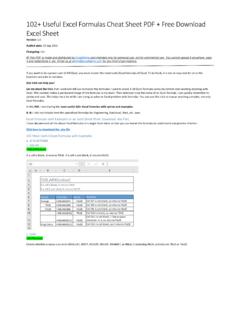
1 Sartain | @jdsartain journalist, PCWorld Apr 8, 2015 3:30 AMYour Excel formulas cheat sheet : 15 tips for calculations andcommon tasksMany of us fell in love with Excel as we delved into its deep and sophisticated formula features. Because there aremultiple ways to get results, you can decide which method works best for you. For example, there are several waysto enter formulas and calculate numbers in ways to enter formulas1. Manually enter Excel formulas :Long Lists: =SUM(B4:B13)Short Lists: =SUM(B4,B5,B6,B7); =SUM(B4+B5+B6+B7). Or, place your cursor in the first empty cell at the bottom ofyour list (or any cell, really) and press the plus sign, then click B4; press the plus sign again and click B5; and so onto the end; then press Enter.
2 Excel adds/totals this list you just pointed to: =+B4+B5+B6+ Click the Insert Function buttonUse the Insert Function button under the formulas tab to select a function from Excel s menu list:=COUNT(B4:B13) Counts the numbers in a range (ignores blank/empty cells).=COUNTA(B3:B13) Counts all characters in a range (also ignores blank/empty cells).3. Select a function from a group ( formulas tab)Narrow your search a bit and choose a formula subset for Financial, Logical, or Date/Time, for () Inserts today s The Recently Used buttonClick the Recently Used button to show functions you've used recently. It's a welcome timesaver, especially whenwrestling with an extra-hairy (B4:B13) adds the list, divides by the number of values, then provides the Auto functions under the AutoSum buttonAuto functions are my editor's personal favorite, because they're so fast.
3 Select a cell range and a function, and yourresult appears with no muss or fuss. Here are a few examples:=MAX(B4:B13) returns the highest value in the (B4:B13) returns the lowest value in the SartainUse the AutoSum button to calculate basic formulas such as SUM, AVERAGE, COUNT, : If your cursor is positioned in the empty cell just below your range of numbers, Excel determines that this is therange you want to calculate and automatically highlights the range, or enters the range cell addresses in thecorresponding dialog tip: With basic formulas , the AutoSum button is the top choice. It s faster to click AutoSum>SUM (notice thatExcel highlights the range for you) and press bonus tip: The quickest way to add/total a list of numbers is to position your cursor at the bottom of the listand press Alt+ = (press the Alt key and hold, press the equal sign, release both keys), then press Enter.
4 Excelhighlights the range and totals the handy formulas for common tasksThe five formulas below may have somewhat inscrutable names, but their functions save time and data entry on adaily : Some formulas require you to input the single cell or range address of the values or text you want Excel displays the various cell/range dialog boxes, you can either manually enter the cell/range address, orcursor and point to it. Pointing means you click the field box first, then click the corresponding cell over in theworksheet. Repeat this process for formulas that calculate a range of cells ( , beginning date, ending date, etc.)1. =DAYSThis is a handy formula to calculate the number of days between two dates (so there s no worries about how manydays are in each month of the range).
5 Example: End Date October 12, 2015 minus Start Date March 31, 2015 = 195 daysFormula: =DAYS(A30,A29)2. =NETWORKDAYSThis similar formula calculates the number of workdays ( , a five-day workweek) within a specified timeframe. Italso includes an option to subtract the holidays from the total, but this must be entered as a range of : Start Date March 31, 2015 minus End Date October 12, 2015 = 140 daysFormula: =NETWORKDAYS(A33,A34)3. =TRIMTRIM is a lifesaver if you re always importing or pasting text into Excel (such as from a database, website, wordprocessing software, or other text-based program). So often, the imported text is filled with extra spaces scatteredthroughout the list.
6 TRIM removes the extra spaces in seconds. In this case, just enter the formula once, then copy itdown to the end of the : =TRIM plus the cell address inside : =TRIM(A39)4. =CONCATENATEThis is another keeper if you import a lot of data into Excel . This formula joins (or merges) the contents of two ormore fields/cells into one. For example: In databases; dates, times, phone numbers, and other multiple data recordsare often entered in separate fields, which is a real inconvenience. To add spaces between words or punctuationbetween fields, just surround this data with quotation : =CONCATENATE plus (month, space ,day, comma space ,year) where month, day, and year are celladdresses and the info inside the quotation marks is actually a space and a : For dates enter: =CONCATENATE(E33, ,F33, , ,G33)Formula: For phone numbers enter: =CONCATENATE(E37, - ,F37, - ,G37)5.
7 =DATEVALUEDATEVALUE converts the above formula into an Excel date, which is necessary if you plan to use this date forcalculations. This one is easy: Select DATEVALUE from the formula list. Click the Date_Text field in the dialog box,click the corresponding cell on the spreadsheet, then click OK, and copy down. The results are Excel serial numbers,so you must choose Format>Format Cells>Number>Date, and then select a format from the : =DATEVALUE(H33)Three more formula tipsAs you work with formulas more, keep these bonus tips in mind to avoid confusion:Tip 1: You don t need another formula to convert formulas to text or numbers. Just copy the range of formulas andthen paste as Special>Values.
8 Why bother to convert the formulas to values? Because you can t move or manipulatethe data until it s converted. Those cells may look like phone numbers, but they re actually formulas , which cannot beedited as numbers or 2: If you use Copy and Paste>Special>Values for dates, the result will be text and cannot be converted to a realdate. Dates require the DATEVALUE formula to function as actual 3: formulas are always displayed in uppercase; however, if you type them in lowercase, Excel converts them touppercase. Also notice there are no spaces in formulas . If your formula fails, check for spaces and remove them.