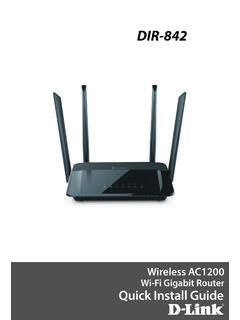
DIR-842 - D-Link
2. Select the Wi-Fi Network name you assigned in the wizard and connect. Note: If you did not run the setup wizard or you reset the router to its default settings, refer to the Wi-Fi Configuration Card included for the default Wi-Fi Network Name and Wi-Fi Password. You can also connect wireless devices to the DIR-842 router using WPS: 1.
Download DIR-842 - D-Link

Information
Domain:
Source:
Link to this page:
Documents from same domain

Quick Install Guide - D-Link
support.dlink.comDAP-1325 N300 Wi-Fi Range Extender Wi-Fi Configuration Card Quick Install Guide If any of the above items are missing, please contact your reseller. • Make sure the area that you want to plug the extender into has a strong connection to your router. Use a wireless laptop, tablet, or mobile phone in that area to test the connection to verify.

DGS-1100 Series EasySmart Switch User Manual B1 v1
support.dlink.comPress the Reset button for 1to 5 seconds to reboot the Switch. Press the Reset button for 6to10 seconds to reset the Switch back to the default settings. The LED will light up solid amber for 2 seconds. When pressing the Reset button for longer than 10 seconds, the device will enter loader mode and the LED will light up solid green for 2 seconds.

User Manual - D-Link
support.dlink.comH.264 Codec for Smooth, Space-Efficient Video This camera supports use of the H.264 video codec, which gives you high-quality video with reduced bandwidth requirements. This means that you can enjoy smoother, more reliable video streaming over the Internet, and less disk space is required to save recordings.
User Manual - D-Link
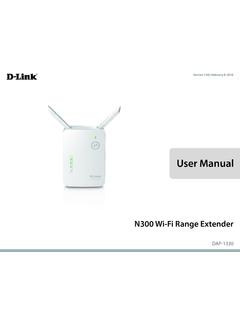
support.dlink.comMar 08, 2021 · The DAP-1330 N300 Wi-Fi Range Extender lets you easily extend a secure wireless network with a press of a button. Connect the DAP-1330 to a router via Wi-Fi or Ethernet and share your high-speed Internet access in more places throughout your home or small office. High-speed Wireless Performance With Wireless 802.11n Technology
User Manual - D-Link
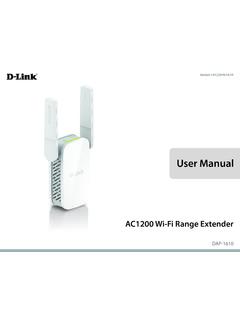
support.dlink.comDec 19, 2019 · D-Link DAP-1610 User Manual 2 Section 1 - Product Overview Network Requirements • A wireless router with an active Internet connection. • IEEE 802.11ac, 802.11n, 802.11g, 802.11b, or 802.11a

User Manual - D-Link
support.dlink.comSep 15, 2020 · D-Link DCS-8525LH User Manual 14 Section 3 - mydlink Camera Presets Save and quickly access up to 5 different camera views. The button is your Home Point. To set other viewpoints, tap the button, then tap the live view screen and use the arrows to set your view preset. Long press on the button to save a snapshot of that location.

Quick Install Guide - D-Link
support.dlink.comQuick Install Guide If any of the above items are missing, please contact your reseller. • Make sure the area that you want to plug the extender into has a solid connection to your router. Use a wireless laptop, tablet, or mobile phone in that area to test the connection to verify.

User Manual - D-Link Technical Support
support.dlink.com1 Reset Button Press and hold the reset button on the side of DAP-1720 for 10 seconds to restore the factory default settings. 2 Power Switch Use the power switch to power off the DAP-1720 when it will not be in use for an extended period of time. The factory default is ON. 1 2

User Manual - D-Link
support.dlink.comD-Link DWA-131 User Manual 4 Section 1 - Product Overview Introduction The DWA-131 Wireless N Nano USB Adapter is a convenient wireless connectivity solution for desktop or notebook PCs. Instead of stringing Ethernet cables to your PC or dismantling your desktop computer case, the DWA-131 can enable 802.11n wireless
User Manual - D-Link
support.dlink.comThis device is an Energy Related Product (ErP) with High Network Availability (HiNA), and automatically switches to a power-saving Network Standby mode within 1 minute of no packets being transmitted. If it is not needed during certain periods of time, it can be unplugged to save energy. Network Standby: 3.54 watts
Related documents

AC1200 WiF Range Extender
www.downloads.netgear.com350 East Plumeria Drive San Jose, CA 95134 USA June 2016 202-11631-01 AC1200 . WiF Range Extender. Model EX6150v2. User Manual

AC1200 WiFi Range Extender Model EX6150 Quick Start Guide
www.downloads.netgear.comWi-Fi Protected Setup (WPS) lets you join a secure WiFi network without typing the network name and password. Note: WPS does not support WEP network security. If you are using WEP security, follow the instructions in Connect with Web Browser Setup on page 9. 1. Press the WPS button on the extender. The WPS LED blinks. 2.

RT-AC1200 - Asus
dlcdnets.asus.com• Keep the device away from 802.11b/g or 20MHz only Wi-Fi devices, 2.4GHz computer peripherals, Bluetooth devices, cordless phones, transformers, heavy-duty motors, fluorescent lights, microwave ovens, refrigerators, and other industrial equipment to prevent signal interference or loss. • Always update to the latest firmware.

User Guide AC1200 Max Wi-Fi Range Extender
downloads.linksys.comSep 01, 2016 · AC1200 Max Wi-Fi Range Extender. Model # RE6500 . 2 Table of Contents ... Wi-Fi Protected Setup light on the extender will be solid for 10 seconds. c) If using the extender’s Wi-Fi Protected Setup screen, be sure to click . OK. within two minutes or you will have to start over.
Configuring a TPLINK Router - actcorp
www.actcorp.in• Go to setting in the Mobile, turn on Wi-Fi and wait until the mobile detects router name press the router name to connect. • If the router is already configured and the Wi-Fi password is known then go to settings in the Mobile • Under “Wireless and Networks”, press Wi …
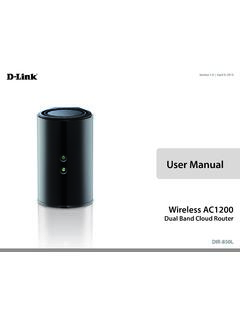
User Manual - D-Link
www.dlink.com.myWi-Fi Configuration Card Quick Install Guide. D-Link DIR-850L User Manual 2 Section 1 - Product Overview ... The D-Link® DIR-850L Wireless AC1200 Dual Band Cloud Router provides revolutionary Gigabit 802.11ac wireless speed - up to 1200Mbps – for flawless HD video streaming to multiple devices.