
User Manual - D-Link
Sep 15, 2020 · 1. Keep the number of walls and ceilings between the camera and wireless access point to a minimum - each wall or ceiling can reduce your camera’s range from 1 to 30 meters (3 to 90 feet). Position your devices so that the number of walls or ceilings is minimized. 2. Be aware of the direct line between network devices.
Download User Manual - D-Link

Information
Domain:
Source:
Link to this page:
Documents from same domain

Quick Install Guide - D-Link
support.dlink.comDAP-1325 N300 Wi-Fi Range Extender Wi-Fi Configuration Card Quick Install Guide If any of the above items are missing, please contact your reseller. • Make sure the area that you want to plug the extender into has a strong connection to your router. Use a wireless laptop, tablet, or mobile phone in that area to test the connection to verify.

DGS-1100 Series EasySmart Switch User Manual B1 v1
support.dlink.comPress the Reset button for 1to 5 seconds to reboot the Switch. Press the Reset button for 6to10 seconds to reset the Switch back to the default settings. The LED will light up solid amber for 2 seconds. When pressing the Reset button for longer than 10 seconds, the device will enter loader mode and the LED will light up solid green for 2 seconds.
DIR-842 - D-Link
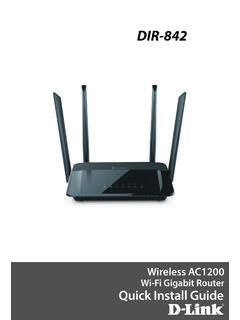
support.dlink.com2. Select the Wi-Fi Network name you assigned in the wizard and connect. Note: If you did not run the setup wizard or you reset the router to its default settings, refer to the Wi-Fi Configuration Card included for the default Wi-Fi Network Name and Wi-Fi Password. You can also connect wireless devices to the DIR-842 router using WPS: 1.

User Manual - D-Link
support.dlink.comH.264 Codec for Smooth, Space-Efficient Video This camera supports use of the H.264 video codec, which gives you high-quality video with reduced bandwidth requirements. This means that you can enjoy smoother, more reliable video streaming over the Internet, and less disk space is required to save recordings.
User Manual - D-Link
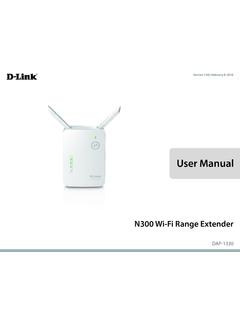
support.dlink.comMar 08, 2021 · The DAP-1330 N300 Wi-Fi Range Extender lets you easily extend a secure wireless network with a press of a button. Connect the DAP-1330 to a router via Wi-Fi or Ethernet and share your high-speed Internet access in more places throughout your home or small office. High-speed Wireless Performance With Wireless 802.11n Technology
User Manual - D-Link
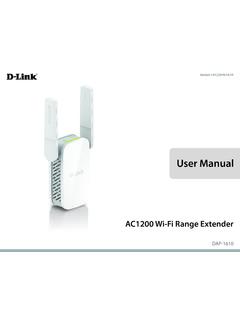
support.dlink.comDec 19, 2019 · D-Link DAP-1610 User Manual 2 Section 1 - Product Overview Network Requirements • A wireless router with an active Internet connection. • IEEE 802.11ac, 802.11n, 802.11g, 802.11b, or 802.11a

Quick Install Guide - D-Link
support.dlink.comQuick Install Guide If any of the above items are missing, please contact your reseller. • Make sure the area that you want to plug the extender into has a solid connection to your router. Use a wireless laptop, tablet, or mobile phone in that area to test the connection to verify.

User Manual - D-Link Technical Support
support.dlink.com1 Reset Button Press and hold the reset button on the side of DAP-1720 for 10 seconds to restore the factory default settings. 2 Power Switch Use the power switch to power off the DAP-1720 when it will not be in use for an extended period of time. The factory default is ON. 1 2

User Manual - D-Link
support.dlink.comD-Link DWA-131 User Manual 4 Section 1 - Product Overview Introduction The DWA-131 Wireless N Nano USB Adapter is a convenient wireless connectivity solution for desktop or notebook PCs. Instead of stringing Ethernet cables to your PC or dismantling your desktop computer case, the DWA-131 can enable 802.11n wireless
User Manual - D-Link
support.dlink.comThis device is an Energy Related Product (ErP) with High Network Availability (HiNA), and automatically switches to a power-saving Network Standby mode within 1 minute of no packets being transmitted. If it is not needed during certain periods of time, it can be unplugged to save energy. Network Standby: 3.54 watts
Related documents
Heavy Construction Equipment Noise Study Using Dosimetry ...
www.cdc.govmeasurement and the dosimeter microphone was clipped to the midpoint of the worker’s shoulder with the diaphragm pointing up. (4) ... D6MXL, had noise controls consisting of acoustic foam on the ceiling of the ROPS/FOPS, an exhaust muffler and an enclosed engine compartment. Even with no

FIRE ALARM SYMBOLS LIST - swgc.net
www.swgc.netremote voice evacuation microphone graphic annunciator panel uninterruptible power supply crt printer emergency communications control unit fire suppression control panel, 'xx' denotes ... ceiling mount j j j p ps p facp dgp tpr# faa nac fatc batt evac mic gap ups crt prn eccu fscp xx fscu amp acu esr dact pp sap scp xx xx bt br wf ps vs ht lt ...
ELECTRICAL SYMBOLS LEGEND ABBREVIATIONS LEGEND
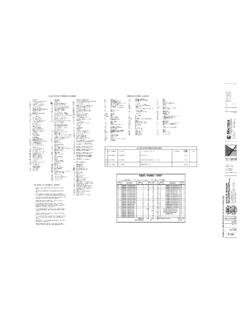
www.bidnet.comthe raceway system). ceiling outlet boxes shall be 4-inch octagon, 1-1/2-inch deep, with fixture hickey, and supported to withstand 80 lbs. grounding all electrical equipment shall be grounded in a manner approved by the local inspector. lighting fixtures all lighting fixtures and components thereof shall be u.l. and e.t.l. approved.
Cisco Webex Codec Plus and Room Kit Plus Precision 60 ...
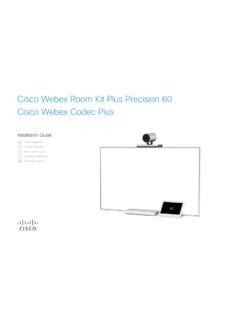
www.cisco.comMicrophone(s): Cisco table- or ceiling microphone is recommended. Cables: For set-up, the system may require more HDMI and Ethernet cables depending on the needs. We recommend that you order the cables from Cisco. HDMI cables are required for screens and presentation sources. We recommend to only use certified HDMI cables: High Speed HDMI 1.4b ...
RALLY ACCESSORIES - Logitech
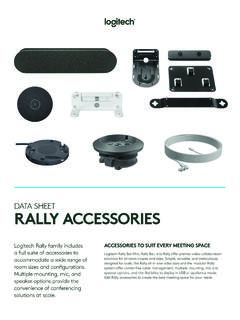
www.logitech.commicrophone array) Rally Bar Mini: Up to 2 Mic . Pods (complements the built-in microphone array) Note: Rally Mic Pods are not compatible ... Hide cables and anchor mics on the table or ceiling Adjusts to fit most tables Available in graphite or white. ACCESSORIES FOR RALLY FAMILY. General Specifications

User’s manual
att.vtp-media.comSep 01, 2020 · mute the microphone. Press again to resume your conversation (page 16). pVOLUMEq During message playback or call screening, press to adjust the listening volume (pages 40 and 39). While in idle mode, press to adjust the base ringer volume (page 11). While on a call, press to adjust the listening volume (page 16). SPEAKER Press to make or

Basic Manual - Onkyo USA
www.onkyousa.comCeiling speakers This is a basic 5.1-channel system using ceiling speakers, for example, with the addition of height speakers, either as top front speakers, top middle speakers, or top rear speakers. Select which speakers to setup according to the environment of the room. You can select the Dolby Atmos listening mode (5.1.2 channel playback), which
Poly Video Mode (G7500, Studio X50, and Studio X30)
support2.polycom.comPoly Microphone IP Adapter (model: P012) Poly IP Table Microphone (model: P013) Poly IP Ceiling Microphone (model: P014) Poly Studio X50 (model: P017) Poly Studio X30 (model: P018) Poly TC8 (model: P020) Audience, Purpose, and Required Skills This guide is written for a technical audience.

DS-2CD6362F-I(V)(S) 6MP Fisheye Network Camera
www.hikvision.comCeiling, wall or table mount modes Up to 15m IR range 360° view angle Built-in microphone & speaker Audio/Alarm IO/ RS485(-S model) IP66(-V model) IK10 vandal proof(-V model) Specification Camera Image Sensor 1/1.8’’ Progressive Scan CMOS Min. Illumination 0.05 Lux @ (F1.2, AGC ON), 0.3 Lux @ (F2.8, AGC ON), 0 Lux with IR ...