Wi-Fi User Guide - Fetch TV
If you have an Android device, you can search for a Wi-Fi Analyser App on Google Play. Make sure you do the test at your Fetch box. On an iOS device: If the result is lower than -70dB, for example -75dB, then Wi-Fi won’t work reliably on your Fetch box. See the tips for improving your Wi-Fi (Page 8) or use a wired connection option (Page 3). 3
Download Wi-Fi User Guide - Fetch TV

Information
Domain:
Source:
Link to this page:
Documents from same domain

Fetch Remote 3 - Fetch TV. Show TV who's boss. …
www.fetchtv.com.au2 Welcome to Fetch Simple Remote Set Up 3 Direct Remote Set Up 4 Controlling the TV Volume 5 TV Power and AV 6 Reset remote to control Fetch Box only 7

Quick Start Guide - Fetch TV
www.fetchtv.com.au5 Connection Option 3 – PLC Adaptors You can use this option if you cannot connect using Ethernet Cable and you ordered PLC Adaptors with your Fetch
Mighty Quick Start Guide - Fetch TV
www.fetchtv.com.au• The remote control works up to 6m away from the Fetch box in Infrared mode. The voice remote control works up to 10m away in Bluetooth mode. • Unplug the Fetch box from the power source before cleaning. • Clean using a dry cloth only - don’t use water or chemicals. • Don’t try to open the Fetch box - it’s dangerous and will void ...

My Media Hub Quick Start Guide for USB Devices
www.fetchtv.com.au(see the “Fetch My Media Hub Quick Start Guide for Media Servers”) • See your folders, album artwork, playlists in My Media Hub • Play a slideshow of photos • Play your music or videos with full playback controls About this document This guide will help play your media off a USB device from your Fetch Box to your connected TV. Related ...
Multiroom User Guide - Fetch TV
www.fetchtv.com.auFetch through Optus, iiNet, Internode, Westnet, Aussie Broadband or iPrimus. Before you can use your Fetch box, you’ll need to create an account directly with us. Go to fetch.com.au/activate. Once you have entered in your personal details and credit card details, you will be given an Activation Code (also called your Fetch ID).

New Software Update - Fetch
www.fetchtv.com.auThis update to Fetch introduces the ability to watch sport via the Paramount + app. Menu > Apps > All > Paramount + > All Shows > Sports • From October 14, there will be sport highlights, mini matches and full match replays from AFC Road to Qatar Qualifier as well as Socceroo and Matildas friendly matches available to watch.

Mini Quick Start Guide - Fetch TV
www.fetchtv.com.auConnect the Fetch Mini to your broadband modem Connect the Fetch Mini to your TV Antenna Connect the Fetch Mini to your TV Power up your Fetch Mini Start up Fetch This guide tells you all you need to know about setting up and turning on Fetch. It also has important safety and usage information. It’s Fetch and it’s ready when you are. 1 2 3 ...
Fetch Voice Remote
www.fetchtv.com.aufront of your box to pair the remote. • You can pair one Fetch Mighty or Fetch Mini at a time to use voice control through the remote. • Fetch will prompt you to pair the remote using Bluetooth the first time you use it with your Fetch Mighty or Fetch Mini. • Bluetooth pairing is not supported on Gen 2 Fetch boxes.

Mini User Guide - Fetch TV
www.fetchtv.com.au3. 12 You can go back a day in the TV Guide and watch programs you missed. You can set a reminder to alert you when your favourite programs are about to start. TV Guide – Reverse EPG Set Reminders In the TV Guide or Live TV Info Bar press to browse backwards into the ... Fetch Mighty or Gen 2 box.
Related documents
Wi-Fi Socket Beginners Guide - BG Electrical
bgelectrical.ukyour router and Wi-Fi dead-zone. Use the signal strength on your mobile device to determine the mid-signal point. At the consumer unit, find the trip switch which protects ... Web browser - using your computer, smart phone or tablet’s Internet browser …
Wi-Fi Settings Wi-Fi Connections with the Printer Guide
support.ricoh.com2 1. Wi-Fi Connections with the Printer You can connect your computer or smart device with the printer via a Wi-Fi router (access point), or directly connect them using Soft AP

User Guide - Linksys Smart Wi-Fi router AC1750, EA6500 v2
downloads.linksys.comHow to associate a router with your Linksys Smart Wi-Fi account 25 How to get the most out of your dual-band router 26 How to control access to your network 27 How to improve security using the built-in firewall 29 How to set up the DHCP server on your router 30 ...
User Guide - WRT1900AC Dual Band Gigabit Wi-Fi Filter
downloads.linksys.com48 Rebooting your router 49 Linksys Smart Wi-Fi does not open in your web browser 49 You cannot access Linksys Smart Wi-Fi 49 All other troubleshooting has been unsuccessful SPECIFICATIONS 50 Linksys WRT1900AC. WRT 1900AC | Product Overview 1 …
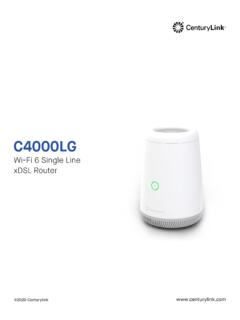
Wi-Fi 6 Single Line xDSL Router - CenturyLink
www.centurylink.comCapacity • Get better performance for all your smart home devices even when your family is busy streaming videos or uploading media files during the internet rush hour • More Wi-Fi for More Devices supports a total of 256 clients (128 per band)
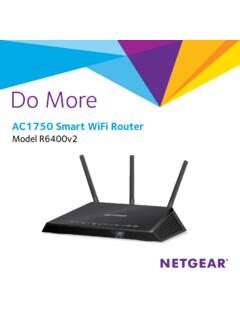
AC1750 Smart WiFi Router - Netgear
www.downloads.netgear.comThe router’s preset WiFi network name (SSID) and password are on the router’s label. If you want to change your router’s WiFi network name and password, log in to the router. ¾ To change the router’s WiFi network name and password: 1. Launch a web browser from a computer or mobile device that is
Nighthawk AC1900 Smart WiFi Router - Netgear
www.downloads.netgear.comNighthawk AC1900 Smart WiFi Router User Manual Model R6900 November 2015 202-11569-02 350 E. Plumeria Drive San Jose, CA 95134 USA