Transcription of USER MANUAL - Qolsys
1 ABOUT THIS DOCUMENTThis document describes the user interface and controls for the Qolsys IQ Panel, a Smart home control and automation system. Within these pages you will find how to enable and simplify home security, home control, energy management, home healthcare, and other services. The IQ Panel uses wireless technology to communicate with a broad set of wireless peripherals and sensors, and can also communicate with your security and home control provider s monitoring and safety systems, your smart phone and remote access from your personal computer. If you have questions about the use, features, or any aspect of this product, please consult your security and home control dealer or visit #: IQPANEL-UM-11-15 Revision Date: 11/23/15 Software Version: Part #: QS-9004-VRZQS-9004-VRZ (Verizon CDMA) QS9014-840-00-00 (Verizon CDMA) QS9014-840-00-02 (AT&T HSPA) QS9014-124-00-04 (Rogers HSPA) QS9014-484-00-06 (Telefonica HSPA) Qolsys Inc.
2 Proprietary. Reproduction without permission is not to UL Std. 1023, 985 & 1635 Certified to ULC Std. C1023 & S545 USER MANUALIQ PANEL- INTRODUCTIONQOLSYS CONFIDENTIAL AND PROPRIETARY PAGE 2 OF 32 Last updated 11/23/15 All rights reservedALL-IN-ONE, ALWAYS CONNECTEDCONGRATULATIONS!We d like to thank you for making the decision to purchase the IQ Panel. We hope you ll enjoy using it as much as we enjoyed developing it. Our name name is Qolsys , (pronounced kwal-siss) and stands for Quality Of Life Systems. We built our organization on the belief that we can improve the quality of life through innovation and technology. This panel is the culmination of 3 years of development and testing, and we think you ll love it. It s got everything you need in a single, easy to use device, and because we developed the software using a Google Android operating system, we can continue to refine your experience over time with software updates and innovative new devices.
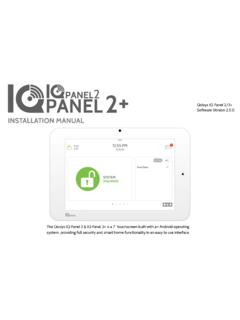
3 The IQ Panel is more than just a security panel, its a home automation and control platform, giving you access and control over what is going on in your home at all times. To take full advantage of the power of this amazing device you ll want to download the free app to your smartphone or tablet. This will be your link to your home when you are away, keeping you connected and ensuring you have the control you need. We ve tried to make the panel easy to use, and provide this MANUAL as a reference to help you take advantage of all the features available. If you have questions on anything, don t hesitate to contact your security or home control provider. Welcome to the future!-The Qolsys teamIQ PANEL- HARDWARE OVERVIEWQOLSYS CONFIDENTIAL AND PROPRIETARY PAGE 3 OF 32 Last updated 11/23/15 All rights reservedHARDWARE OVERVIEWP anel CameraHeader/Status BarFooter/Help barEmergency ButtonHome ButtonMicrophoneSD Card SlotCooling VentsTwo-Way Voice SpeakerPanel Sounds SpeakerPrimary User InterfaceRear accessMounting plateFRONTBACKM ounting holesSirenIQ PANEL- HOME SCREEN OVERVIEWQOLSYS CONFIDENTIAL AND PROPRIETARY PAGE 4 OF 32 Last updated 11/23/15 All rights reservedThe home page is the primary page shown on the IQ Panel.
4 It is the first page the user will see, and it is the default page when the user pushes the home button on the panel. It is divided into three sections: The header/status bar, the primary user interface, and the footer/help bar. The home page displays the most important and most frequently used Apps. It allows the user to arm or disarm the security system; monitor the overall status of the system; view weather, time, and date information; and execute various security, home control, and other functions of the system. HOME SCREENH eader or Status BarPrimary User InterfaceFooter or Help Bar7 TOUCHSCREENALERTSUPGRADE SERVICESIn an emergency you need an immediate response to your touch, so we built the IQ Panel with a 7 RESISTIVE TOUCH screen so it even works with gloves, fingernails, etc. The IQ Panel uses a common alerts system to draw your attention to various items. When you see the alert, touch the screen to find out what information is being shared.
5 The IQ Panel is always improving. As new features are developed they may be made available to you. Contact your security provider for details. FIND ITIQ PANEL- HEADER/STATUS BARQOLSYS CONFIDENTIAL AND PROPRIETARY PAGE 5 OF 32 Last updated 11/23/15 All rights reservedSTATUS TYPES & COLOR CODESThe green header is labeled System Ready Disarmed and indicates that all of the sensors are closed and the system is ready to be yellow header is labeled System Not Ready Disarmed and indicates that one or more of the sensors are open. Touch this yellow bar to see a list of open sensors. The orange header is labeled System Armed- Stay Mode and means that any entry through a protected door or window will trigger the alarm. Note: When armed, the home button and panic button will glow header bar is color coded based on system status, and shows the date, time, and current status. STATUSBACKLIT BUTTONSThe panel s Panic and Home buttons also illuminate to show panel status.
6 Green LED when DisarmedRed LED when ArmedDuring a power outage these LED lights will NOT illuminate to save battery life if the panel is running on battery only CHECKING STATUS OUTSIDE THE HOMEYou can also see the status of your home from your mobile application, or from any web browser by logging into your account. If you want to know whether your sensors are open or closed, touch the Status app on the Home ScreenGo to your device and search for The red header is labeled System Armed- Away Mode and means that any entry through a protected door or window or crossing the path of a motion detector will trigger the alarm. Note: When armed, the home button and panic button will glow PANEL- EMERGENCY BUTTONQOLSYS CONFIDENTIAL AND PROPRIETARY PAGE 6 OF 32 Last updated 11/23/15 All rights reservedBelow the 7 Touchscreen are two buttons: Emergency and Home. The Emergency Button is marked with a + sign.
7 This button can be pressed at any time, regardless of the panel s status or the page currently displayed on the screen. When pressed, the panel will display the emergency services page, with access to police, fire, and auxiliary emergency alarms. EMERGENCY BUTTONWHOOPS!If you press the emergency button by mistake, simply tap the Home button or click Back to return to the previous page. +FIND ITEMERGENCY TYPESILENCE SIRENS elect the icon that represents your emergency type. As soon as you tap the icon the siren will sound and an emergency sent message will appear. To cancel an emergency request press the cancel button. For security purposes, you will be required to enter a valid user code. CANCEL REQUESTOn auxiliary and fire emergencies you can silence the siren by pressing the green your security and home control provider offers 2-Way voice service you may receive a call from a monitoring agent through your panel s speaker and microphone.
8 ALARM EVENTSQOLSYS CONFIDENTIAL AND PROPRIETARY PAGE 7 OF 32 Last updated 11/23/15 All rights reservedNote that Two-Way Voice services are only activated after an alarm event and may not be available in all areas or with all security providers. ALARM EVENTSD edicated Two-Way Voice SpeakerWhen the system is armed and the alarm is tripped or you touch the Police emergency button the alarm sounds with the Intrusion siren and then activates the Two-Way Voice microphone and speaker, if available. HARDWAREThe built in microphone on the front of the panel and the dedicated Two-Way Voice speaker on the side of the panel activate after a connection to the monitoring station has been made. FALSE ALARMIn the event of a false alarm, press disarm and enter your user code. If your system is monitored, be ready to provide your verbal password to your security provider s monitoring agent if they contact you.
9 If you are unable to provide the correct verbal passcode, the authorities may be contacted. When a Smoke or Carbon Monoxide detector is triggered or someone taps the Fire panic on the IQ Panel: The alarm sounds with the Fire siren and then activates the Two-Way Voice microphone and speaker, if available. When you press an IQ Pendant or trigger an Auxiliary emergency from the IQ Panel: The alarm sounds with the Auxiliary siren and then activates the Two-Way Voice microphone and speaker, if available. AUXILIARYFIRETWO-WAY VOICEPOLICEWhen the alarm is triggered the IQ Panel will sound the siren and display a red alarm screen. If your security provider offers monitoring service, the panel will automatically contact the monitoring center using the built in cellular connection. To disarm, touch the screen and enter your passcode. Built in MicrophoneEMERGENCY PANICQOLSYS CONFIDENTIAL AND PROPRIETARY PAGE 8 OF 32 Last updated 11/23/15 All rights reservedEMERGENCY PANICAn Intrusion alarm is triggered when you touch the Police panic button.
10 (touching silent triggers a silent alarm.) For your security, once a police siren has been triggered it cannot be silenced without a you press the Emergency Button the Emergency Panic screen appears. Touching any of the buttons will trigger an alarm manually. The alarm will sound until you touch cancel. Note: Touching cancel requires your user code and will cancel the alarm reported to your security provider. A Fire alarm is triggered when you touch the Fire panic : There is no Silent function on the button itself, but once you touch it you can silence it. The alarm will sound until you touch cancel or touch silence siren Note: Touching cancel requires your user code and will cancel the fire alarm reported to your security provider. An Auxiliary alarm is triggered when you touch the Auxiliary panic button. (touching silent triggers a silent alarm.) When the alarm is going off you can cancel it (requires passcode) or silence it until authorities arriveIf you create a silent alarm only the cancel button appears.