Transcription of Programming in C++ with Eclipse - Calvin College
1 CSC121 TutorialProgramming in C++ with EclipseIntroductionby Derek SchuurmanThis set of introductory exercises are intended to introduce you to Programming C++ in the Eclipse integrateddevelopment 1: Using an Editor and Compiling Your First on to a Linux Workstation and open a terminal window. You can open a terminal windows by selecting Terminal from the System Tools menu. You may want to make a shortcut for a terminal on your mkdir csc121 to create a new directory for your CSC121 assignments. Remember, Linux is case-sensitive! Type ls to list all the files in your home directory. Change directories to the new one you createdby typing cd csc121 . the gedit program by selecting it from the program menu or by typing gedit from within a terminalwindow. Gedit is a general purpose text editor (like Notepad) that you can use to edit the source code of you start gedit click the New icon to open a new file.
2 Next, click Save to give your file a name. Select thecsc121 directory and then type a name for your source file such as (note that C++ programsource files typically end with a .cpp). This will create a new file that you can begin the following source code for your C program. Note that all C programs should start with some headercomments that identify the programmer and a description of what the program does. You should also observethat the .cpp extension indicates to gedit that your file is a C++ program and syntax highlighting is provided tomake your code more * My first CSC121 Assignment This program prints a friendly greeting */#include <iostream>#include <string>using namespace std;int main(){ cout << "Please enter your first name: " << endl; string firstName; cin >> firstName; cout << "Welcome to the world of C++, " << firstName << endl; return 0;}When you have finished editing save your file.
3 Don't worry if you don't understand what you have just compile your program, return to the terminal window and type the compile command at the prompt as shownbelow:g++ -Wall -o program1 Page 1 of 4 CSC121 TutorialNotes: Before tpying this command, ensure you are in the same directory as your source file g++ invokes the GNU C++ compiler -Wall turns all warnings on is the name of the source file -o program1 specifies the name of the compiled output fileIf the compiler detects any errors or warnings, they will be reported. If there are any errors or warnings, youwill have to return to the editor to make any corrections as necessary. Be careful - one forgotten semi-colon isenough to cause an error! your editing and compiling are complete and no warnings or errors are generated, a new program file willappear in your directory (type ls to see a list of files). You can run your program in a terminal window bytyping.
4 /program1 Homework submissions require a log of your program output. One way to do this is to use the script utility. Tobegin logging your output to a file, return to a terminal window and type script . The script program will logall the following output to a file called typescript by default. Run your program again and then type exit to endthe script program and stop logging. To view the contents of the script file type:cat typescriptNote that if you run script again it will overwrite the contents of the previous typescript file. To prevent the filefrom being overwritten, simply copy the typescript file to another filename using the cp (copy) command:cp typescript part1scriptInclude a printout of the script output for this program when you hand in the assignment. You can print thescript output by opening the file in gedit or copy and paste it into a word processing document. For moreinformation on the script program type: man the program without the -o program1 option.
5 Use the ls command to view your A: What is the default name given to the output program if the -o option is not specified? the source file to remove the semi-colon from the cout statement and then recompile. Next, replace thesemi-colon and remove one of the curly braces { or } .Question B: What error messages does the compiler report due to a missing semi-colon? What errormessages are reported with a missing curly brace?10. Expand the program by adding lines to print out your name and Redeemer e-mail address. Recompile and runthe program and log the output once again and submit this with your 2: Using the Eclipse Integrated Development Environment (IDE)Modern software development is often done using an Integrated Development Environment (IDE). IDEs provide agraphical environment for editing, compiling and debugging code. In this tutorial you will use the Eclipse Launch Eclipse by typing Eclipse inside a terminal window or by clicking in the Eclipse icon in the 2 of 4 CSC121 Tutorial12.
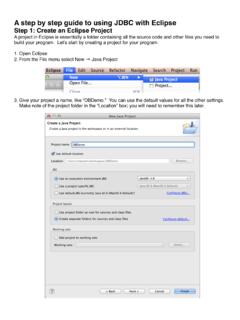
6 To start coding a new program, start a new project by selecting File/New/Project from the menu. From thewizard menu under C++, select Managed Make C++ Project . Click Next and enter Assignment1a as theproject name. You should avoid project names that contain spaces or other non-alphanumeric characters!Click Next and ensure that the project type is Executable (Gnu) . Click Next and Click the C/C++Indexer tab, ensure Enable C/C++ Indexing is selected. Click Finish to finish setting up the Create a new C++ source file in the project by clicking on the following icon: A dialog box will openprompting you to enter a source file name. Enter the name (recall that C++ source files shouldhave a .cpp extension). An editor window will appear where you may enter the following source code. Notethat the editor uses syntax highlighting and that it automatically ensures that your code is indented * My first CSC121 Assignment Name: your name This program sums two numbers and prints the result to the display.
7 */#include <iostream>using namespace std;int main(){ int x,y,sum; cout << Enter the first number: << endl; cin >> x; cout << Enter the second number: << endl; cin >> y; sum = x+y; cout << x << + << y << is equal to << sum << endl; return 0;}When you are done entering the program, be sure to click the save icon which will also compile your C: Try introducing errors in your program (such as removing a semi-colon) and click Save . Howdoes Eclipse help you to identify and locate errors in your program? and run the program by selecting Run from the Run menu. In the wizard dialog which appears, select"C/C++ Local Application" from the list of Configurations, then click the New icon. Click on the Assignment1a project and then click on Search Project to locate your executable file. Next, click on theDebugger tab and select the gdb Debugger from the drop-down menu.
8 Click on Apply and then click Run . Once the run configuration has been setup properly, you can run the program again by simply clickingthe run icon . Note that the output from the program will appear in a console window which appearsbelow the edit window. If your program prompts user input, you will need to click in this window to enter anyprogram input. Hint: the resulting output can be copied using the right mouse button and pasted into adocument. This can be used to provide a copy of your runtime output which must be included as part of yourhomework Debugging is a part of the process of Programming . One way to debug code is to use a special debugging toolthat allows you to see what is going on inside your program while it executes. The Eclipse IDE uses a powerfuldebugger called gdb (the GNU debugger) which can be used to step through your code to find using the debugger with the code you wrote in the previous step.
9 Instead of clicking the run icon, selectRun/Debug or click the debug icon and a debugging perspective will open in Eclipse . Upon starting, thedebugger will launch your program and stop at the first instruction. Various windows indicate the status of theprogram as the debugger is run. One of the windows in the middle of the screen shows your program, highlightingthe next line to be executed. Breakpoints may be set by clicking in the margin beside the line of code where youPage 3 of 4 CSC121 Tutorialwant the debugger to stop. Another window shows the contents of any variables that have been declared. A windowon the bottom shows the output of the program as it runs. To begin debugging the program, use the following icons: - Resume execution until a breakpoint is encountered - Step over will single-step by executing the next instruction - Step into will wingle-step into the next instruction, entering into a function if one is present - Restart execution from the beginning of the program - Terminate program executionStart practicing using the debugger by using the step over function to single-step through your program and tracethe execution line-by-line.
10 Examine the contents of each of the variables as the program proceeds and runs tocompletion. Note that before the variables are initialized, they contain garbage values. Set some breakpoints andrun the debugger again. Hint: When done with the debugger, you can return to the editing perspective by clickingthe Open Perspective icon in the top right corner and select C/C++ .Question D: What is a variable? (Consult your textbook if necessary)16. Create a new program that modifies the previous program so that the user is asked to enter 3 numbers (x, y, z),which are then multiplied together (note that the symbol for multiplication in C++ is * ). Note that every newprogram will require its own project. After creating a new project, make a source file called andenter the code. Run the new program and record the program output. Refer to Chapter 1 in your text for anintroduction to variables and the cin and cout : You should create a new C++ project for each new program that you write!