Transcription of Outlook Web App (OWA) Email - lehman.edu
1 Sent messages and meeting requests are saved To return a deleted item: to the Sent Items folder. Deleted messages Select the Deleted Items folder and then do one and declined meetings are saved in the Deleted of the following: Items folder. Return a message - Click Move > Move to To permanently delete a message: Folder and then select the Inbox or another folder. 1. Select the Deleted Items folder. Accept a declined meeting - Open the 2. Right-click on the message and select meeting request and click Accept. Delete from the drop-down menu. 3. When prompted to permanently delete the selected items click OK. Getting Started with OWA Outlook Web App (OWA) Email This quick reference will get you started using OWA to send Email .
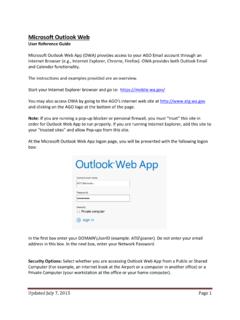
2 Access OWA at Workspace Toolbar Reply options Favorite Folders Folder list (stored on server) Message preview with attachment View buttons Message list Folders Logon to Outlook Web App 1. Launch a Web browser. 2. Enter 3. Choose the appropriate security level based on the type of computer you are using. 4. Enter your ( ) and password, and then click Sign in. Note: The light version of Outlook Web App is not recommended. OWA QUICK REFERENCE 1. Select New > Message. 2. Begin typing the recipient s Email or name into the To: or Cc: field. Note: Outlook displays suggestions from the Global Address List and your stored Contacts, as well as from previously-typed Email addresses.
3 3. Complete the recipient information or select it from the list. Note: You can also use Outlook s Check Names option. Type the recipient s name in the To: or Cc: field and then click the Check Names icon. Create a Signature 1. Select Options > See All Options > Settings > Mail. 2. In the E-mail Signature text box, enter up to four lines of text that you wish to appear for your signature Note: Outlook Web Access only allows for use of one signature at a time. 3. If desired, check the Automatically include my signature on messages I send box. 4. Click Save and then click My Mail. Sending File Attachments To add a file to your Email message, follow these steps: 1.
4 Open a new message window. 2. Select the Attach File (paperclip) icon and browse to the file you wish to attach. 3. Once you have selected the desired file, click the Insert button. 4. Complete the message and click Send. Out of office automatically replies to Email messages while you are away. To turn this feature on, select Options > See All Options > Organize E-mail > Automatic Replies and then select your options. Note: To ensure all campus affiliates receive your out of office message, select Senders outside my organization and then select Send replies to all external senders. Enter the same reply message into both Reply fields.
5 Using OWA at lehman College For Assistance (718-960-1111) Essential Outlook Training Address and Send Messages Signatures Set an Out of Office Message Additional Information Call 718-960-1111 Click Visit Carman Hall Rm 108 Leonard Lief Library July 2013