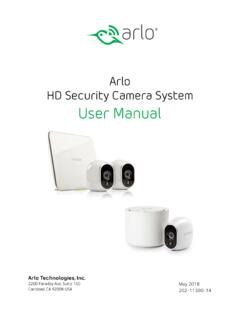
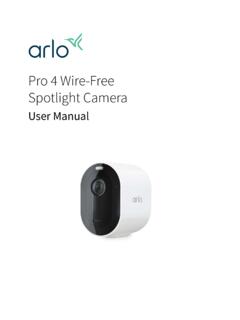
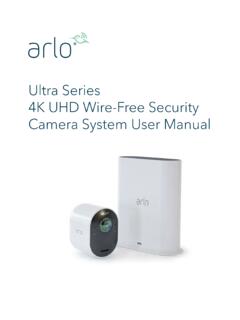
Transcription of Arlo Pro 4 Wire-Free Spotlight Camera
1 Pro 4 Wire-Free Spotlight CameraUser Manual2 Contents1. Get to Know Your Camera 6 Get the Arlo app ..6 Meet your Pro 4 Spotlight Camera ..6 Accessories ..72. Get Started 8 Use the Arlo the battery ..8 Check the LED ..9 Find a good location for your Camera ..9 Wall-mount your Camera with the magnetic mount ..9 Install an optional outdoor mount (sold separately) ..11 Install an XL rechargeable battery and housing (sold separately) ..12 Install a Total security Mount (sold separately) ..13 Check your Camera s field of view ..15 Position your Camera to detect motion in specific areas ..16 Test motion detection ..17 Arm your Camera ..17 HEVC 2K playback-supported devices ..183. WiFi Setup and Connections 19 WiFi connection options for your for optimal WiFi performance ..19 Connect your mobile device to a GHz WiFi network during setup.
2 20 Connect an optional Arlo SmartHub ..21 Connect an optional Arlo Base Station with Siren ..22 Move your Camera s WiFi connection to a SmartHub or base station ..24 Move your Camera s WiFi connection to a direct router connection ..244. Use your Pro 4 Spotlight Camera 26 Turn the Camera Spotlight on and off manually ..27 Foresight ..28 Record clips from live 4 Spotlight Camera3 ContentsUser ManualTake a snapshot from live video ..29 CVR with an optional Arlo SmartHub or base station ..29 Customize your Camera feed image ..29 Motion detection activity zones ..302-Way Audio ..31 Turn the Camera siren on and off manually ..32 View recordings and snapshots ..32 Download Modes, Rules, and Alerts 35 Arm or disarm all your Arlo devices ..35 Select a mode ..36 Mute Notifications ..36 Rules for modes ..37 Change motion sensitivity.
3 37 Automatically stop recording when motion stops ..37 Control whether the Spotlight turns on when motion is detected at night ..38 Change audio sensitivity ..38 Use a rule to activate the the Camera s siren ..39 Add a rule with an optional base station siren trigger ..39 Manage alerts ..40 Schedule when your Camera is armed ..40 Set up Arlo Geofencing ..41 Geofencing with multiple mobile devices ..43 Detect audio alarms with your Camera ..466. Change Your Settings 50 Two-step verification ..50 Use face or fingerprint authentication ..51 Customize your profile ..52 Change your Arlo password ..53 Reset a forgotten password ..53 Grant access to friends ..54 Change the time zone ..56 Camera settings ..56 Video Settings ..57 Pro 4 Spotlight Camera4 ContentsUser ManualChange the audio settings ..61 Adjust the flicker setting.
4 61 Restart the Camera from the Arlo app ..61 View device information ..62 Remove a device from your account ..627. SmartHub or Base Station USB Storage 63 View the USB storage device status ..64 View available USB device storage ..64 Turn USB recording off and on ..65 Turn local 2K recording off and on ..65 Change the USB device overwrite a USB device ..66 Safely eject a USB storage device ..66 View videos on a USB device ..668. SmartHub SD Card Storage 68 Insert a microSD card ..68 View the SD card status ..69 View available SD card storage ..69 Turn SD card recording off and on ..69 Turn on Best Local Recording ..69 Change the SD card overwrite setting ..70 Format a microSD card ..70 Safely eject an SD card ..70 View videos on a microSD card ..719. Arlo Connect 72 Use Arlo with Amazon Alexa ..72 Add your Camera to the Google Assistant app.
5 73 Use Arlo with IFTTT ..7410. Arlo Rechargeable Battery 75 Charge your Camera battery ..75 Charge batteries in the Arlo Dual Charging Station (sold separately) ..75 Replace a Pro 4 Spotlight Camera battery ..76 Solar Panel charging ..775 Battery life ..78 Safe handling and usage guidelines for removable and rechargeable batteries 7911. Troubleshooting 81 Scan a QR code during setup ..81 Optimize multiple 2K streams ..82 Troubleshoot Arlo Geofencing ..82 Can t see video streams in a browser ..83 Not receiving push notifications ..84 Arlo Smart Alarm Detection isn t working ..85 61. Get to Know Your CameraRest easy knowing your home is protected, whether you re there or away with Arlo Pro 4. With no wires, your Camera connects directly to your WiFi network so you can easily install in minutes. See more details with color night vision, an integrated Spotlight , and a wider field of view.
6 Get the Arlo appDownload the Arlo app. The Arlo app lets you create an Arlo account in the cloud and set up and manage all your Arlo : If you already use the Arlo app, make sure that you re using the latest version. To find out if an update is available, go to the app store and search for your Pro 4 Spotlight CameraYour Camera consists of two parts: the Camera with a battery compartment, and the to Know Your Camera Pro 4 Spotlight CameraUser ManualPro 4 Spotlight Camera features 2K video with HDR. Zoom in on objects and see clearer details and colors in 2K HDR. Color night vision. See what s lurking with color night vision or black and white. Integrated Spotlight . Light up the night and ward off unwelcome guests. Fast and easy Wire-Free set up. Magnetic mount makes it easy to install and adjust. 160 degree view.
7 Keep an eye on more of what matters with a wider field of view. Magnetic charging. Fast charging cable easily snaps into place. 2-Way Audio. Hear and speak to visitors clearly with superior audio quality. Built in smart siren. Trigger your siren remotely or automatically during an event. Rechargeable battery. Convenient and long-lasting takes the expense out of Pro 4 Spotlight Camera works with these accessories, which are sold separately: SmartHubs and base stations. You can connect the Camera with WiFi to an Arlo SmartHub VMB5000 or VMB4540, or an Arlo base station VMB4500 or VMB4000. See WiFi connection options for your Camera on page 19. Additional charging options: Solar Panel Charger. Connect an Arlo Solar Panel charger to your Camera and harvest power from the sun to keep your Camera battery charged.
8 See Solar Panel charging on page 78. Rechargeable battery. Keep fully charged spare batteries (sold separately) on hand. Dual Charging Station. Quickly charges up to two batteries at the same time. For more information, see Charge batteries in the Arlo Dual Charging Station (sold separately) on page 76. Magnetic charging cable. Longer 8 magnetic charging cable . outdoor power cable. An outdoor weather-resistant cable that powers your Camera instead of using batteries XL Battery & Housing. Upgrade your Arlo Pro 4 with a high-capacity battery. Total security mount. Lockable mount prevents the Camera from being rotated and removed. 82. Get StartedUse the Arlo appThe free Arlo app helps you complete setup and guides you through the installation Open the Arlo app and connect to your WiFi you don t have the app, you can download it and create your Arlo you set up your Arlo account, you can access it from the Arlo app on a smartphone or tablet, or from a computer using a web browser.
9 If you re using a computer, enter #/login in the address bar of the Open the Arlo app and connect to your WiFi network. Then select Add New Device and add your the batteryThe Pro 4 Spotlight Camera consists of two parts. The Camera part is where you insert the battery. The housing protects the : The battery comes partially charged. We recommend that you fully charge the battery before using your Camera . See Charge your Camera battery on page insert the battery:1. Align the battery and insert it into the battery battery only inserts one way. The LED on the Camera blinks Insert the Camera into the Camera housing by pushing down on both the left and right sides of the Camera until it clicks into place. 9 Get Started Pro 4 Spotlight CameraUser ManualCheck the LEDThe Camera LED lights when the Camera is powered on.
10 The LED changes color and blinks depending on the battery charge and to indicate the status of activities such as pairing the Camera and updating the Camera firmware. Slow blinking blue. The Camera is in the process of pairing with the SmartHub. Fast blinking blue. The Camera paired with the SmartHub. Blinking amber. The Camera is out of range, a connection error occurred during pairing, or the Camera battery charge is low (15% or less). Alternating blue and amber. The Camera failed to pair with the SmartHub, or a firmware update is in process, or a reset is in a good location for your cameraSelect a location for your Camera with a clear vantage point to fully optimize the wide field of view. For the best experience, choose a location with a strong WiFi signal. You can check the WiFi signal strength in the Arlo app.