Transcription of AT&T MF279 Wireless Internet User Guide
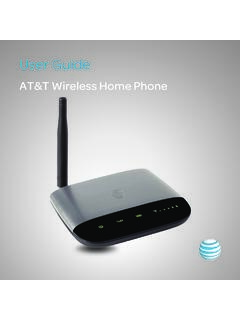
1 User GuideAT&T Wireless InternetWelcome to AT&TThank you for purchasing the AT&T Wireless Internet device (Model: MF279 ). To get the most from your new device, check out our videos and interactive tutorials at Started ..1 In the Box ..1 Getting to Know Your Device .. 2 How It 4 Device 4 Voicemail .. 11 Setup .. 11 Message Waiting ..11 Retrieving Messages ..11 Remote Retrieval ..11 Transferring a Phone Number ..12 AT&T Wireless Internet Manager ..12 Using Your Device ..14 Calling ..14 Making Calls ..14 Placing a Call on Hold ..14 Three-Way Calling ..14 Call Forwarding ..15 Call Internet Access ..16 Connect Other Devices ..16 Changing Wi-Fi Network Name and Password ..17 Important Messages ..17 Managing Connected Devices.
2 17 Parental Controls ..17iii Checking Your Voice and Data Usage ..18 Helpful Tips ..20 Home Answering Machines ..20 Adjusting Volume ..20 Powering On/Off ..21 TTY Support ..21 Important Information ..22 E911 Service ..22 Power Outages ..22 Backup Battery ..22 Device Compatibility ..23 In-Home Wiring ..23 Frequently Asked Questions .. 24 Troubleshooting .. 27 General .. 27 Phone .. 28 Internet .. 31 Device Configuration ..34 Wi-Fi Settings .. 34 Basic .. 34 Security .. 36 WPS .. 37 Network .. 38 Connections .. 38iv Firewall .. 39 Mac/IP/Port Filtering .. 39 Port Forwarding .. 40 DMZ .. 41 Advanced ..42 Administrator ..42 Router .. 43 Time/Date .. 45 Call Blocking .. 45 Backup/Restore.
3 45 Specifications .. 46 Safety Information .. 47 Radio Frequency (RF) Energy .. 48 FCC Regulations .. 49RF Exposure 49 CTIA ..50 Warranty .. 51 How to Get Warranty Service ..52 Other Warranty Programs ..52vviGetting StartedIn the BoxThe package contains the following items: AT&T Wireless Internet DeviceEthernet Cable (Optional)Phone Cable(Optional)Power CordAlso included:Let s get startedAT&T Wireless InternetQuick StartUser GuideAT&T Wireless InternetUser Guide1 Backup BatteryGetting to Know Your Device * Allows WPS-enabled devices to be connected via Wi-Fi without typing a Wi-Fi password. For detailed instructions, please refer to page (See AT&T Wireless Internet Manager on page 12.) Battery LevelSignal StrengthWPS* Antenna Port (Optional)On/OffTelephone PortsEthernetPower InputAntenna Port (Optional)LED IndicatorsThe table below describes possible states for each of the LED indicators.
4 IndicatorNameStatusMeaning PowerGreen solidOn (AC power)Green blinkingOn (Battery power)OffNo power VoicemailGreen blinkingNew voicemailOffNo new voicemailWi-FiGreen solidWi-Fi onGreen flickeringWi-Fi on, data transferringOffWi-Fi offInformationGreen blinkingCheck the AT&T Wireless Internet Manager New message(s)OffNo unread messagesBattery LevelGreen solidBattery highYellow solidBattery mediumRed blinkingBattery lowOffBattery needs to be installed or replaced Signal StrengthGreen solid (1 to 4 bars)LTE signal Blue solid (1 to 4 bars)3G/4G/HSPA+/MicroCell signal Red solid antennaNo serviceRed blinking antennaSIM card error3 How It WorksThe AT&T Wireless Internet device uses the AT&T cellular network to provide phone service to your cordless or corded home phone(s) and Internet access to your computer and Wi-Fi enabled devices.
5 Place it anywhere in your home where you have a strong Wireless signal. It does not require the use of a home phone wall jack, unlike traditional home phone AT&T Wireless Internet device provides many calling services, such as Voicemail, Caller Number ID, Call Waiting, Call Forwarding, and Three-Way Calling, for your home phone(s). It also includes a backup battery in case of a power InstallationBefore You BeginThe AT&T Wireless Internet device works exclusively with the AT&T cellular network and DOES NOT use your home phone wall device should be located: Where you have a strong signal from a cell tower, typically near a window or outer wall. Signal strength may vary in different parts of your home. Near an electrical wall outlet. In the general area where you ll be using your home phone, computer, or Wi-Fi enabled which phone and computer/Wi-Fi enabled device you will use with the AT&T Wireless Internet device: A cordless phone system with multiple handsets should be used to place phones throughout your home.
6 If using an existing phone, unplug it from the wall jack. For Internet access, you can simultaneously connect up to ten (10) devices per Wi-Fi network ( GHz and 5 GHz), twenty (20) total, and one (1) via : : attadminUse the following information to connectto the Internet :STEP 1: Set Up Your DeviceInstall the Backup Battery 1. Remove the bottom of the device by pushing the entire cover in the direction of the Insert the backup Replace the : The backup battery is intended for backup purposes only and may take approximately three (3) hours to fully charge. Charge time may be impacted by environmental factors; the backup battery will stop charging when the ambient temperature is outside of the temperature range allowed for charging: 32 F (0 C) - 131 F (55 C). 5 APortsBatteryCCheck the Wireless Signal Wait a few seconds for the Signal Strength light to turn on, while your device connects to the cellular Signal Strength light has four (4) lit bars for optimal performance.
7 Fewer bars indicate a moderate signal, which may be : If you do not see four (4) lit bars, you may want to choose another location in your home, such as near a window or outer 1: Set Up Your Device (continued)BTurn On Your Device 1. Plug the power cord in to an electrical wall Connect the other end of the power cord to the Power Input port on the back of your AT&T Wireless Internet device. 3. Slide the On/Off switch to the ON position. The Power light should be solid 2: Connect Your PhoneUnplug Your Phone From the Wall JackThe AT&T Wireless Internet device is not used with your home phone wall : If you have a cordless phone, keep it plugged in to a power Your Phone to the DevicePlug your phone in to the Phone port on the AT&T Wireless Internet device, using your existing phone cable or the included phone cable.
8 NOTE: Do not plug the AT&T Wireless Internet device or your phones in to your wall 2: Connect Your Phone (continued)Place a Test CallPlace a test call from your connected home phone. Make sure to dial the 10-digit phone number, including area best results, place the cordless phone base at least twelve (1 2) inches from the AT&T Wireless Internet device. Important Phone Tips Voicemail is included with your service. Dial 1 to set up and access your voicemail. If you choose to use an answering machine instead, set it to fewer than four (4) rings. To place phones throughout your home, use a cordless phone system with multiple handsets. Wall jacks are not used with the AT&T Wireless Internet device. The second Phone port can be used to connect an additional phone or standalone answering machine.
9 It uses the same phone number as the first Phone port. Your AT&T Wireless Internet device does not support incoming/outgoing fax service or home alarm systems. Your AT&T Wireless Internet device does not support rotary or pulse-dialing phones. Details on using voicemail and transferring a landline phone number can be found on pages 11-12. 8 CSTEP 3: Connect to the Internet (Requires purchase of Wireless Internet Data plan)Select Your Internet ConnectionTo Connect via Wi-Fi:1. Open the Wi-Fi network manager on your computer or Wi-Fi enabled Find and select the AT&T Wireless Internet Wi-Fi network name (SSID) ( , ATT-WI-XXXX).To connect via WPS, see page 16. To Connect via Ethernet:Use an Ethernet cable to connect your computer or other device to the Ethernet port on the back of your AT&T Wireless Internet device.
10 Go to (or your favorite website) to confirm your Internet connection. Skip Steps 3B and Wi-Fi Network PasswordWhen prompted, enter the Wi-Fi password found on the bottom of the AT&T Wireless Internet NetworksATT-WI-XXXXO ther NetworkGuest Wi-FiFree Public Wi-FiATT-WI-XXXXURL: : attadminUse the following information to connectto the Internet :ATT-WI-XXXXURL: : attadminUse the following information to connectto the Internet :STEP 3: Connect to the Internet (continued)CConfirm Internet Connection Go to (or your favorite website) to confirm your Internet your device is transmitting to and from the Internet , the Wi-Fi light will flicker Internet Tips To check your data usage or manage your account, go to To customize your device settings and view important messages about your AT&T service plan, use the AT&T Wireless Internet Manager.