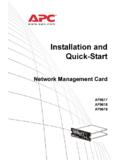
Transcription of Automatic Transfer Switch User’s Guide - - APC USA
1 user S GUIDEAUTOMATIC Transfer SWITCHC ontentsIIntroduction--1 Product Description .. 1 Internal Management Features .. 3 How to Recover from a Lost Password .. 5 Front Panel.. 7 Watchdog Features .. 10 Internal Interface--11 Introduction .. 11 Internal Menus .. 14 Control Console--22 How To Log On.. 22 Main Screen .. 25 Control Console Menus.. 28 Web Interface--31 Introduction .. 31 How to Log On .. 33 Summary Page.. 35 Navigation Menu.. 37 Automatic Transfer Switch Menu--42 Options and Settings .. 42 Event-Related Menus and Options--46 Introduction.
2 46 Event Log.. 48 Event Actions (Web Interface Only) .. 54 Event Recipients .. 58 user S GUIDEAUTOMATIC Transfer SWITCHIIE-mail Feature.. 59 How to Configure Individual Events.. 64 Data Menu (Web Interface Only)--66 Log Option.. 66 Configuration Option.. 67 Network Menu--68 Introduction .. 68 Option Settings .. 70 System Menu--97 Introduction .. 97 Option Settings .. 99 Boot Mode--109 Introduction .. 109 DHCP Configuration Settings.. 111 Security--116 Security Features .. 116 Encryption .. 121 Creating and Installing Digital Certificates.
3 125 Firewalls.. 132 Using the APC Security Wizard--133 Overview .. 133 Create a Root Certificate & Server Certificates .. 136 Create a Server Certificate and Signing Request.. 142 Create an SSH Host Key .. 147 APC Device IP Configuration Wizard--150 Purpose and Requirements .. 150 Install the Wizard.. 151 user S GUIDEAUTOMATIC Transfer SWITCHIIIUse the Wizard .. 152 How to Export Configuration Settings--155 Retrieving and Exporting the .ini file .. 155 The Upload Event and its Error Messages .. 160 Using the Device IP Configuration Wizard.
4 162 File Transfers--163 Introduction .. 163 Upgrading Firmware .. 164 Verifying Upgrades and Updates .. 174 Troubleshooting--175 Management Card .. 175 Product Information--178 Warranty and Service.. 178 Index--180 user S GUIDEAUTOMATIC Transfer Switch 1 IntroductionProduct DescriptionAvailable interfacesThe Automatic Transfer Switch (ATS) can be managed locally with internal menus accessed through a serial connection. This connection can also be used to access the Management Management Card has two internal interfaces (control console and Web interface), which provide menus with options that enable you to manage the Automatic Transfer Switch and the Management Card.
5 The Management Card s SNMP interface enables you to use an SNMP browser with the PowerNet Management Information Base (MIB) to manage the Automatic Transfer manage the unit remotely, use a Web browser for the Web interface, or Telnet or Secure SHell (SSH) for the control console Web Config for more information on accessing the Management Card using the serial alsoFor more information about the Management Card s internal user interfaces, see Control Console and Web Interface. To use the PowerNet MIB with an SNMP browser, see the PowerNet SNMP Management Information Base (MIB) Reference Guide (.)
6 \doc\en\ ), which is provided on the APC Automatic Transfer Switch Utility CD. user S GUIDEAUTOMATIC Transfer Switch 2 Initial set-upYou must define three TCP/IP settings for the Network Management Card before it can operate on the network: IP address of the Management Card Subnet mask IP address of the default gatewaySee alsoTo configure the TCP/IP settings, see the Automatic Transfer Switch Installation and Quick Start Manual, provided in printed form, and provided on the APC Automatic Transfer Switch Utility CD as a PDF file (.
7 \doc\en\ ). user S GUIDEAUTOMATIC Transfer Switch 3 Internal Management FeaturesAccess priority for logging onOnly one user at a time can log onto the Management Card to use its internal user interface features. The priority for access is as follows: Serial access has the highest priority. Telnet or SSH access to the control console from a remote computer has priority over Web access. Web access either directly or through InfraStruXure Manager has the lowest information about how SNMP access to the Management Card is controlled, see SNMP.
8 user S GUIDEAUTOMATIC Transfer Switch 4 Types of user accountsThe Management Card has three levels of access (Administrator, Device Manager, and Read-Only), all of which are protected by Password and user Name requirements. An Administrator can use all of the management menus available in the control console and the Web interface. The Administrator s default user Name and Password are both apc. A Device Manager can use only the following menus: The Status option of the Automatic Transfer Switch menu.(The Automatic Transfer Switch menu is an option of the Device Manager menu in the control console.)
9 The Log option in the Events menu. (A Device Manager can also access the Event Log in the control console by pressing ) The Logout menu in both interfaces. The Help menu in the Web interface and the help screens in the control console. The Links menu in the Web Device Manager cannot access the Network menu or the System menu that are in the navigation panel in the Web interface and are sub-menus under the Device Manager menu in the control Device Manager s default user Name is device, and the default Password is apc.
10 A Read-Only user can only access menus using the Web interface and does not have permission to make changes to any Read-Only user s default user Name is readonly, and the default password is apc. user S GUIDEAUTOMATIC Transfer Switch 5 How to Recover from a Lost PasswordYou can use a local computer, a computer that connects to the Management Card or other device through the serial port, to access the control Select a serial port at the local computer, and disable any service that uses that Connect the serial cable (APC part number 940-0024 or 940-1524) to the selected port on the computer and to the configuration port at the Management Run a terminal program (such as HyperTerminal )