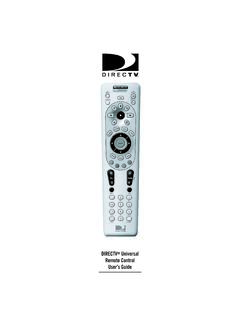
Transcription of Comcast Universal Remote Programming Guide
1 OVERVIEWThe Comcast Custom 3-Device universalremote will control up to three homeentertainment devices, including a CableBox (used by Comcast Systems), a TV, aVC R , a n Aud i o A mpl i f i e r or Re ce ive r, aDVD player, or a Remote control requires installingtwo (2) new AA batteries (included) andsome easy Programming to control yourdevices. For best results, please read andperform all instructions listed here. Also,keep this Guide for future back the Remote control s battery cover and remove the two (2) supplied AA batteries according to the +and -marks in the battery the battery cover back into the unit by pressing any mode key ( ,AUX,TV,or Cable).If batteries are inserted correctly,the selected mode key will : When batteries need replacement, theremote control will stop operating. Remove the old batteries and insert new ones within10 minutes to ensure all of your programminginformation is AND FUNCTIONSUse the Remote control s mode keys ( ,AUX,TV,or Cable) to control a specificdevice.
2 When pressed, the selected modekey will light, confirming your the other keys to perform desiredactions (see the following key chart).NOTE: The selected mode will remain activeuntil you press another mode AUX,TV,or Cableonce to select and control a Poweronce to turn on or off theselected home enter-tainment Setupfor all All Ononce toturn on or off all programmed devicesin this order:Cable,TV,and alldevices are on,Cableis the active ON DEMAND onceto access Comcast s ON DEMAND the AUXor TVmode, use the transport keys to control a VCR, PVR, orDVD player. To recorda program on a VCR,press the Cablemode, usethe keys to control ONDEMAND A,B,or Cto accessinteractive programguide functions onyour Scientific AtlantaExplorer, Pioneer Voya-ger, or Pace Cable Lockto restrictviewing of selected programs (Parental control ) on your Motorola (GI or Jerrold) Cable PPVto accessinformation on avail-able Pay-Per-View movies and events on your Motorola (GI or Jerrold) Cable Page+(or Page-)to page up (or down)through menu screens and the interactive program Guideto displaythe interactive program these keys to movethe cursor in the inter-active program guideand menu OK(Select) to selectmenu options, PPV events, and programs from the interactive program Infoto displaycurrent channel and program Menuto displaythe Quick Menu (on aMotorola, GI, or JerroldCable Box), or to accesssettings (on a ScientificAtlanta Explorer,Pioneer Voyager, orPace Cable Box).
3 Use Exitto exit themenu or Helpto access digital cable Lastto recall thelast channel or go back one screen in the VOL+(or VOL-) to raise (or lower) thesound volume. Also seeChanging Volume Muteonce toturn sound off or the Cable mode,press FAV once to display programmed favorite cable CH+(or CH-) toselect the next higher(or lower) controlling aDVD player, use CH+(or CH-) to skip forward (or skipreverse) through the keypad (0~ 9)to directly select the channels ( , 09 or0 31) .In the TVmode, usethis key to switch theTV s input to view TVor video the AUXmode, usethis key to switch theVCR, PVR (or DVR), orDVD player to view TVor video. For an audiodevice, use it to switch to an input Enterto enterchannels on some TVmodels or informationon menu DEVICE CONTROLThe Comcast Custom 3-Device universalremote control is preprogrammed at thefactory to operate the Cable Box suppliedby your Comcast system, an RCA TV, andan RCA VCR (in the AUXmode). To con-trol devices other than default brands(excluding the Cable Box), perform thebelow steps; otherwise skip this on a device ( , VCR orDVD Player) and, if applicable,insert media, ( , video cassetteor disc).
4 NOTE: Please read steps 2 to 6 completelybefore proceeding. Highlight or writedown the codes and device you wish toprogram before moving on to step the Remote control , press adevice key once ( ,AUXor TV).NOTE: Use the AUXkey to program control of an Audio Amplifier orReceiver, a DVD Player, a Home-Theater-In-A-Box Device, a PVR (orDVR), or a and hold Setupuntil theselected mode key blinks twice,then release the code for your device inManufacturer s Codeson the backof this user Guide . Brands are listedin alphabetical order with the mostpopular codes listed the first four-digit code foryour device. If you perform thisprocedure correctly, the selectedmode key will blink : If you enter an invalid code, theselected mode key will display one longblink and exit the Programming steps 2 to 5 with a valid the Remote control at yourdevice and press Poweronce. Thedevice should turn off. If it doesnot respond, repeat steps 2 to 6,trying each code listed for yourbrand until you find one thatworks.
5 If it still does not work, trySearching For Your : If the device does not have aPowerkey, press the (Play) future reference, write yourdevice code in the appropriateboxes below:AUX Code:Device Type:_____TV steps 1 to 7 for anotherdevice you want to FOR YOUR CODEIf your home entertainment device doesnot respond to the Remote control aftertrying all of the codes listed for yourbrand, or if your brand is not listed at all,try searching for your example, after trying all of the codesfor your TV, you still cannot get theremote control to operate your TV, on your the Remote control , press TVonce. Then press and hold Setupuntil the TVkey blinks twice, thenrelease 9- 9- TVkey willblink the Remote control at the theTV and slowly alternate betweenpressing Powerand when the TV turns off. Aworking code has been : In the search mode, the remotecontrol will send IR codes from itslibrary to the selected device, startingwith the most popular code Setuponce to lock in TVkey will blink search for the codes of anotherdevice, repeat steps 1 to 5, but sub-stitute the AUXkey for the auxiliarydevice you are searching THE CODES If you have set up the Remote controlusing the Searching For Your Codeprocedure, you may need to find outwhich four-digit code is operating yourequipment.
6 Perform the following stepsafter setting up your devices to find outwhich four-digit code operates yourequipment. For example, to find outwhich code is operating your on your the Remote control , press TVonce. Then press and hold Setupuntil the TVkey blinks twice, thenrelease 9- 9- TVkey willblink view the code for the first digit,press 1once. Wait 3 seconds andcount the number of times the TVkey blinks ( , 3 blinks = 3) andwrite down the number in the left-most TV Code box (at end of thissection).NOTE: If a code digit is 0 , the selectedmode key will not step 4 three more times forthe remaining digits. Use 2for thesecond digit,3for the third digit,and 4for the fourth digit. Finishwriting down the code in the TVCode boxes (at end of this section). check another device code,repeat steps 1 to 5, but substitutethe AUXkey for the auxiliarydevice you are checking. Writedown the codes in the appropriateboxes below:AUX Code:Device Type:_____TV Code:CHANGING VOLUME LOCKThe Comcast Custom 3-Device universalremote control is set at the factory tocontrol the TV volume in all , you may change the VolumeLock setting to Individual Volume Unlockto unlock a specific device s volume con-trols for independent operation in itsown mode ( , Audio Receiver volumecontrols in the AUXmode).
7 Or,if desired,you can perform GlobalVo l u m e U n l o c kso that the volume con-trols of all devices can be independentlyoperated in their own Volume control For ASingle Device (Individual VolumeUnlock) a desired mode key whereyou want volume to be unlocked( ,AUX) and controlled withinits own and hold Setupuntil theselected mode key blinks twice,then release 9- 9- 3and then press VOL-once. The mode key will blink fourtimes confirming desired, repeat steps 1 to 3 (ofthis section) for each device thatyou want volume to be , after you select a device thathas volume unlocked ( ,AUX),pressing VOL+,VOL-,or Mute,willcontrol the device s volume only inits own All Volume Controls(Global Volume Unlock) and hold Setupuntil theselected mode key blinks twice,then release 9- 9- 3and then press VOL+once. The mode key will blink fourtimes confirming , volume controls for alldevices can be independently controlled in their own Volume control To TV Mode(Restoring Global Volume Lock ToThe Default Mode) TVonce.
8 Then, press andhold Setupuntil the TVkey blinkstwice, then release 9- 9- 3and then press TVonce. The mode key will blinktwice confirming global , when you press VOL+,VOL-,or Mute, the volume of the selecteddevice ( ,TV) will be controlledregardless of the mode you DEVICE KEYSThe Comcast Custom 3-Device universalremote control can be set up to control asecond example, to have the unit control aTV, a Cable Box, and second TV, you willneed to reassign the unused AUXkey tooperate the second TV as the Remote control , press AUXonce. Then press and hold Setupuntil the AUXkey blinks twice,then release 9- 9- AUXkey willblink TVonce, then press AUXkey will blink AUXkey is now ready to beprogrammed for your second Programming Device Controlfor CHANNELCONTROL LOCKBy default, the Remote control s channel- control capabilities are locked to theCable Box. The affected keys are 0 ~ 9,CH+,CH-,Enter,and will guarantee that you do not inadvertently change a channel while inthe TV mode.
9 However, you can turn offthis feature to allow full access to thesekeys in the TVand : This feature does not affect the Channel control the Remote control , press Cableonce. Then press and hold Setupuntil the Cablekey blinks twice,then release 9- 7- CH-once. TheCablekey will blink four , the Remote control will provide TV or cable channel control capabilities while in the TVor Channel control the Remote control , press Cableonce. Then press and hold Setupuntil the Cablekey blinks twice,then release 9- 7- CH+ Cablekey will blink , regardless if you select the TVor Cablemode, only the channelcontrol capability of your cablebox will be :A mode key does notblink when you press a :Replace the batteries with two (2) new AA :During Programming , amode key displays onelong :An invalid entry has occurred. Check the key to be entered and try Programming :A mode key blinks whenyou press a key, but homeentertainment componentdoes not :Make sure the Remote control is aimed at your home entertainment device and is not farther than 15 feet :The Remote control doesnot control home enter-tainment devices or thecommands are not work-ing :Try all listed codes for thedevice brands being set up.
10 Make sure they can be operated with an infrared Remote :CH+,CH-,and Lastdo not work for your RCA :Due to RCA design (1983-1987), only the original Remote control will operate these :Changing channels doesnot work :If original Remote controlrequired pressing Enter to change channels, also press Enteron this remotecontrol after entering the channel 3-DeviceUniversal Remote ControlUser GuideComcast OnDemand Mnl M1057 5/14/03 4:41 PM Page 1 MANUFACTURER S CODESS etup Codes For Audio AmplifiersCarver0269GE0078 JVC0331 Linn0269 Luxman0165 Magnavox0269 Marantz0321, 0269 Nakamichi0321 Philips0269 Polk Audio0269 Sansui0321 Soundesign0078 Victor0331 Wards0078 Yamaha0354 Setup Codes For Audio ReceiversADC0531 Aiwa0158, 0189, 0405 Bose1229 Capetronic0531 Carver0189 Denon1104, 1360 Harman/Kardon0110, 0189 Integra0135 JBL0110 JVC0074 Kenwood1313, 1027, 1570, 1569, 0027 Linn0189 MCS1039 Magnavox0189, 0531 Marantz1039, 0189 Onkyo0135, 0842 Optimus1023, 0531 Panasonic1518, 1039 Philips0189, 1266 Pioneer1023, 0014, 0531, 1384 Polk Audio0189 Proscan1254 Quasar1039 RCA1023, 1254, 0531 Sansui0189 Sony0158, 1758 Stereophonics1023 Sunfire1313 Technics1308, 1309, 1518, 1039 Victor0074 Wards0014, 0158, 0189 Yamaha0176, 1176 Setup Codes For Cable Boxes ABC 0003, 0008, 0017 Director0476 General Instrument0476, 0003, 0276 GoldStar0144 Hamlin0009 Jerrold0476, 0003, 0276.