Transcription of How to download the Citrix client
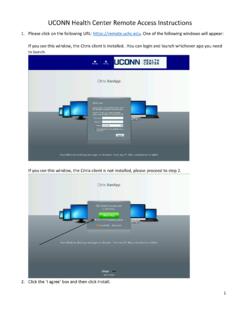
1 Citrix Remote access allows employees to access all parts of the city s computer network from any PC with internet connectivity. How to download the Citrix client Follow these steps to download the Citrix client (Receiver or Workspace). 1. With a web browser, access this URL: Result: The installation screen appears. (Shown to the immediate right.) 2. Select the I checkbox. Click Install. Result: The Run or Save pop-up window appears. 3. Click Run. Result: The installation wizard opens with a welcome message. 4. Click Start. Follow the in-stallation wizard steps.
2 Result: The installation wizard narrates you through the process. 5. Select the I accept the license agreement checkbox, then click Next. (Shown in screen capture to the immediate right.) 6. Do not select the Enable Single Sign-On checkbox. Click Next. (Shown below.) 7. Complete the installation process by clicking Next. Result: A message appears that concludes the process. How to upgrade to a newer version of Citrix receiver Follow these steps to upgrade your current version of the Citrix client (Receiver or Workspace). 1. With a web browser, access : 2.
3 If Receiver exists on the system, then a notification appears. Select the I checkbox. Click Install. See screen capture to the right. Result: The system downloads a file with the newer version. A notification window appears at the bottom of the page. See image with step 2 circled in red. 3. After the file downloads, click Run. Result: If your computer contains an unsupported version of Citrix , then the system will display a notification. See image with step 3 circled in red. This notification prompts you to acknowledge that the installation process will uninstall an older version of Citrix and delete all previous settings.
4 4. Click OK. Result: The installation wizard appears. See the image with step 4 circled in the red. 5. Click Start. Follow the installation wizard steps. Result: The installation wizard narrates you through the process. 6. Select the I accept the license agreement checkbox, then click Next. See image with step 5 circled in red. 7. Do not select the Enable Single Sign-On checkbox. Click Next. See image with step 6 circled in red. 8. Complete the installation process by clicking Next. Result: A message appears that concludes the process.